
You just saw an incredible AI-generated image on social media — maybe a product mockup with crisp text on it, or a photo-realistic landscape that looked like it was shot on a $3,000 camera. And you thought: I want to do that. The good news? You can, and it costs almost nothing. Google Imagen 4 is the latest AI image generator from Google, and it is now available to anyone with a Google account. Furthermore, it handles something that most AI image tools still struggle with: rendering readable text inside images.
In this guide, you will learn exactly how to use Google Imagen 4 to generate stunning AI images from text prompts — even if you have zero experience with AI tools. We will walk through every step, from creating your account to writing prompts that actually work. As a result, by the end of this article, you will have everything you need to start creating professional-quality images in minutes.
What is Google Imagen 4?
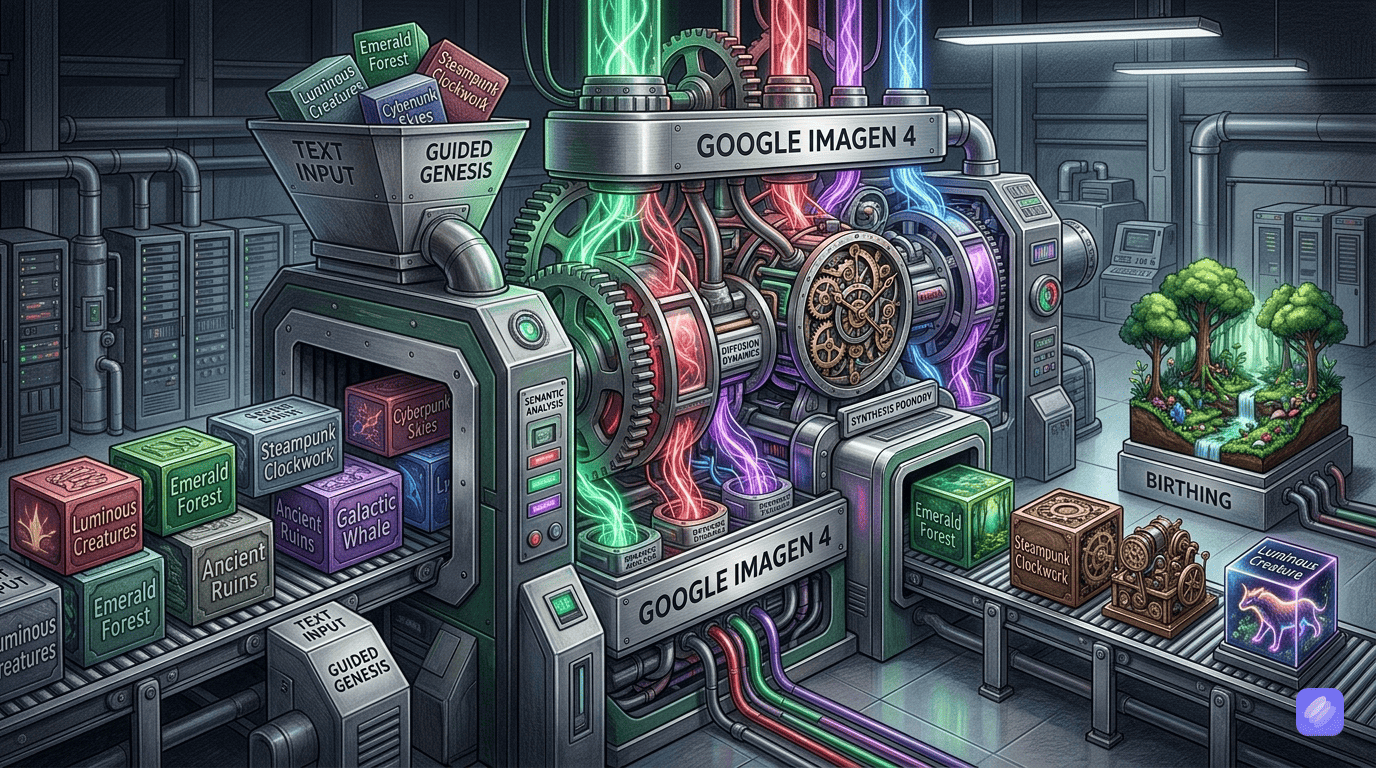
Google Imagen 4 is Google’s most advanced text-to-image AI model. It takes a text description — called a “prompt” — and turns it into a high-quality image in seconds. Think of it like having a professional designer on standby who can create almost anything you describe, at any time, for pennies.
Previously, Google offered Imagen 3 as its image generation model. However, Imagen 3 has since been shut down, and Imagen 4 is now the only option. Consequently, anyone looking to use Google’s AI image generation is working with Imagen 4. The upgrade is significant: better image quality, more realistic outputs, and — most importantly — dramatically improved text rendering.
Why does text rendering matter? Well, imagine you want to create a social media banner that says “Summer Sale 50% Off” in bold letters. Older AI image generators would scramble the text into unreadable gibberish. Imagen 4, on the other hand, can generate crisp, readable text inside images. For anyone creating marketing materials, product mockups, or designs for clients, this is a game-changer.
All images generated by Imagen 4 include SynthID, an invisible digital watermark that identifies the image as AI-generated. As a result, you are automatically complying with AI disclosure requirements without having to do anything extra.
How to access Google Imagen 4 (3 ways to get started)
There are three main ways to use Google Imagen 4, and the right one depends on what you want to do. Here is a breakdown of each method.
Method 1: Google AI Studio (free)
Google AI Studio is the easiest way to try Imagen 4 without spending a dime. It works right in your web browser — no downloads, no coding, no setup.
To get started, follow these steps:
- Go to aistudio.google.com
- Sign in with your Google account
- Click on “Image Generation” in the left sidebar
- Type your prompt in the text box
- Click “Generate” and wait a few seconds
- Download your image or generate more variations
This method is completely free for basic experimentation. You can generate images, tweak your prompts, and explore what Imagen 4 can do without entering a credit card. For beginners, this is absolutely the best place to start.
Method 2: Gemini app (built-in)
If you already use Google’s Gemini chatbot, you can access Imagen 4 directly within the Gemini app. Simply open Gemini, type a prompt that requests an image (for example, “Create a sunset over mountains”), and Gemini will use Imagen 4 to generate it.
This method is convenient because you do not need to switch to a separate tool. However, you have less control over image settings like aspect ratio and resolution compared to AI Studio. Nevertheless, for quick image generation on the fly, it works great.
Method 3: Imagen 4 API (for developers)
If you want to build Imagen 4 into your own apps or workflows, the Gemini API is the way to go. This requires a paid API key and some basic coding knowledge.
Here is how to get set up:
- Go to aistudio.google.com and create an API key
- Upgrade to the paid tier (required for API access)
- Use the REST API or one of Google’s SDKs (Python, JavaScript, Go)
- Send your prompt as an API request with your preferred settings
If you are not a developer, do not worry — Method 1 (AI Studio) covers everything you need. However, if you want to explore API-based tools, our OpenRouter tutorial for beginners explains how to access multiple AI models through a single API interface.
How to generate AI images with Imagen 4 (step-by-step)
Now let’s get into the actual process of creating images. Whether you are using AI Studio or the API, the core workflow is the same: write a prompt, choose your settings, and generate.
Writing effective prompts for Imagen 4
The quality of your output depends almost entirely on the quality of your prompt. A vague prompt like “a dog” will give you a generic image. A detailed prompt like “A golden retriever puppy playing in autumn leaves, close-up photo, warm afternoon light, shallow depth of field, 35mm lens” will give you something stunning.
Here is the basic formula for a great Imagen 4 prompt:
Subject + Context/Background + Style + Technical Details
Let’s break that down:
- Subject: What is the main thing in the image? (e.g., “A minimalist logo”, “A woman drinking coffee”)
- Context/Background: Where is it happening? (e.g., “on a solid white background”, “in a cozy cafe”)
- Style: What artistic direction? (e.g., “professional product photo”, “watercolor painting”, “cinematic”)
- Technical Details: Camera, lighting, quality modifiers (e.g., “35mm portrait”, “natural lighting”, “4K, high quality”)
For photography-style images, start your prompt with “A photo of” and add modifiers like lens type (35mm, 50mm, wide angle, macro), lighting (natural, dramatic, warm), and camera settings (motion blur, soft focus, bokeh).
For art and illustrations, start with “A painting of” or “A sketch of” and specify the medium: pencil, charcoal, pastel, digital art, impressionist, renaissance, pop art.
Example prompts and results
Here are some real prompt examples you can try right now in AI Studio:
Product Photography:
“Professional studio photo of french fries for a high-end restaurant, food magazine style, warm lighting, shallow depth of field”
Set this to a 4:3 aspect ratio for a standard product shot.
Social Media Profile:
“Close-up photo of a woman, street photography style, movie still aesthetic, muted orange tones, film grain”
Use 1:1 aspect ratio for Instagram or profile pictures.
Marketing Banner with Text:
“A poster with text ‘Summer Sale’ in bold modern font, tropical background with palm trees, vibrant colors”
Keep text under 25 characters for the best results. You can specify 2-3 short phrases maximum.
Logo Design:
“Minimalist logo for a healthcare company, clean design on solid white background, text: ‘Journey’ in elegant font”
This is where Imagen 4 really shines — the text “Journey” will actually appear readable in the generated image.
Landscape for YouTube Thumbnail:
“Expansive mountain range at golden hour, landscape wide angle 10mm, dramatic clouds, HDR, 4K”
Use the 16:9 aspect ratio for YouTube thumbnails or blog headers.
Google Imagen 4 pricing: Is it free?
This is one of the most common questions, so let’s break it down clearly.
Google AI Studio: Free to experiment. You can generate images in the AI Studio playground without paying anything. This is the best way to learn and practice.
Gemini API (Paid tier): Per-image pricing. Once you move to the API, Google charges per image based on the model variant you choose:
| Model | Price Per Image | Resolution Options |
|---|---|---|
| Imagen 4 Fast | $0.02 | 1K (default) |
| Imagen 4 Standard | $0.04 | 1K, 2K |
| Imagen 4 Ultra | $0.06 | 1K, 2K |
Each request generates 1 to 4 images. Therefore, a single request with the Fast model costs just $0.02 for one image, or $0.08 for the maximum four images. Meanwhile, the Ultra model at $0.06 per image gives you the highest quality at $0.24 for a full batch of four.
To put that in perspective, generating a high-quality image through Imagen 4 Ultra costs less than a quarter. For comparison, Midjourney charges $10-60 per month for a subscription, and DALL-E 3 runs $0.04-0.08 per image through OpenAI’s API. As a result, Imagen 4 is one of the most affordable options on the market — especially at the Fast tier.
Imagen 4 vs Midjourney vs DALL-E: Which is best for beginners?
If you are choosing your first AI image generator, here is how the top three compare for beginners:
Ease of Use: Google Imagen 4 wins here. The AI Studio interface is clean and simple, and you can start generating images in under a minute. Midjourney requires a Discord account, and DALL-E 3 lives inside ChatGPT. Imagen 4 feels the most accessible.
Text Rendering: Imagen 4 is the clear leader. The ability to generate readable text inside images sets it apart from both Midjourney and DALL-E 3, which still struggle significantly with text accuracy.
Image Quality: All three produce impressive results, but they excel in different areas. Midjourney tends to produce more artistic, stylized images. DALL-E 3 is great at following complex instructions. Imagen 4, on the other hand, produces highly realistic, photo-quality outputs that are perfect for commercial and marketing use.
Pricing: Imagen 4’s pay-per-image model ($0.02-0.06) is the most flexible. You only pay for what you use. Midjourney’s subscription model means you pay even on months you do not use it. If you want to explore different AI ecosystems more broadly, our Claude vs ChatGPT vs Gemini comparison covers the full landscape of AI tools and which ones are worth your time.
Bottom Line: For most beginners, especially those interested in creating images with text for marketing or freelance work, Imagen 4 is the best starting point.
10 best prompt tips for Google Imagen 4
These tips will take your results from “okay” to “wow” — even on your first day.
- Be specific about your subject. Instead of “a car,” try “a red 1967 Ford Mustang parked on a rainy street at night, neon reflections on the wet pavement.”
- Use photography terms for realistic images. Words like “35mm portrait,” “bokeh,” “natural lighting,” and “shallow depth of field” signal the model to create photo-realistic outputs.
- Match your aspect ratio to your use case. Use 1:1 for social media posts and profile pictures. Choose 16:9 for YouTube thumbnails and blog headers. Select 9:16 for Instagram Stories and TikTok. Pick 4:3 for standard product photography.
- Keep text prompts short. When generating images with text, keep it under 25 characters. Two or three short phrases work best. Longer text gets garbled.
- Specify the art style explicitly. “Digital art,” “oil painting,” “pencil sketch,” “watercolor” — each produces a dramatically different result. Do not leave the style ambiguous.
- Add quality modifiers. Phrases like “4K,” “HDR,” “high quality,” “by a professional,” and “detailed” consistently improve output quality.
- Describe lighting in detail. “Golden hour sunlight,” “dramatic studio lighting,” “soft diffused light,” “neon glow at night” — lighting makes or breaks an image.
- Use camera lens descriptions. “Wide angle 10mm” for landscapes, “50mm portrait” for people, “macro” for close-ups, “fisheye” for creative distortion.
- Iterate, do not expect perfection on the first try. Generate 4 images per request and refine your prompt based on what works. Each iteration teaches you what the model responds to.
- Combine subjects creatively. Imagen 4 handles unusual combinations well. Try mixing styles, eras, and concepts: “A robot barista making coffee in a 1950s diner, vintage film aesthetic.”
Can you use Imagen 4 images commercially?
Yes — with some conditions. Google allows commercial use of images generated through Imagen 4, which means you can use them for client work, marketing materials, social media content, product listings, and more.
However, there are a few important things to keep in mind:
- All Imagen 4 images include SynthID, Google’s invisible watermark that marks them as AI-generated. This is embedded automatically and cannot be removed.
- You should check Google’s official terms of service for the most up-to-date usage rights, as these can change.
- Some regions have specific regulations about AI-generated content in commercial contexts. Always verify the rules for your market.
For freelancers and side hustlers, this is a significant opportunity. You can generate professional-quality product photos, social media graphics, logos, and marketing materials for clients — at a cost of just $0.02-0.06 per image. If you charge a client $50 for a set of product images that cost you $0.24 to generate, the profit margins speak for themselves.
Frequently asked questions about Google Imagen 4
Is Google Imagen 4 free to use?
Yes, you can use Google Imagen 4 for free through Google AI Studio. The API access requires a paid tier, but experimenting and learning costs nothing.
What happened to Imagen 3?
Google has shut down Imagen 3 and replaced it entirely with Imagen 4. Imagen 4 is now the only Google image generation model available.
How many images can I generate at once?
You can generate between 1 and 4 images per request in AI Studio or through the API.
What resolutions does Imagen 4 support?
The Fast model supports 1K resolution. The Standard and Ultra models support both 1K and 2K resolutions.
Can Imagen 4 generate text inside images?
Yes, this is one of its standout features. You can specify text in your prompt (up to 25 characters), and Imagen 4 will render it clearly. For example: “A poster with text ‘Summer Sale’ in bold font.”
What languages does Imagen 4 support for prompts?
Currently, Imagen 4 only supports English prompts. Prompts can be up to 480 tokens long (roughly 300-400 words).
Is Imagen 4 better than Midjourney?
It depends on your needs. Imagen 4 is better for text rendering, realistic photography, and ease of access. Midjourney tends to produce more artistic, stylized images. For most beginners and commercial use cases, Imagen 4 is the stronger choice.
Final thoughts
Google Imagen 4 is, without question, one of the most accessible and capable AI image generators available right now. You can start generating images for free in under a minute through AI Studio, upgrade to the API when you need more control, and create professional-quality outputs — including images with readable text — for just pennies per image.
The best way to learn is to start. Open Google AI Studio, type your first prompt, and see what happens. You might be surprised by what you can create on day one. For more Google AI tools, check out our guide to Google Gemini 3.5 Flash Search to explore what else Google’s AI ecosystem has to offer.