
Adobe wants $276 a year for Photoshop. Grok wants nothing. Both now let you edit images with layers. The question isn’t whether Grok is as powerful — it’s not. The question is whether you actually need Photoshop’s power, or just its marketing.
I tested both on the same five workflows. Background removal. Object replacement. Aspect ratio fixes. Complex compositing. Batch edits. Grok handled three of five competently. Photoshop handled all five, obviously. But here’s the thing: for social media, concept art, and quick iterations, Grok’s free tier is genuinely usable. And that changes the math for a lot of people.
The Problem: Photoshop’s Price Tag
$22.99 a month. Every month. Forever. That’s the single-app plan. Creative Cloud is $59.99. You’re not buying software anymore — you’re renting it. Stop paying, stop working.
What you get for that money: the industry standard. Pixel-perfect control. Non-destructive editing with masks, adjustment layers, blending modes, smart objects. CMYK for print. Integration with Illustrator, InDesign, After Effects. Thirty years of refined workflows. It’s the best. No argument.
But most people don’t need “the best.” They need “good enough, now, for free.”
I learned this the hard way. Paid for Creative Cloud for three years. Used maybe 15% of it. The rest was guilt — paying for tools I “might need.” Canceled last month. Haven’t missed it once.
Enter Grok: Free AI with “Layers”
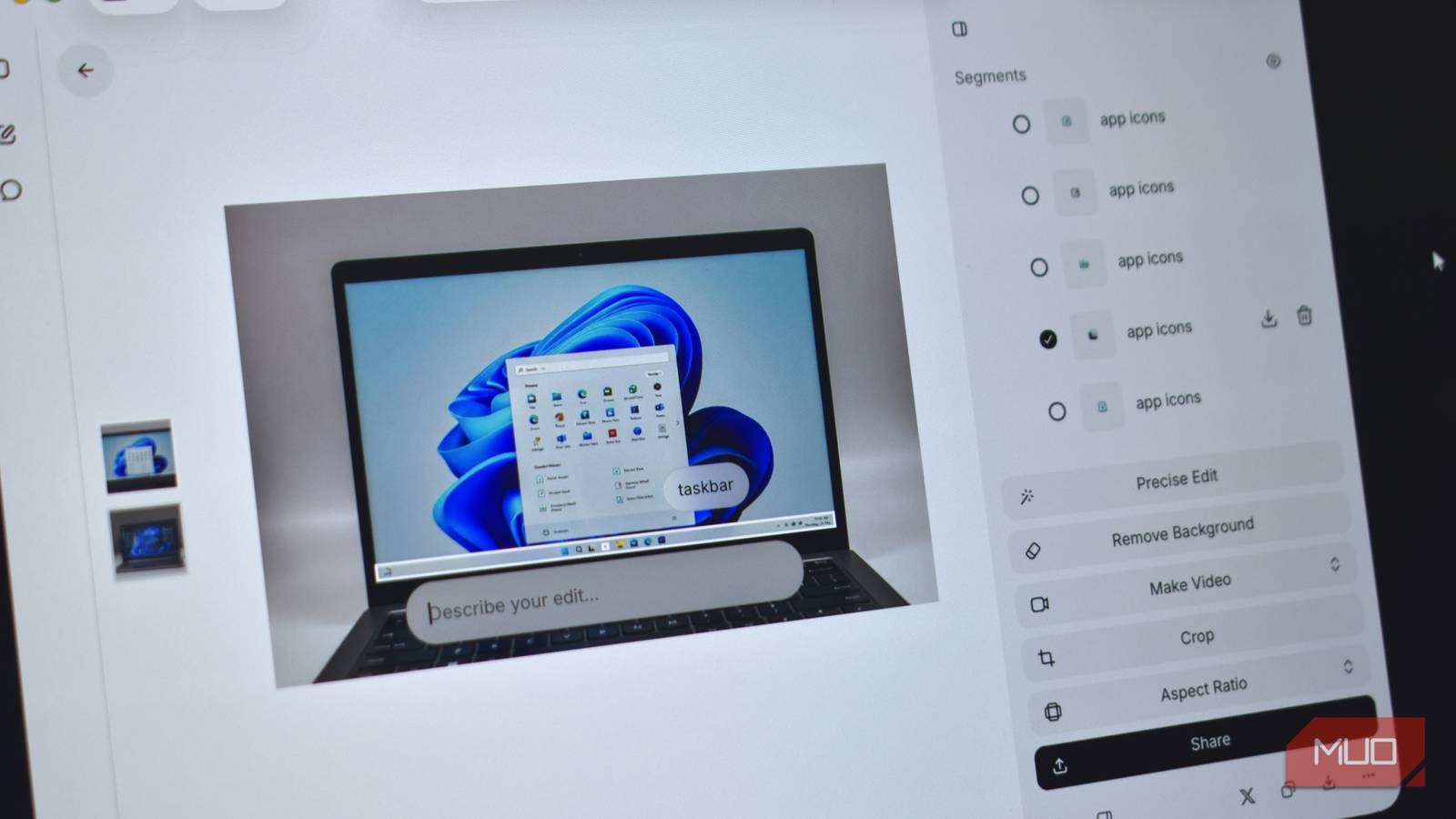
xAI dropped Imagine Image 2.0 in August 2026. The headline feature: automatic segmentation. Grok analyzes your generated image, identifies distinct objects — people, screens, furniture, text elements — and turns each into a selectable segment. Click a segment. Type a change. Grok regenerates just that part.
It looks like Photoshop layers. It behaves like Photoshop layers. It is not Photoshop layers.
| Feature | Grok (Free) | Photoshop ($23/mo) |
|---|---|---|
| Auto-segmentation | ✅ | ❌ |
| Manual layer creation | ❌ | ✅ |
| Layer masks | ❌ | ✅ |
| Blending modes | ❌ | ✅ |
| Adjustment layers | ❌ | ✅ |
| Precise transform (rotate/scale/skew) | Limited | Full |
| Background removal | ✅ | ✅ |
| Reference images | 5 max | Unlimited |
| Smart resize / content-aware fill | ✅ | ✅ |
| CMYK / print workflow | ❌ | ✅ |
| Batch processing / actions | ❌ | ✅ |
Grok’s segments are AI-detected. You don’t create them. You can’t nest them. You can’t mask them. You select, you prompt, you accept or retry. That’s the workflow.
Head-to-Head: Real Workflow Tests
Test 1: Background Removal
Task: Remove background from a product photo, keep clean edges.
Grok: One click on “background” segment → “remove background” → done. Edges clean on simple shapes. Struggles with hair, fine details, transparent objects. Took 15 seconds.
Photoshop: Select Subject → Refine Edge → Output to Layer Mask. Full control over edge feathering, decontamination, fringe removal. Took 2 minutes.
Winner: Grok for speed on clean subjects. Photoshop for anything complex.
Test 2: Object Replacement
Task: Change the shirt color on a person from red to blue. Keep lighting, shadows, fabric texture.
Grok: Click shirt segment → “make this shirt blue” → regenerates shirt. Lighting mostly matches. Texture sometimes shifts. No way to constrain the edit to just hue — it reimagines the whole object. Took 30 seconds, 3 retries for acceptable result.
Photoshop: Hue/Saturation adjustment layer clipped to shirt layer. Mask refined. Texture preserved perfectly. Non-destructive — change your mind later. Took 45 seconds.
Winner: Photoshop. Grok’s generative approach is unpredictable for targeted edits.
Test 3: Aspect Ratio Change (Smart Resize)
Task: Convert a 16:9 landscape to 9:16 vertical for Reels/TikTok. Fill new space naturally.
Grok: “Smart Resize” button → pick 9:16 → Grok extends canvas, hallucinates continuation. Works surprisingly well for gradients, skies, simple patterns. Fails on structured scenes (buildings, interiors). Took 10 seconds.
Photoshop: Content-Aware Scale → protect subject → extend. Or Generative Fill (Firefly) on each new area. More control, better results on complex scenes. Took 2 minutes.
Winner: Grok for simple backgrounds. Photoshop for anything with structure.
Test 4: Complex Compositing
Task: Combine product shot + lifestyle background + text overlay + color grading. Match lighting across elements.
Grok: Not possible. No layer stacking. No blending modes. No adjustment layers. Can’t place text precisely. Can’t match color temperature. Each element would need separate generation, then manual assembly elsewhere.
Photoshop: Standard workflow. Smart objects for non-destructive transforms. Curves for color matching. Blend If for realistic integration. Text on path. Full control.
Winner: Photoshop. Grok doesn’t compete here.
Test 5: Batch Edits
Task: Apply same background removal + resize to 50 product photos.
Grok: No batch mode. One by one. 50 × 15 seconds = 12.5 minutes of clicking.
Photoshop: Action + Batch → 50 files processed in background. 30 seconds setup, 2 minutes run.
Winner: Photoshop by a landslide.
The Catch: Where Grok Falls Short
The MakeUseOf review nailed it: “Segments resemble Photoshop layers but lack precise controls for moving, resizing, masking, and blending elements.”
That’s the entire difference. Photoshop layers are containers you control. Grok segments are AI interpretations you influence.
No layer masks means you can’t hide part of a segment non-destructively. You regenerate or you don’t.
No blending modes means no multiply for shadows, no screen for highlights, no overlay for texture. Compositing is impossible.
No adjustment layers means no curves, levels, color balance, hue/saturation applied non-destructively. Color grading = regenerate with new prompt.
No precise transform means you can’t nudge a segment 3 pixels left, rotate 2.5 degrees, scale 97%. You prompt “move slightly left” and hope.
Commercial use requires X Premium ($8/mo) or Premium+ ($16/mo). Free tier is personal only. Photoshop’s license is unambiguous commercial.
The Hidden Cost: Iteration Time
Here’s what the feature tables don’t tell you. Grok is fast for the first attempt. But when it gets something wrong — and it will — you’re stuck in a prompt-retry loop. Each retry takes 15-30 seconds. Three retries and you’ve matched Photoshop’s manual time. Five retries and you’ve exceeded it.
Photoshop is slower to start. But it’s predictable. You make an edit, it stays edited. You don’t wake up to find the AI “helpfully” changed something else while fixing your requested change.
Canva Pro: The Middle Ground?
$15/mo. Magic Layers (manual segments with more control than Grok). Background remover. Magic Resize. Brand kit. Templates. It’s not Photoshop. It’s not trying to be. It’s a design tool for non-designers.
For social media managers, Canva often beats both. Faster than Photoshop. More controllable than Grok. But it’s not free.
Verdict: Who Should Use What
Use Grok (Free) if:
– You need quick concept variations
– Social media content, not print
– Background removal on clean subjects
– Aspect ratio changes for simple scenes
– You’re exploring ideas, not finalizing deliverables
– Budget is zero
Use Photoshop ($23/mo) if:
– Client work requires pixel perfection
– Print production (CMYK, bleed, color profiles)
– Complex compositing / photo manipulation
– Non-destructive workflow is non-negotiable
– Batch processing hundreds of assets
– You need integration with Creative Cloud
Use Canva Pro ($15/mo) if:
– You make social content daily
– Templates and brand consistency matter
– You want more control than Grok, less complexity than Photoshop
– Team collaboration on designs
The Honest Answer
Can free AI image editing replace paid tools? For maybe 60% of what people actually do with Photoshop — yes. For the other 40% — the part that pays the bills — no.
But here’s what’s interesting: that 60% used to be 10% a year ago. The line keeps moving. Adobe knows it. That’s why Firefly exists. That’s why they’re adding generative fill to everything.
If you’re paying for Photoshop and only using it for background removal and resizing — cancel. Use Grok. Put the $276/year toward something else.
If you’re a designer, keep Photoshop. It’s not going anywhere. But add Grok to your ideation phase. Generate 20 concepts in 5 minutes. Pick the best. Finish in Photoshop. That’s the workflow going forward.
Takeaway
Grok isn’t a Photoshop killer. It’s a Photoshop reducer. It handles the grunt work freeing you to do the craft work in the pro tool — or skip the pro tool entirely if your work doesn’t demand it.
Try Grok on your next three image tasks. If it handles them, you just saved $276. If it doesn’t, you know exactly why you’re paying Adobe. Either way, you’re making an informed decision instead of defaulting to a subscription.
That’s the win.