
Typing is slow. Your brain moves faster than your fingers, especially when you’re trying to explain something complex or outline a document. Google just made the Gemini for Mac voice commands update live, and it solves this problem in a way that feels almost too easy. You talk. Gemini writes, edits, and summarizes, right inside whatever app you’re using.
What just changed in the Gemini Mac app
The Gemini app for macOS already existed. You could type prompts, get answers, generate images, do all the usual AI assistant things. But the latest update, announced July 29, 2026, added something genuinely new: natural language voice input that goes beyond basic dictation.
Before this update, voice features in most AI apps felt bolted on. You’d talk, the app would transcribe, and then you’d have to manually copy the text where you wanted it. Two steps. Annoying.
Gemini for Mac voice commands work differently. You speak naturally, no special command syntax needed, and Gemini processes what you said. It can transcribe a meeting recording, edit a document you’re working on, or summarize a long article. Then it drops the result directly into the app you’re already using. No switching windows. No copy-paste.
This is the part that matters. The friction between “having an idea” and “getting it written down” is one of the biggest productivity killers. Voice commands that actually understand context and integrate with your workflow can eliminate that friction entirely.
How to set up voice commands
Getting started takes about two minutes if you already have the Gemini app installed.
First, make sure you’re running the latest version of the Gemini app for macOS. Open the App Store on your Mac, search for Gemini, and update if needed. If you’ve never installed it, download it from the App Store and sign in with your Google account.
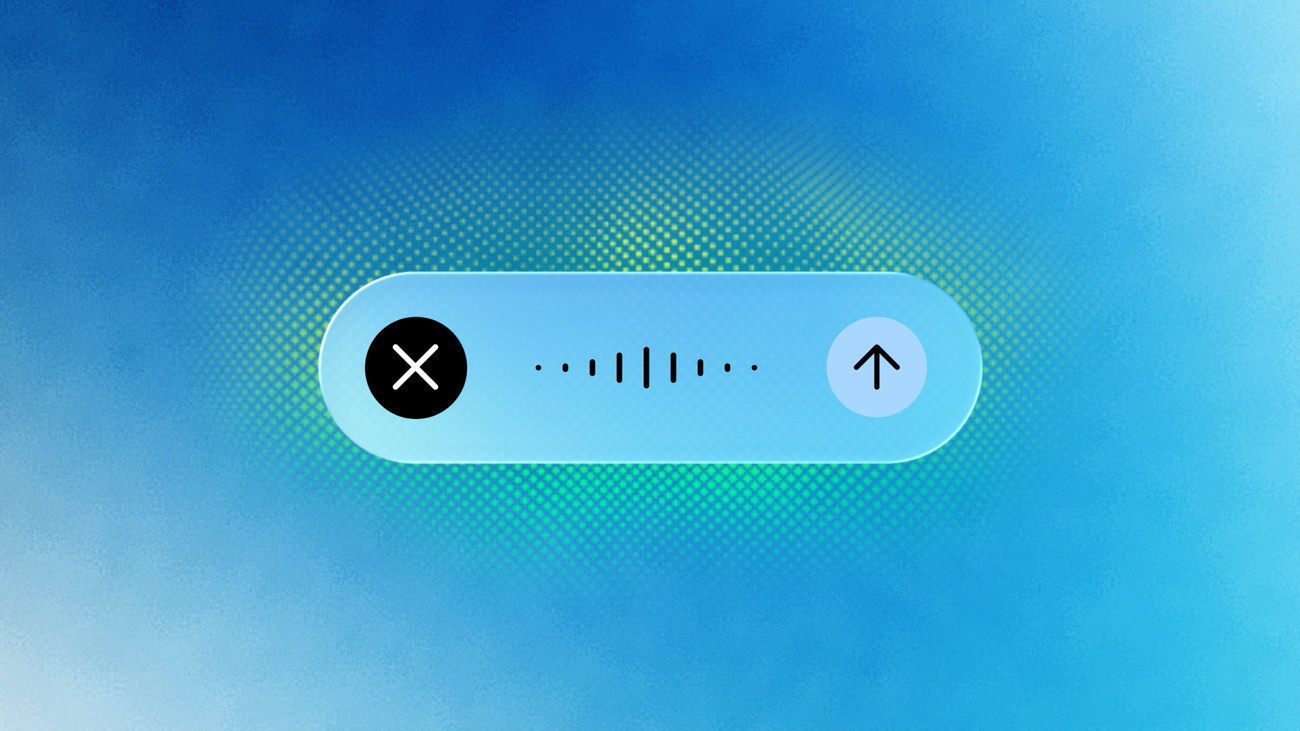
Once the app is open, look for the microphone icon. It should be visible in the main interface, usually near the text input area. Click it once to start a voice session.
The first time you use it, macOS will ask for microphone permissions. This is standard. Click “Allow” and you’re set. The permission applies only to the Gemini app, not your entire system.
Now for the important part. You don’t need to learn command phrases. Just talk to Gemini the way you’d talk to a colleague. Want a summary of a document? Say “summarize this article for me.” Need to clean up a rough draft? Say “polish this paragraph and make it more concise.” Want to brainstorm? Say “give me five ideas for a blog post about productivity apps.”
If you’re interested in other Gemini features beyond voice, Gemini can now see your Mac’s screen too, which opens up even more possibilities for hands-free productivity.
What you can do with Gemini voice on Mac
The range of tasks is wider than you might expect. This isn’t just transcription. Gemini processes your voice input as a prompt, which means it can reason about what you said and take action.
Let’s break down the most useful capabilities.
Voice transcription while working
This is the bread and butter. You’re in a meeting, on a call, or just thinking out loud. Instead of typing notes frantically, you talk.
Gemini listens, transcribes, and cleans up the output. So if you ramble a bit, repeat yourself, or lose your train of thought, the transcription will still be coherent. It removes filler words, fixes grammar, and organizes the content.
You can direct it too. Say “take notes on the following points” and list them verbally. Or say “transcribe this and format it as a bulleted list.” The output drops into whatever app is active. Notes app, Pages, a Google Doc in your browser, it works across the board.
Voice editing and summaries
This is where Gemini for Mac voice commands get genuinely impressive. You can ask Gemini to edit existing text by voice.
Imagine you’re reviewing a long document in your text editor. Instead of selecting, deleting, retyping, you say “make the second paragraph shorter and add a transition to the next section.” Gemini processes the instruction and applies the edit.
Same thing with summaries. Paste a 5,000-word article into your notes app, switch to Gemini, and say “summarize this in three bullet points.” The result appears in seconds, formatted and ready to use.
For people who work with large amounts of text, writers, researchers, students, this alone could save hours per week. The combination of voice input plus AI processing plus direct integration with your active app is something no other Mac AI tool does quite this smoothly right now.
How it compares to other Mac AI tools
Apple Intelligence has its own voice features built into macOS. Siri can take dictated text and do basic things with it. But Apple’s offering is still limited compared to what Gemini can do.
The difference comes down to reasoning. Siri transcribes and follows simple commands. Gemini understands context, can process complex instructions, and generates substantive content. You can ask Gemini to “write a professional email declining a meeting invite and suggesting two alternative times” and get a polished result. Siri would struggle with that level of nuance.
Other third-party tools exist. Whisper-based apps handle transcription well but don’t do AI processing. Dedicated AI voice generators create realistic speech but aren’t designed for productivity workflows. Gemini occupies a unique middle ground: voice input, AI processing, and app integration in one package.
That said, Gemini’s voice features are still evolving. Complex instructions sometimes get misinterpreted. Background noise can affect accuracy. And the app integration depends on which apps you’re using, not every Mac app plays nicely with the system.
Real workflows that actually save time
Talking about features is one thing. Seeing how they fit into an actual workday is another. Here are three concrete scenarios where Gemini for Mac voice commands shine.
Scenario one: the meeting debrief. You just finished a 45-minute call. Instead of typing up notes from memory, open your notes app, activate Gemini voice, and talk through what happened. “We discussed the Q3 roadmap, Sarah raised concerns about the timeline, and we agreed to push the launch to September.” Gemini organizes that into clean, structured notes. Two minutes of talking replaces fifteen minutes of typing.
Scenario two: the email triage. You’re staring at a long email chain and need to respond thoughtfully. Read through it, then say to Gemini: “Draft a reply that acknowledges their concern about pricing, offers a 10% discount as a goodwill gesture, and asks for a call Thursday to finalize.” You get a polished draft. Tweak it if needed, or send it as-is.
Scenario three: the content brain-dump. You have ideas for a blog post, a newsletter, and a social media campaign bouncing around your head. Don’t open three documents and switch between them. Just talk. “Here’s what I want to cover in the blog post about productivity tools. First, the problem with multitasking. Second, three tools that help. Third, a quick setup guide.” Gemini captures the structure. You refine later.
The common thread here is simple: speaking is faster than typing for most people, especially when ideas are still forming. Gemini for Mac voice commands capture the messy, unstructured thoughts and turn them into something organized. That’s where the real time savings come from.
Who should actually use this
If you spend significant time writing, editing, or processing text on a Mac, the Gemini for Mac voice commands update is worth trying. The setup is free, the learning curve is minimal, and the productivity gains are real.
People who benefit most: writers who want to draft by speaking, professionals who take lots of notes in meetings, students who need to process reading material, and anyone who thinks faster than they type.
The barrier is essentially zero. Download the app, grant microphone access, start talking. If it doesn’t work for your workflow, you’ve lost two minutes. If it does, you’ve found a genuinely faster way to work.
Gemini for Mac voice commands won’t replace your keyboard. But for the moments when speaking is faster, clearer, or just more natural, having a capable AI assistant that listens, thinks, and acts right where you’re working is a genuine productivity upgrade.