
The first time I let an AI agent loose on my PC, I sat and watched it type commands faster than I could read. It installed packages, moved files, edited configs — on the same Windows install that holds my tax documents, my photo library, a decade of work. The experiment ended the day it ran a cleanup command in a folder I never pointed it at. Nothing important was lost. But the lesson stuck: an agent runs with your permissions, and your permissions can do damage.
Not using agents isn’t an option anymore. They’re too useful. But trusting them with your real machine? Also not an option. Turns out Windows already ships with a disposable PC hidden inside it. A cage that builds itself in seconds and burns down the moment you close the window.
The Problem: AI Agents Have Your Permissions
One Wrong Command = Deleted Tax Documents
AI agents with shell access (Auto-GPT, OpenInterpreter, local coding agents, browser automation tools) can do anything you can do. They run as your user. They inherit your file access, your network access, your installed tools.
Antivirus won’t flag an agent that deletes the wrong folder. Nothing about rm -rf ~/Documents looks like malware — it’s just a command your user is allowed to run. The agent doesn’t know it’s a mistake. It’s just following the plan.
Why Antivirus Doesn’t Help
Traditional security tools look for malicious patterns: known exploits, suspicious network calls, ransomware behavior. An AI agent doing exactly what you asked — just in the wrong directory — is invisible to all of them. The threat isn’t malware. It’s competence without context.
You need isolation. Not “be careful.” Not “read the code first.” Real, enforced isolation.
Windows Sandbox: Your Built-In Disposable PC
What It Is (And Isn’t)
Windows Sandbox is a lightweight virtual machine that:
– Runs on Microsoft’s hypervisor (same tech as Hyper-V)
– Has its own kernel, completely walled off from your host
– Shares your host’s Windows binaries (so it boots in ~5 seconds)
– Takes ~500MB disk space (not a full second Windows install)
– Destroys everything on close — files, registry changes, installed apps, network state
It’s not a persistent VM. It’s not a container (Docker/WSL2 share the kernel). It’s a fresh Windows desktop that exists only while the window is open.
Pro/Enterprise/Education Only — Home Users Read This
Windows Sandbox requires Windows 10/11 Pro, Enterprise, or Education. Home edition doesn’t include it. Check: Settings → System → About → Edition.
If you’re on Home, skip to the “Windows Home Alternative” section below. VirtualBox and VMware Player are free and work on Home. WSL2 with isolation is another path. But Sandbox is the only one that’s built in, zero-config, and disposable by design.
Enable Windows Sandbox in 3 Steps
Turn On the Feature
- Press
Win + R, typeoptionalfeatures, hit Enter - Scroll to Windows Sandbox, check the box
- Click OK, wait for “Windows completed the requested changes”
Restart
Yes, really. The hypervisor components need a reboot.
Verify It Works
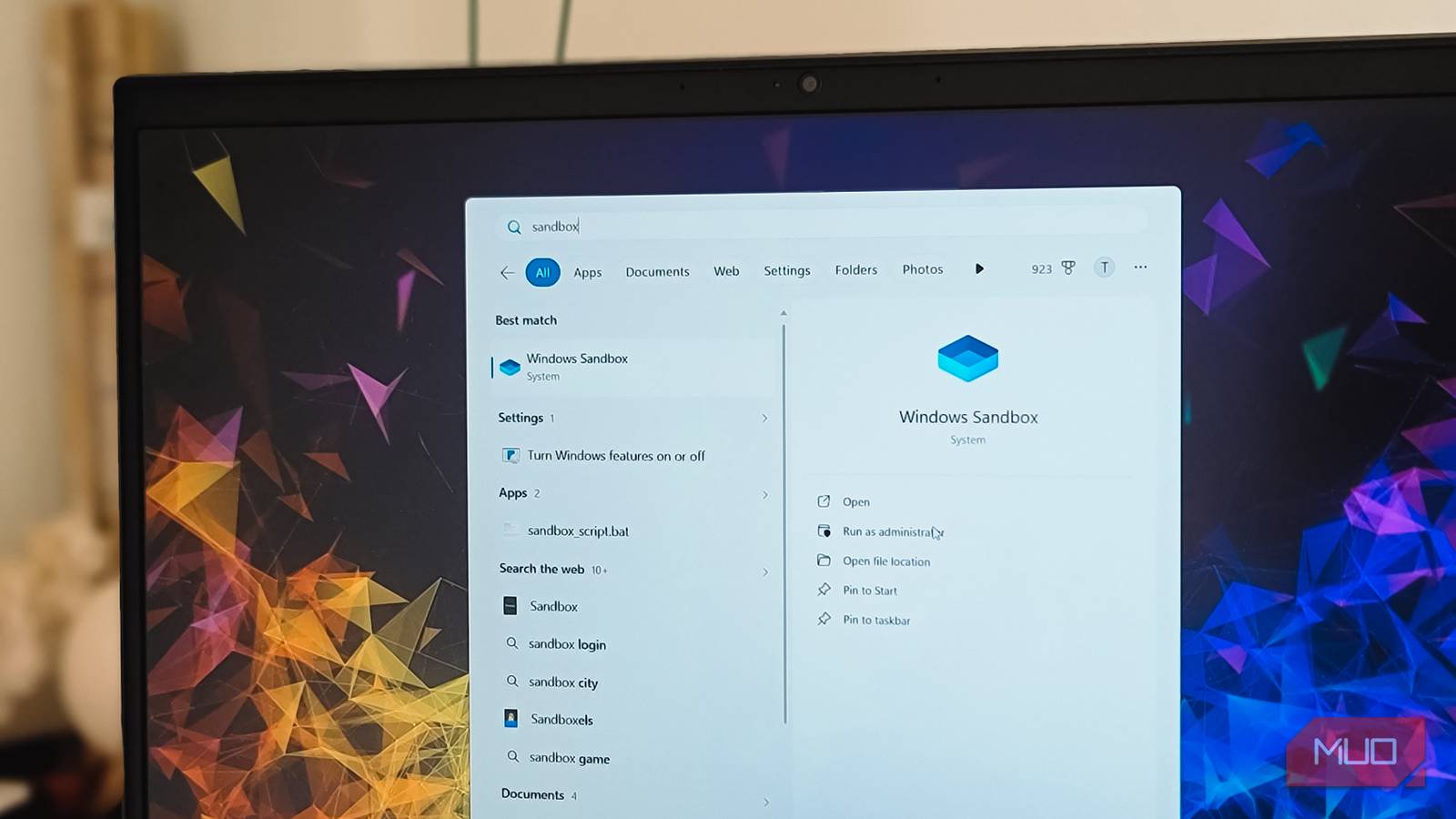
Start Menu → type “Windows Sandbox” → open it. You should see a clean Windows desktop in a window. Close it. Open again — fresh desktop. That’s it. You’re ready.
The .wsb Config File: Your Safety Rules
Out of the box, Sandbox is a blank desktop with internet access. Fine for testing an installer. For AI agents, you want stricter rules. Sandbox reads those rules from a plain text file with a .wsb extension.
Copy-Paste Config for AI Agents (No Network, Read-Only Projects)
Save this as agent-sandbox.wsb:
<Configuration>
  <Networking>Disable</Networking>
  <ClipboardRedirection>Disable</ClipboardRedirection>
  <ProtectedClient>Enable</ProtectedClient>
  <MappedFolders>
    <MappedFolder>
      <HostFolder>C:\Users\YOURNAME\Projects</HostFolder>
      <SandboxFolder>C:\Users\WDAGUtilityAccount\Desktop\Projects</SandboxFolder>
      <ReadOnly>true</ReadOnly>
    </MappedFolder>
  </MappedFolders>
</Configuration>
Edit YOURNAME to your actual Windows username. The WDAGUtilityAccount is the sandbox’s default user — don’t change that.
What Each Setting Does
| Setting | Value | Why |
|---|---|---|
Networking |
Disable |
Agent can’t phone home, can’t download more tools, can’t exfiltrate data |
ClipboardRedirection |
Disable |
Prevents accidental copy/paste between sandbox and host |
ProtectedClient |
Enable |
Hardens sandbox against debugging/inspection escape attempts |
MappedFolders + ReadOnly=true |
Your project folder | Agent can read your code but cannot modify or delete anything |
Add more <MappedFolder> blocks for each project folder you want the agent to access. Keep ReadOnly=true unless you specifically want the agent to write files back (e.g., generating code into your repo).
How to Launch With Your Config
Option A: Double-click the .wsb file. Sandbox opens with your rules applied.
Option B: Command line (for scripts/shortcuts):
"C:\Program Files\Windows Sandbox\WindowsSandbox.exe" C:\path\to\agent-sandbox.wsb
Option C: Shortcut on desktop. Right-click → New → Shortcut → paste the command above. Pin to taskbar.
Running Your First Agent in the Sandbox
Install the Agent Inside the Sandbox
The sandbox starts clean. No Python, no Node, no Git, no agent. You have two choices:
A. Pre-install via script (recommended for repeat use)
Create a setup.bat in your mapped Projects folder (read-only, so copy it to sandbox desktop first):
@echo off
winget install Python.Python.3.11 Git.Git NodeJS.NodeJS
pip install open-interpreter auto-gpt  # or your agent of choice
Run it once per sandbox session. Takes 2-3 minutes.
B. Install manually each time
Open PowerShell in sandbox → winget install ... → pip install ... → run agent. Fine for one-offs.
Run It — Watch It Work
Launch your agent inside the sandbox. Give it a task:
“Refactor the auth module in C:\Users\WDAGUtilityAccount\Desktop\Projects\myapp”
Watch it read files, analyze, propose changes. It can’t write back (ReadOnly). It can’t access the internet (Networking=Disable). It can’t touch your real Documents folder. The worst it can do? Fill the sandbox’s disk. Close the window → gone.
Close the Window — Everything’s Gone
This is the magic. No cleanup. No “did I remember to revert?” No snapshots. The sandbox process ends, the hypervisor tears down the VM, and the memory/disk state is discarded. Next launch = factory fresh.
Windows Home? Here’s Your Alternative
VirtualBox / VMware Player (Free)
- Download VirtualBox (virtualbox.org) or VMware Player (vmware.com)
- Create a VM: Windows 10/11 ISO (free from Microsoft)
- Install Windows in VM (20-30 min one-time)
- Snapshot the clean state → this is your “sandbox”
- Before each agent session: restore snapshot (30 seconds)
- Run agent in VM
- After: restore snapshot again
Pros: Works on Home, persistent if you want, full OS control
Cons: Heavier (15-20GB), manual snapshot/restore, slower boot
WSL2 with Isolation (Advanced)
WSL2 runs a real Linux kernel in a lightweight VM. You can run agents in Linux inside WSL2:
wsl --install -d Ubuntu
# Inside WSL:
sudo apt update && sudo apt install python3 python3-pip
pip install your-agent
Isolation: WSL2 shares the host kernel but has its own filesystem. Mount Windows drives read-only:
# In /etc/wsl.conf
[automount]
options = ro,metadata
Restart WSL: wsl --shutdown then reopen.
Pros: Lightweight, Linux toolchain native, no Windows license issue
Cons: Linux only (no Windows-specific agents), kernel sharing = theoretical escape surface, more setup
The Verdict: Sandbox vs VM vs Cloud
| Factor | Windows Sandbox | VirtualBox/VMware | Cloud API (Claude/GPT) |
|---|---|---|---|
| Setup time | 2 min (enable + reboot) | 30 min (install OS) | 0 min |
| Disk space | ~500 MB | 15-20 GB | 0 |
| Boot time | ~5 seconds | 30-60 seconds | N/A |
| Persistence | None (by design) | Optional (snapshots) | N/A |
| Network control | On/off (config) | Full firewall control | N/A |
| Windows Home | ❌ No | ✅ Yes | ✅ Yes |
| GPU access | Limited (WDDM) | Yes (passthrough) | N/A |
| Cost | Free (built-in) | Free | Pay per token |
| Best for | Quick agent tests, Windows agents | Persistent env, GPU needs | Heavy reasoning, no local setup |
My rule of thumb:
– Quick test / Windows agent / no GPU needed → Windows Sandbox
– Need GPU / persistent environment / Linux agent → VirtualBox + snapshot
– Need maximum capability / don’t want local hassle → Cloud API (accept the privacy/cost tradeoff)
The sandbox isn’t perfect. No GPU acceleration for local models. Windows Home excluded. Networking is binary (on/off, no granular rules). But for the 80% case — “I want to run this coding agent on my project without it deleting my drive” — it’s the best tool you already have.
Enable it. Create one .wsb file. Next time an agent asks for shell access, you’ll have a cage ready. Your tax documents will thank you.