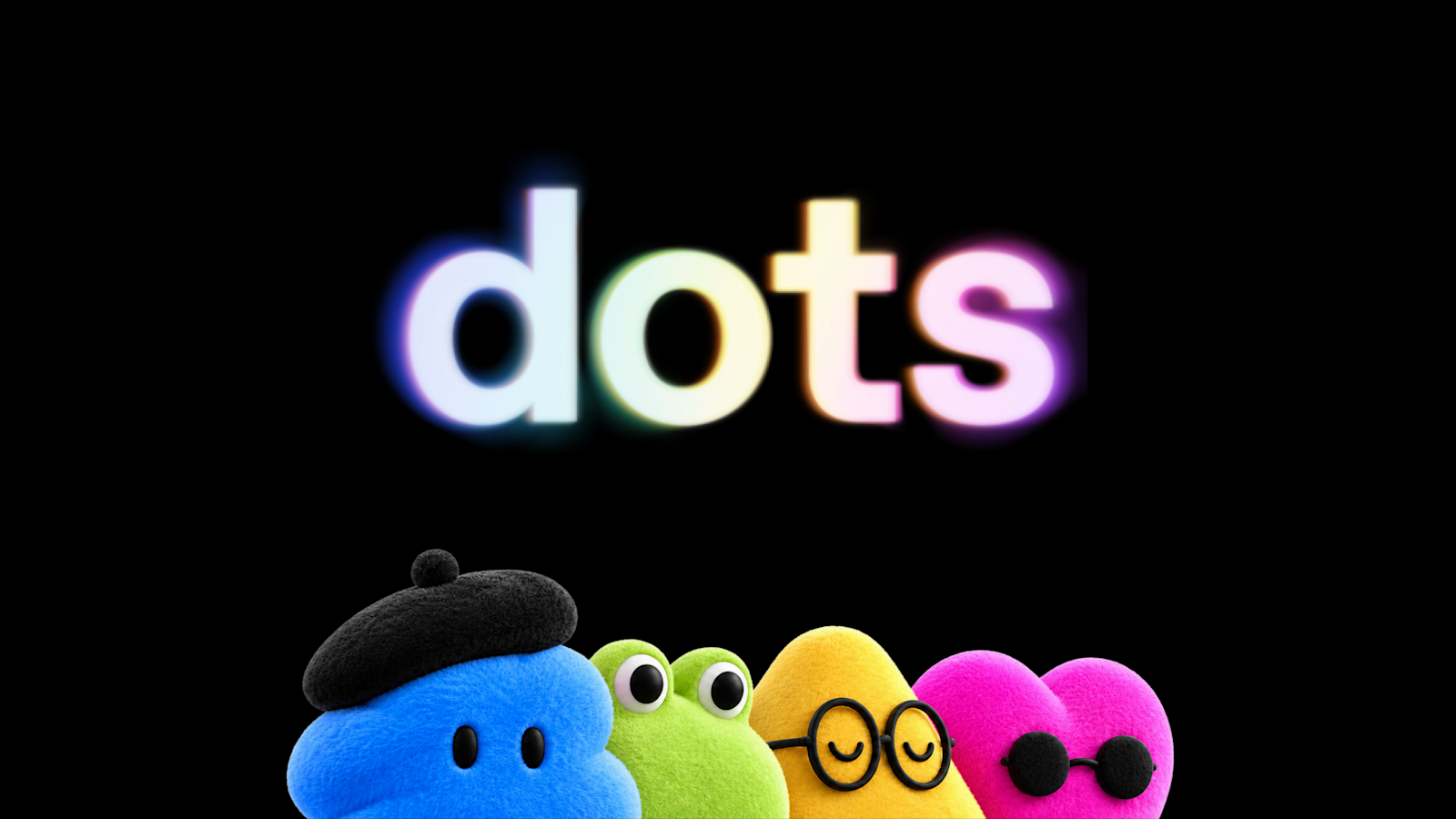

Your AI forgets you the second you close the tab. OpenAI dots is the company’s attempt to fix exactly that: an always-on AI agent that keeps chipping away at your work while you do anything else. Setup takes about ten minutes, and I’ll walk you through every click.
What OpenAI dots actually is
Announced at DevDay on September 29, OpenAI dots are persistent agents that live inside ChatGPT. Instead of answering one prompt and calling it a day, a dot gets its own cloud computer and browser, then keeps working on your goal between conversations. You give it a job, and it makes progress even when you’re offline.
Under the hood, every dot runs on GPT-6 Astra, OpenAI’s flagship model. That matters, because agent work is where weak models fall apart. A dot also connects to more than 4,000 apps through OpenAI’s plugin ecosystem, so it can pull context from the tools you already use.
Here’s the difference in plain terms:
| Regular ChatGPT chat | A dot |
|---|---|
| Waits for your prompt | Works toward goals between chats |
| Forgets when the thread ends | Keeps its own memory over time |
| Runs on OpenAI’s servers, no tools | Gets its own cloud computer and browser |
| One window at a time | Reaches you in ChatGPT, Slack, and Teams |
| No ongoing tasks | Scheduled checks and background research |
That last row is the quiet upgrade. You can schedule a morning calendar review, or let the dot do what OpenAI calls proactive research: it pokes around your connected apps in read-only mode, looking for useful things to flag. It can’t send messages or change anything in that mode. It just watches and learns.
Sound familiar? It should. Meta launched a near-identical concept called Muse, an AI agent that runs your desktop, a few weeks earlier. The always-on agent race is officially on, and dots is OpenAI’s opening move.
What you need before you start
Let’s get the annoying part out of the way first. Dots aren’t available to everyone yet, and the requirements are specific.
- A paid plan. Your first dot is included at no extra cost on ChatGPT Pro ($200/month) and Business Premium ($125/month). OpenAI says cheaper tiers are coming, and the $20 Plus plan is the obvious next stop, but there’s no date yet.
- An eligible region. Pro access skips the European Economic Area, Switzerland, and the UK at launch. Business Premium availability varies by country.
- A desktop app or desktop web. You create a dot only on desktop. Once it exists, you can message it from mobile all you want.
One more thing worth knowing before you spend money: conversations with your dot don’t count toward your ChatGPT usage limits. But tasks it creates in Codex or ChatGPT Work do count as usual. Heavy users should keep that in mind when picking a plan.
Setting up your first dot, step by step
Ready? The whole flow lives in the ChatGPT desktop app. Here’s exactly what to do.
Step 1: Update and open the desktop app
Grab the latest ChatGPT desktop app (or log in on desktop web) and make sure you’re on a plan that includes dots. Look for the dots section in the sidebar. If you don’t see it, your region or plan is probably the blocker, and no amount of app reinstalling will fix that.
Step 2: Create and name your dot
Follow the onboarding prompts. You’ll pick a name and an avatar; the little creature options (frog, rabbit, cloud) are optional but weirdly fun. Your dot gets a handle like @yourname-dot, which changes to @yourname-agentname once you name it. It’ll introduce itself and ask what it should focus on.
Step 3: Connect your apps
This is where the dot gets useful. Connect the apps you want it to work with: Gmail, Slack, your calendar, whatever fits the job. Two things to know here. First, passwords you save for website logins stay hidden from the model itself; the dot can use them without seeing them. Second, disconnecting an app later doesn’t wipe what your dot already learned from it. Connect deliberately.
Step 4: Set your custom rules
Every action a dot takes falls under one of four behaviors you control:
- Take action without asking
- Take action if you pre-approved it in your prompt
- Ask before acting
- Hand the decision back to you entirely
My advice for a first week: set almost everything to “ask before acting.” You’ll get a feel for how the dot interprets your instructions, and you can loosen the reins once it stops doing dumb things. Also note that certain sensitive actions, like changing a password, always stay with you no matter what your rules say. You can’t override that, and honestly, you shouldn’t want to.
Step 5: Give it a real task
Don’t start with “organize my life.” Start with one concrete, checkable job. Good first tasks: “Review my calendar every morning at 7 and flag conflicts”, “Watch this competitor’s pricing page and tell me when something changes”, or “Draft social posts from my new interview transcript and hold them for my approval.” Describe what done looks like. Vague goals produce vague work.
Step 6: Watch it work in Activity View
Activity View shows everything your dot does, including background work. Check it daily at first. If the dot drifts off course, you can redirect it mid-task, pause it from the profile menu, or go full scorched earth with a reset (more on what that deletes below). Scheduled runs live in the Scheduled tab on the dot’s profile.
What a dot can and can’t do
OpenAI’s own examples lean toward knowledge work: monitoring customer feedback and building small fixes as pull requests, rerunning research analyses when new data arrives, drafting content for approval. The pattern is always the same. The dot learns your standards, watches for a trigger, does the work, then brings it back for review. It doesn’t ship things unsupervised unless you tell it to.
The limits matter just as much. At launch, a dot can’t call you first (you have to start the call), and it doesn’t get its own email address, though you can connect yours for it to use. It also can’t touch your actual computer unless you explicitly grant access through the desktop app, which is off by default. And there’s no public API for dots, so developers can’t build on top of them yet. OpenAI is piloting “specialist dots” for companies, but that’s a separate enterprise program.
What OpenAI dots costs
Here’s the current pricing picture, verified against OpenAI’s announcement and coverage from PCMag and Fortune:
| Plan | Price | Dots access at launch |
|---|---|---|
| ChatGPT Plus | $20/month | Not yet, expected later |
| ChatGPT Business Premium | $125/month | First dot included |
| ChatGPT Pro | $200/month | First dot included (excluding EEA, Switzerland, UK) |
| Specialist dots (enterprise) | Custom | Pilot program, per-company setup |
Is $200 steep for one agent? Yeah, it is. You’re paying for the model underneath as much as the agent itself, since every dot runs on GPT-6 Astra. If your time bills at anything close to that, one automated recurring task pays for the difference. If it doesn’t, wait for Plus access instead of forcing it.
Mistakes to avoid with your first dot
A few traps caught my eye in the help docs, and they’re worth 30 seconds of your attention.
Deleting its memories deletes the dot. The memory model has a sharp edge: clearing your dot’s saved memories means the dot itself is gone. You’d rebuild it from scratch. Export or note down anything important before you clean house.
Granting local access too early. Letting a dot work on your actual machine unlocks cool stuff (local files, local skills, fallback browsing), but it’s the kind of permission that’s easy to grant and annoying to think about later. Keep it off until a cloud-only dot proves itself.
Set-and-forget syndrome. An agent that messages people or spends money on your behalf needs supervision, and OpenAI says plainly that dots can make mistakes following your rules. For anything that touches customers or cash, keep “ask before acting” on permanently. The Zapier automation route is a good middle ground for simpler workflows that just follow steps.
And if you’re the type who talks to AI like a person, you’ll like this part: you can literally phone your dot for a voice chat when typing is too much. If text-first agents are more your speed, we’ve also covered Instinct AI, the agent you text like a person.
The takeaway
OpenAI dots turn ChatGPT from a tool you visit into a coworker who never logs off, and setup genuinely takes minutes: desktop app, create the dot, connect apps, write careful rules, hand it one clear task. Start conservative with permissions, check Activity View daily for the first week, and expand what it owns only when it earns it. If you’re on Pro or Business Premium, your first dot is already included, so the only real cost is an afternoon of teaching it your standards.