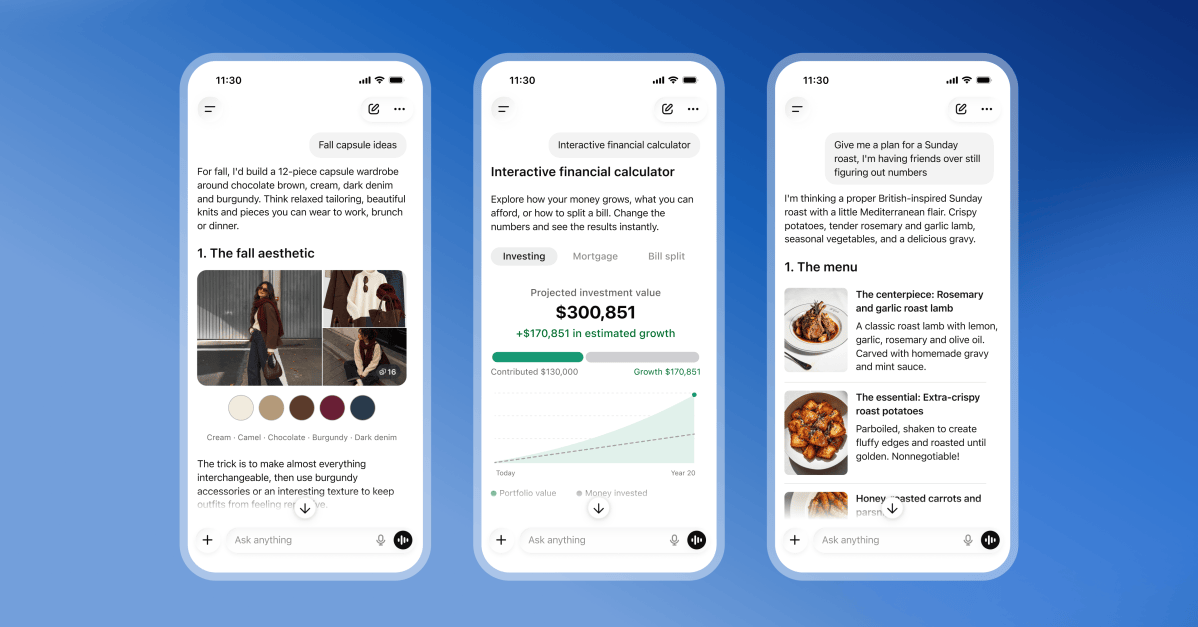

ChatGPT just stopped talking like a chatbot. With the new ChatGPT Intelligent UI rolling out alongside GPT-6, answers now come with charts, buttons, calculators, and even little games you can click through, right inside the chat.
If you opened ChatGPT this week and thought “wait, since when does it do that?”, you’re not alone. OpenAI shipped one of the biggest interface changes in the product’s history, and barely explained it in plain English. The official announcement covers the headlines. Here’s the whole thing, minus the jargon.
What ChatGPT Intelligent UI actually is
ChatGPT Intelligent UI is a new way for the chatbot to build its answers. Instead of always replying with a wall of text, the model now decides, question by question, whether text, visuals, or interactive elements explain things best. That can mean a diagram, a chart, a form you fill in, or tappable buttons inside the conversation.
OpenAI trained GPT-6 to make that call. Ask it how a seven-speed bicycle works, and you might get a diagram with buttons that highlight each part as you click. Ask it to teach you Mahjong, and it can generate each tile visually, sorted into categories you scroll through.
The part people are sleeping on: ChatGPT can now build small tools on demand. A retirement savings calculator. A bill splitter for your group trip. Even a retro game. It generates them in-line, in seconds, and you use them right there in the chat.
No install. No separate app. That’s the shift.
Here’s a detail most people missed: the interface assembles itself live. OpenAI’s documentation describes a library of native components and a compiler that renders the UI while the model is still generating its answer. So the chart or calculator builds piece by piece as the response streams in, instead of popping in finished after a long wait. It’s part of why GPT-6 responses feel faster even when they contain more stuff.
Why OpenAI is pushing this so hard
Chat interfaces are becoming app platforms, and OpenAI knows it. Every interactive element ChatGPT generates is a tiny piece of software that used to require a developer, a design tool, and a hosting plan. Now it requires a question.
There’s also a competitive angle. Meta’s Muse and OpenAI’s Dots are fighting to be everyone’s personal AI agent, and Wired’s own coverage frames them as direct rivals. An assistant that can render a working budget tool beats one that can only describe a budget. The pretty interface isn’t decoration. It’s the moat.
Who gets it (and which model you’re on)
Rollout started October 7 for paying plans, and free users got access the next day. But not everyone gets the same brain behind the pretty interface.
| Plan | Model you get | Intelligent UI? |
|---|---|---|
| Plus, Pro, Business, Enterprise | GPT-6 Sol | Yes |
| Free, Go | GPT-6 Luna | Yes |
| Pro reasoning option | GPT-6 Astra | No |
That last row trips people up. If you switch to the Pro reasoning setting, you’re talking to GPT-6 Astra, and it does not support Intelligent UI at all. Sol is the mid-range model for paid tiers, while Luna is the efficient one free users get. Both handle the new visuals fine.
One more quirk: Intelligent UI works from Instant reasoning all the way through Extra High. It just never works on the Pro reasoning option.
Trying it: five things worth asking first
You could poke at it randomly, but these five requests show off what changed fastest.
- “Explain how [anything] works with an interactive diagram.” Bikes, volcanoes, mortgage interest. Watch it build something you can click.
- “Make me a bill splitter for 6 people.” Or a savings calculator, a tip calculator, a workout timer. It renders a working tool in the chat.
- “Teach me the basics of Mahjong with visuals.” Or chess openings, or piano chords. Anything where pictures beat paragraphs.
- “Compare these two phones in a table.” Side-by-side comparisons now render as actual tables instead of comma soup.
- “Turn this into a quiz I can tap through.” Study mode just got a lot more usable.
Honestly, request 2 is the killer feature for most people. You’ve probably wanted a tiny custom calculator for some random life decision and never bothered making one. Now the barrier is one sentence.
If you’ve already played with ChatGPT’s Sites feature for building websites without code, this is the same trend taken further: less waiting on a separate deliverable, more stuff happening live in the conversation.
Telling it how you want answers
ChatGPT listens to formatting preferences now more than before. Two ways to steer it.
Custom Instructions (permanent): Go to settings and add lines like “keep answers concise” or “use tables when comparing options.” Every future chat takes the hint.
Ask in the moment (one-off): Just say “show that as a chart instead.” The model adjusts within the conversation. Layouts aren’t guaranteed to match your request exactly, but the preference guides the response.
There’s a real difference between the two. Custom Instructions shape your whole account. In-chat requests die with the conversation. If you find yourself repeating the same layout request every day, move it into Custom Instructions and stop wasting keystrokes.
How to turn ChatGPT Intelligent UI off (or dial it back)
Not everyone wants their chat window to look like a toy store. Fair. OpenAI left you an escape hatch, though it’s buried, and the official help center documents it in typically terse fashion.
- Open ChatGPT on the web.
- Go to Settings.
- Click Personalization.
- Find Layout and Visuals.
- Select Simple.
That reduces the visual and interactive elements significantly. Note the word reduces: OpenAI’s own help docs admit some visuals may still appear. There’s no full kill switch, which tells you how hard they’re pushing this.
Two more limitations worth knowing before you build a workflow around it. Intelligent UI doesn’t work in the Work tab, and it doesn’t work with Voice mode. Checklists can remember their state if you refresh within the same chat, but nothing carries across different conversations.
Does it actually help, or is it gimmicky?
Been using ChatGPT Intelligent UI for a day. Mixed, leaning positive.
Where it shines: anything you’d normally sketch on a whiteboard. Explanations with parts and relationships. Comparisons. Study material. The interactive quiz stuff is genuinely better than reading a paragraph three times.
Where it’s noise: simple factual questions now sometimes arrive wrapped in unnecessary visuals. Asking something quick and getting a five-part interactive experience is slower, not faster. That’s what the Simple setting is for.
Worth remembering what else GPT-6 brought to the table, because it’s not just cosmetics. Web searches got better, and ChatGPT now shows partial answers while it’s still gathering info instead of leaving you staring at a spinner. OpenAI also says GPT-6 showed stronger resistance to attempts to bypass its safety training. If you want the deeper model backstory, we covered the GPT-6.1 Sol shake-up and what it means for pricing last week.
What it means for the tools you already use
Connected plugins keep working. Gmail, Health, Finance, whatever you’ve hooked up, those integrations carry on as normal inside chats.
The bigger picture: ChatGPT is turning from a text service into a place where software gets built on demand. The Spaces and Pages shared workspace pointed the same direction. First it was documents, now it’s interactive tools, and the trajectory is pretty clear. The chat window is becoming an app platform where the apps get invented per-request.
For beginners, that’s good news with one caveat. The barrier to building small utilities just collapsed to a sentence of English. The skill that matters is describing what you want precisely, not learning to code.
Your move: open ChatGPT, ask it to build one tiny calculator for something you actually need this week, and see how close it gets. ChatGPT Intelligent UI won’t nail every request, but the hit rate is already good enough to change what you expect from a chat window. It’s closer than you think.