

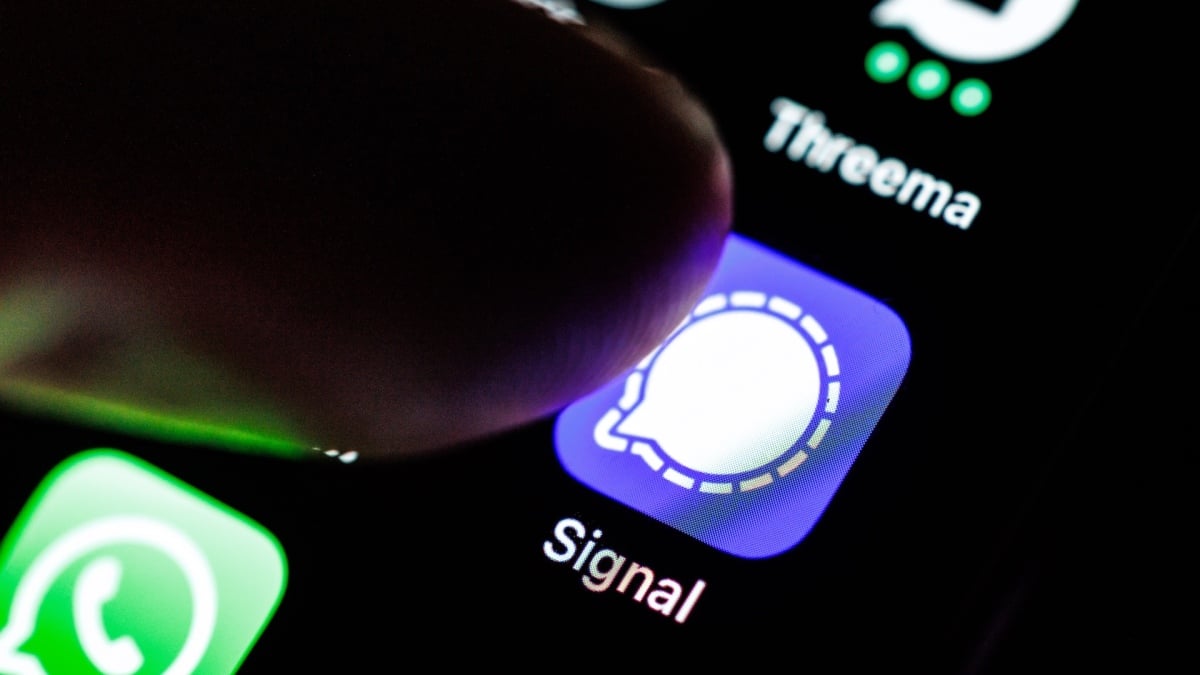

Signal screenshots are getting blocked on purpose now. The app made its name by encrypting your messages so hard that governments complained, and yet AI assistants on your own phone could still read your chats over your shoulder. Signal’s fix: block the screen capture those assistants rely on, by default, starting now.
If your screenshots inside Signal suddenly stopped working, that’s not a bug. Here’s what changed, why it matters, and how to adjust it if you disagree.
Why Signal screenshots are blocked now
The end-to-end encryption still works. That’s not the problem.
The problem is everything around it. Gemini Intelligence on Android and Siri AI’s Onscreen Awareness on iOS both scan what’s on your screen so they can answer questions and do tasks for you. Ask your phone “what did Maria say about dinner?” and the assistant has to look at something. When it scans while a Signal chat is open, it captures your messages, and yours alone stop being private. Group chats are worse: one person’s screen scan can expose everyone in the conversation.
Signal president Meredith Whittaker laid this out in a blog post on November 20, and she didn’t sugarcoat it. Once the OS-level AI grabs your data, it can land in “whatever local database or remote server an OS-level AI agent is using at that moment,” which is completely outside Signal’s control. She called the situation an existential threat to the app’s core promise.
Think about what that breaks. Disappearing messages, the feature people rely on for anything sensitive, stop disappearing if an assistant quietly screenshots them into a searchable index. The encryption protects the message in transit. Nothing protects it from the screen it’s displayed on.
This isn’t hypothetical paranoia either. Remember Microsoft Recall? Windows 11’s AI that screenshotted everything every few seconds and made it searchable? Signal already blocked that with the same trick last year, because Recall would happily snapshot disappearing messages and keep them in a database forever. Poof, gone the “disappearing” part. The Recall fight was the rehearsal. Now the same problem lives in your pocket.
What changed on your phone
The protections differ a bit depending on your device, so here’s the cheat sheet:
| Device | What Signal does now | Where the setting lives |
|---|---|---|
| iPhone (iOS 27) | “Block Siri AI” enabled by default. Blocks screenshots in the app and App Switcher | Settings > Privacy > Block Siri AI |
| Android | Screen security auto-engages when an AI assistant tries to read the screen | Settings > Privacy > App security > Screen security |
| Mac (macOS 27) | Nothing. Signal can’t block it there | Partial workaround: add Signal to Excluded Apps in System Settings > Siri |
One handy detail on both mobile platforms: you can turn the protection off temporarily. iPhone gives you a 10-minute window if you need to screenshot something yourself. Android relaxes the block until the AI detection trips again.
The Android behavior is the sneakier one, in a good way. Signal sits quiet until it detects an assistant actually reaching for the screen, then slams the door. So normal phone use feels untouched. The first time a Gemini query gets blocked, you’ll get a popup explaining why.
Here’s the catch: your own Signal screenshots are blocked too
Here’s the trade-off nobody gets to skip. The same wall that stops Siri AI also stops you. Want to screenshot a conversation to share with a friend? Blocked. Need to capture a flight confirmation someone sent you? Also blocked, unless you flip the setting or use the temporary window.
Signal made the call that most people never screenshot most chats, and the ones who do can toggle around it. Meanwhile an AI that scans silently gives you no such choice. Seems fair to me. You might disagree, and the settings are right there.
Anyone who’s used a banking app already knows this pattern, by the way. Plenty of them have refused screenshots for years for the exact same reason: what’s on screen is worth more than the convenience of capturing it.
Signal admits this fix is incomplete
Worth knowing before you feel too safe: blocking screenshots doesn’t stop everything. An AI agent with deep system access could still read content from your phone’s filesystem, notification history, or other apps. Whittaker said it herself, calling the remedy incomplete.
The Mac hole is the sharpest example. Apple doesn’t give apps a clean way to restrict AI data access there, so Signal couldn’t ship protection at all. The official suggestion is adding Signal to the Excluded Apps list in Siri’s settings, which limits proactive snooping but isn’t a guarantee.
There’s also a third-party angle. Meta’s Muse reportedly used accessibility permissions like a skeleton key to pull Signal messages on a Mac and on Android. Accessibility permissions! The ones you grant so an app can help you with motor impairments, repurposed as a master key to read your screen. Signal is asking Apple, Google, and Microsoft for a documented way for any app to opt out of AI access, plus honest documentation of how these agents touch data. Until that exists, app developers are patching holes in someone else’s ship.
If you want a messaging setup that’s fully outside the AI ecosystem, running a private assistant like Lumo on your desktop keeps automation and encryption in your own hands instead.
Does this make other apps safe too?
No. Signal screenshots are the only ones Signal can control. WhatsApp, your SMS app, your email, your banking app: each developer has to ship their own protection. WhatsApp already blocks screenshots for view-once media, for example, but regular chats are fair game for whatever assistant you’ve enabled.
The practical takeaway: assume any app without this kind of flag can be read by Gemini or Siri when it’s on screen. Banking apps tend to lock themselves down. Your messages app probably doesn’t.
Five minutes to lock things down
Do this today, in this order:
- Update Signal to the latest version on your phone. Old versions don’t have the new defaults, and you can check the version in your app store’s update history.
- On iPhone, check Settings > Privacy > Block Siri AI and leave it on unless you have a reason.
- On Android, open Settings > Privacy > App security and confirm Screen security is active.
- Mac users: add Signal to the Excluded Apps list under System Settings > Siri.
- Do a quick pass through Siri and Gemini permissions while you’re in there. Both let you see which apps they can touch.
- Tell the people you chat with most. Their screen is the other half of your privacy.
And the same logic applies beyond Signal. We flagged this pattern when an AI agent wiped someone’s files: agent features arrive enabled, and safety is opt-in instead. Ten minutes of settings review beats a very bad afternoon.
The token fraud wave hitting AI accounts comes from the same root cause, by the way. Convenience features that quietly expose more than you’d consent to in person.
Signal screenshots being blocked is mildly annoying and genuinely useful at the same time. Leave the default on, borrow the 10-minute window when you need it, and nudge the people you chat with to do the same.