
You’ve used Gemini. You’ve probably used ChatGPT’s Custom GPTs. But you haven’t built a Gem yet — and you’re repeating the same prompts every week because of it.
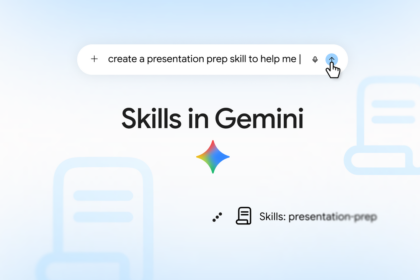
Gemini Gems are Google’s answer to Custom GPTs. They’re custom versions of Gemini that remember your instructions, your files, and your preferences. Set one up once, use it forever. Here’s how to build your first one in under 10 minutes with this Gemini Gems tutorial.
What Are Gemini Gems? (And Why They’re Your New Time-Saver)
Think of a Gem as a specialized version of Gemini that you configure once. You give it instructions — “You’re a senior copywriter who writes punchy email subject lines” — and it behaves that way every time you open it. No re-prompting. No copy-pasting your style guide. No “act as a…” every single chat.
Five pre-made Gems come out of the box: Brainstormer, Career Guide, Coding Partner, Learning Coach, Writing Editor. They’re decent starting points. But the real power is building your own.
You need Gemini Advanced ($20/month) to create custom Gems. If you’re on the free tier, you can use the pre-made ones but can’t build new ones.
Pre-Made Gems: 5 Ready-to-Use Assistants
Before you build, try these. They might solve your problem immediately:
Brainstormer — Generates ideas for anything. Marketing campaigns, blog topics, gift ideas. Good for divergent thinking.
Career Guide — Resume reviews, interview prep, career transitions. Surprisingly good at framing experience.
Coding Partner — Code review, debugging, explaining concepts. Not a replacement for Cursor/Claude Code, but solid for quick help.
Learning Coach — Explains complex topics at your level. “Explain quantum computing like I’m 12” actually works.
Writing Editor — Polishes your drafts. Checks tone, clarity, grammar. Not a replacement for a human editor, but catches 80% of issues.
Try each for your actual work. The ones you keep returning to? Those are your templates for custom Gems.
Build Your First Custom Gem: Step-by-Step
Go to gemini.google.com/gems (or click “Gems” in the left sidebar). Click “Create Gem.”
1. Name It Specifically
“Email Subject Line Writer” beats “Writing Helper.” You’ll have 20 Gems in a month. Specific names save you clicking through them.
2. Write Instructions That Actually Work
This is where most people fail. They write: “Write good email subject lines.”
The Gem writes generic subject lines. You’re disappointed. You blame the tool.
Write instructions like you’re briefing a junior colleague:
You are a senior email marketer writing subject lines for a B2B SaaS company.
Style: punchy, curiosity-driven, under 50 characters. No clickbait.
Format: Provide 5 options per request, ranked by predicted open rate.
Always include: one question-based, one number-based, one benefit-led.
Never use: "Re:", "Fwd:", all caps, excessive punctuation.
Context: Our audience is technical founders. They ignore marketing fluff.
That’s a real instruction set. Copy it, adapt it, watch the difference.
3. Upload Files for Perfect Context (The Superpower)
This is the feature Custom GPTs don’t have: file upload. Up to 10 files per Gem.
Upload your:
– Brand voice guide
– Best-performing subject lines spreadsheet
– Customer persona documents
– Style guide PDF
– Competitor examples you hate (labeled “avoid this”)
The Gem reads them. Every response incorporates that context automatically. You just attached your institutional knowledge to an AI.
4. Test, Refine, Save
Click “Preview.” Give it a real request: “Subject lines for our Q3 feature launch — AI-powered analytics dashboard.”
Review the 5 options. If they’re off, edit instructions. Add “avoid enterprise buzzwords” or “lean more technical.” Test again.
When it’s right, click “Save.” Your Gem is live.
Writing Instructions That Actually Work: The Template
After building a dozen Gems, this template works for almost anything:
ROLE: [Specific title + experience level]
TASK: [What they do, one sentence]
STYLE: [Tone, format, length constraints]
OUTPUT: [Exact structure you want every time]
CONSTRAINTS: [What to never do]
CONTEXT: [Who the audience is, what they care about]
EXAMPLES: [2-3 input/output pairs if helpful]
Fill in the brackets. Delete sections that don’t apply. The Gem follows this structure religiously.
Superpower: Upload Files for Perfect Context
I can’t stress this enough. File upload changes everything.
Use case: Code Review Gem
Upload: Your team’s coding standards doc, 3 example PR reviews you loved, the architecture diagram. The Gem reviews PRs your way.
Use case: Blog Outline Gem
Upload: Your last 10 published posts, your outline template, your SEO checklist. The Gem produces outlines that match your voice and structure.
Use case: Client Email Gem
Upload: Your email templates, client background docs, previous successful threads. The Gem writes emails that sound like you.
Files aren’t just reference — they’re behavioral programming. The Gem internalizes patterns from your examples.
Gem vs Custom GPT: Which Wins for You?
| Feature | Gemini Gems | ChatGPT Custom GPTs |
|---|---|---|
| File upload | ✅ 10 files | ✅ 20 files |
| Instructions | ✅ Free text | ✅ Free text |
| Pre-made templates | 5 | 100+ in store |
| Sharing | Private only | Public/private/link |
| Cost | Gemini Advanced ($20) | ChatGPT Plus ($20) |
| Context window | 1M tokens | 128K tokens |
| Tools (browsing, code) | ✅ All | ✅ All |
Gemini wins on: Context window (1M vs 128K), file upload ease, integration with Google Workspace.
Custom GPTs win on: Marketplace of shared GPTs, more mature ecosystem, easier sharing.
Bottom line: If you live in Google Workspace (Docs, Sheets, Gmail), Gems integrate natively. If you need community templates, Custom GPTs have thousands.
Pro Tips: Gem Templates Worth Stealing
The “Meeting Summarizer” Gem
Instructions: “You convert raw meeting transcripts into structured notes: Decisions made, action items with owners, key discussion points, blockers. Format as markdown. Flag anything needing follow-up.”
Upload: Your meeting notes template, org chart for name recognition.
The “Competitor Intel” Gem
Instructions: “You analyze competitor updates (feature launches, pricing changes, messaging shifts) and produce a 3-bullet executive summary: What changed, why it matters, recommended response.”
Upload: Your battle cards, positioning doc, last 5 competitor analyses.
The “Proposal Generator” Gem
Instructions: “You write project proposals from discovery call notes. Structure: Problem, Solution, Timeline, Investment, Next Steps. Tone: confident, specific, no fluff.”
Upload: Your proposal template, 3 winning proposals, pricing sheet.
The “Code Documenter” Gem
Instructions: “You write developer documentation from code snippets. Include: purpose, parameters, returns, example usage, edge cases. Format: OpenAPI-style markdown.”
Upload: Your docs style guide, 5 examples of your best docs.
Build these four. You’ll use them weekly.
Why This Gemini Gems Tutorial Changes How You Work
The compound interest on 10 minutes is massive. This Gemini Gems tutorial shows you the path — but the real savings happen when you build.
Takeaway: Your First Gem to Build Today
Don’t overthink it. Build the Gem that solves your most annoying repetitive task.
- Open gemini.google.com/gems
- Click “Create Gem”
- Name it after the task: “Weekly Status Report Writer” or “Client Onboarding Email Generator”
- Paste the instruction template above, fill in your specifics
- Upload 2-3 reference files
- Test with real work
- Save
You’ll spend 10 minutes. You’ll save 10 minutes every time you do that task. Forever.
Start now with this Gemini Gems tutorial — your future self will thank you. This Gemini Gems tutorial is your starting line.