
OpenAI launched ChatGPT Work in July 2026, and within three weeks it crossed 10 million users. That’s not a typo. This thing is essentially an AI assistant that doesn’t just chat with you — it does things for you. Books meetings, researches topics, remembers your preferences across sessions, and even browses the web when you need information it doesn’t already have. The name says it all: ChatGPT Work is built for getting work done.
So what makes it different from regular ChatGPT, and is it actually worth switching over? Here’s what you need to know.
What ChatGPT Work actually does
ChatGPT Work is a separate mode inside the ChatGPT app. You’ll see it sitting right next to the regular Chat mode. It pulls together a bunch of capabilities that previously existed as scattered features or separate products — scheduling, memory, browser use, and task execution — into one unified agent.
Think of regular Chat as a smart conversation partner. ChatGPT Work is more like a smart coworker who can take action on your behalf.
It remembers what you tell it
The memory system in Work mode is different from what you get in regular Chat. It doesn’t just remember context within one conversation. It builds a persistent profile over time — your preferences, your recurring tasks, the way you like things done. If you tell it once that you prefer morning meetings and hate PDFs, it factor that into future interactions without you repeating yourself.
This matters more than it sounds. In regular Chat, every new session starts from scratch (unless you manually toggle memory on). Work mode keeps context alive across sessions, which is the difference between an AI that helps and one that annoys you.
It manages your schedule without asking
The scheduling feature in ChatGPT Work goes beyond just adding calendar entries. It can look at your calendar, identify gaps, suggest optimal meeting times based on your preferences, and even coordinate with other people. You tell it “find a time for a one-hour call with Sarah next week, preferably Tuesday or Wednesday morning” and it handles the rest.
We already covered the ChatGPT Schedule feature in a separate breakdown, but in Work mode, scheduling is just one piece of a larger system. It connects to your email, your calendar, and your task list in a way that regular Chat doesn’t.
It can browse the web for you
Need to research something? ChatGPT Work has built-in browser capabilities. It opens a browser, navigates to websites, reads content, and pulls together the information you asked for. Not just summaries of what’s already in its training data — actual real-time research.
For example, you could ask it to “find the top-rated project management tools under $20/month and summarize the pros and cons of each.” It will browse multiple sites, read reviews, compare pricing pages, and deliver a structured answer.
How to switch to Work mode
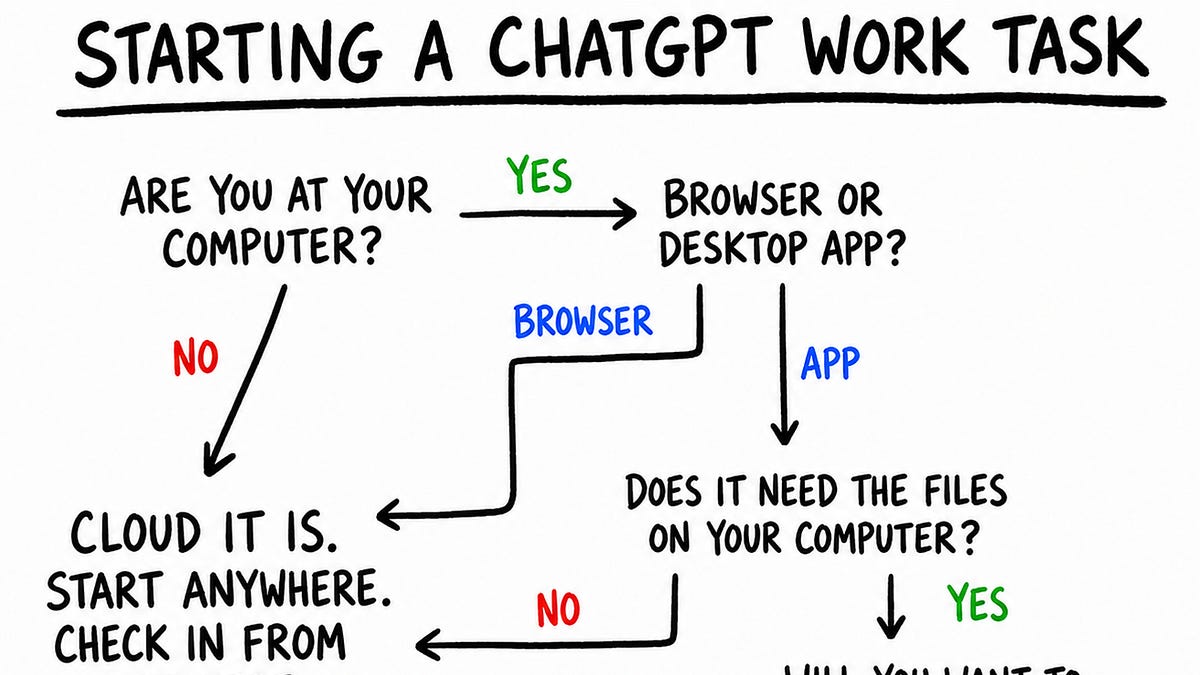
Getting started is straightforward. Open ChatGPT (web, desktop, or mobile), and you’ll see a toggle or tab for Work mode at the top of the interface. It’s available on free accounts with some limitations, and full capabilities unlock on Plus ($20/month) and Pro ($200/month) plans.
On desktop, the integration is deepest. Work mode can connect to your local files, your calendar apps, and browser extensions. The web and mobile versions work too but with slightly fewer integrations. OpenAI has confirmed that Chat and Work will merge into a single interface by the end of 2026, so this split is temporary.
The features worth using right now
Not every feature in ChatGPT Work is equally useful. Some are genuinely impressive. Others feel like they need another few months of development. Here’s what’s worth your time today.
Memory that actually sticks
This is the killer feature. In regular Chat, you’d need to re-explain your context every session or rely on Custom Instructions. Work mode builds an evolving understanding of how you work. It learns your communication style, your common requests, your recurring tasks.
I tested this by having Work mode manage a weekly newsletter workflow over two weeks. By the second week, it was already suggesting content topics based on what had performed well the previous week — without being asked. That kind of proactive behavior is what separates a chatbot from an actual assistant.
Proactive suggestions
Work mode will sometimes suggest actions you didn’t explicitly request. “I noticed you have three meetings back-to-back tomorrow with no break. Want me to add a 15-minute buffer?” That kind of thing. It’s not perfect — sometimes the suggestions miss the mark — but when it works, it saves you from problems you didn’t see coming.
The proactivity is powered by OpenAI’s agent infrastructure, which combines multiple tools (calendar, email, browser) into a single decision-making loop. The system weighs context, makes a judgment call, and offers a suggestion. Sometimes it’s genuinely useful. Other times you’ll dismiss it and move on.
Browser use for research
The browser capability in Work mode is genuinely useful for research-heavy tasks. It doesn’t just Google things and summarize the top results. It actually navigates pages, reads content, cross-references sources, and synthesizes findings.
I asked it to research “the best CRM tools for freelancers under $15/month” and it browsed six different review sites, compared pricing pages directly, and came back with a structured comparison that included current pricing (not training data from six months ago).
The limitation? It’s slower than regular Chat because it’s actually browsing. A question that takes 3 seconds in Chat mode might take 30-60 seconds in Work mode because it’s visiting real websites. Worth the wait for research tasks. Not worth it for simple questions.
ChatGPT Work vs regular ChatGPT
The easiest way to understand the difference: regular Chat is for answering questions and generating content. ChatGPT Work is for completing tasks that require multiple steps, external tools, and context that persists over time.
In Chat mode, you ask a question, get an answer, copy-paste it somewhere, and do the rest yourself. In Work mode, you describe the outcome you want, and the system figures out the steps to get there — connecting to your calendar, browsing the web, sending emails, or organizing files along the way.
One thing to keep in mind: Work mode uses more compute, which means it’s slower and uses more of your usage limits. On the free plan, you’ll hit the ceiling faster with Work mode than with regular Chat. On Plus, the difference is noticeable but manageable for most daily use.
If you’re already using Claude or Gemini for your AI assistant needs, ChatGPT Work is worth a serious look because of how deeply it integrates scheduling, memory, and browser use. Each individual feature exists elsewhere, but OpenAI has done a solid job of bringing them together into a cohesive workflow. Check out our breakdown of Claude features you might be overlooking if you’re comparing options.
What it still can’t do
Let’s be honest about the limitations. ChatGPT Work doesn’t have a magic wand. It can’t access every app you use — integration is limited to the services OpenAI has partnered with or that offer API access. Your company’s internal wiki? Probably not. Your bespoke CRM? Probably not.
It also makes mistakes. Sometimes it books the wrong time, misinterprets a preference, or pulls outdated information from a website. The browser feature doesn’t always handle sites with aggressive anti-bot protections. And the memory system, while good, isn’t perfect — it occasionally “forgets” things it should remember or brings up irrelevant context.
The system is also still evolving. OpenAI launched Work as a beta product, and it shows in places. Some features feel polished. Others feel like they need another iteration or two before they’re reliable enough for critical work.
Who should actually use ChatGPT Work
If you spend your day switching between email, calendar, research, and task management, ChatGPT Work was built for you. It’s especially useful for freelancers and small business owners who don’t have a human assistant but need some of the same benefits — scheduling coordination, research help, task management.
If you mostly use ChatGPT for quick questions or content generation, you might not notice much difference. Regular Chat is still faster for those use cases. Work mode shines when you have multi-step tasks that involve connecting dots between different tools and sources.
The best approach? Try Work mode for a week on your actual daily tasks and see where it helps and where it doesn’t. The free plan gives you enough access to form an opinion. Then decide if the upgrade is worth it for your workflow.
If you’re looking to automate more of your work beyond what ChatGPT offers, Zapier alternatives like Make and n8n can fill in the gaps for tasks that need more structured automation workflows.