
You just got a video in a group chat. Someone’s CEO announcing layoffs. A politician saying something outrageous. Your favorite creator doing something they’d never do.
It looks real. The lip sync matches. The background checks out. But something feels… off.
Here’s the uncomfortable truth: you can’t trust your eyes anymore. AI video generators hit a quality threshold in late 2025 where casual viewing doesn’t reveal the fake. The good news? Google built a free verification tool right into Gemini. And it takes 30 seconds.
The Problem: Deepfakes Are Getting Harder to Spot
Two years ago, AI video had tells — weird fingers, flickering backgrounds, uncanny valley faces. Not anymore. Tools like Veo 3, Sora, and Runway Gen-3 produce footage that passes the “glance test” every time.
The scariest part? You don’t need technical skills anymore. Type a prompt, wait a minute, download an MP4. Bad actors are already using this for fraud, misinformation, and reputation damage.
Most “AI detectors” you’ll find are either paid, text-only, or straight-up unreliable. They guess based on visual patterns. Google took a different approach: watermark the content at creation, then verify the watermark exists.
The Solution: Google Gemini’s SynthID Verification (Free)
In May 2026, Google added SynthID verification directly to the Gemini app. No API key. No code. No subscription. Just open Gemini, upload a file, ask a question.
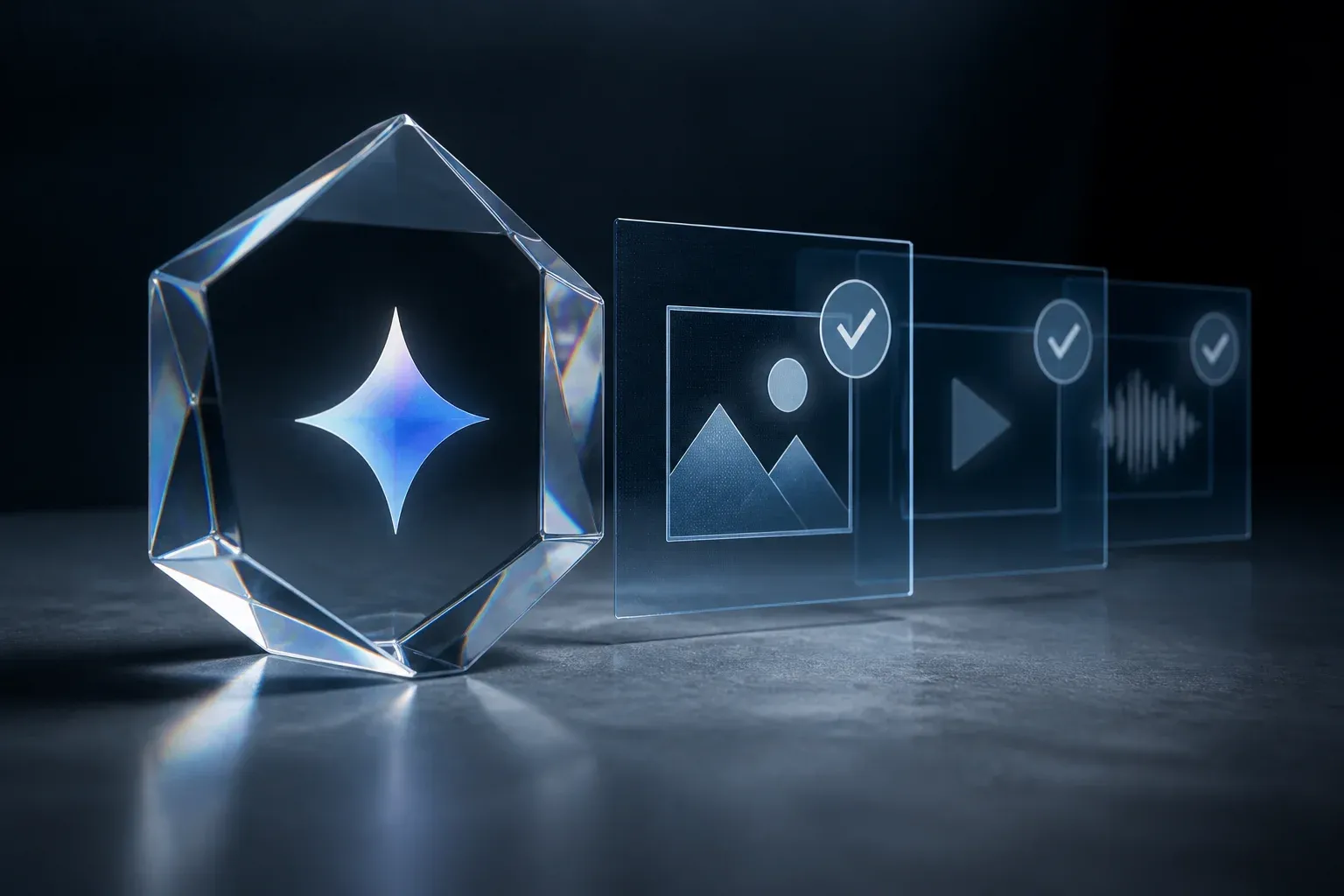
What is SynthID? It’s an invisible watermark Google embeds into content created by their AI tools (Veo, Imagen, VideoFX, etc.). Think of it like a digital signature — invisible to human eyes, detectable by Gemini.
What you need before starting:
– A Google account (free)
– The video or image file you want to check
– Gemini app (Android) or gemini.google.com (web)
– Video under 90 seconds, image under 100MB
That’s it. No Vertex AI. No Cloud Console. No credit card.
Step-by-Step: How to Verify a Video in Gemini
Step 1: Open Gemini App or Web
On Android: Open the Gemini app (pre-installed on Pixel 9+, downloadable on others).
On desktop: Go to gemini.google.com and sign in.
You’ll see the standard chat interface. The verification feature works the same way — you’re just uploading a file instead of typing text.
Step 2: Upload Your Video
Click the + button (attach file) next to the prompt box. Select your video file.
Gemini accepts MP4, MOV, AVI, and most common formats. Remember the 90-second limit — longer videos won’t upload. If your file is longer, trim it first (any free video editor works).
Step 3: Ask the Right Question
This is where most people mess up. Don’t ask “Is this fake?” or “Is this AI?”
Ask exactly: “Was this generated using Google AI?”
Why this phrasing? SynthID only detects content created by Google’s AI models. The question tells Gemini to scan for Google’s specific watermark. Other phrasings might trigger a general analysis instead of the SynthID check.
For images, you can also ask: “Is this AI-generated?” — Gemini will check for SynthID in images too.
Step 4: Read the Results
Gemini responds with one of three outcomes:
Outcome A: “SynthID detected”
The video contains Google’s watermark. Gemini will show:
– Confirmation it was created/edited with Google AI tools
– Segment timestamps — exactly which parts contain AI-generated content (crucial for partially edited videos)
– Content Credentials metadata if available (creator, tool used, edit history)
Outcome B: “No SynthID found”
The video doesn’t have Google’s watermark. This means either:
– It wasn’t made with Google AI tools (could be Veo, Sora, Runway, Kling, etc.)
– It was made with Google tools but the watermark was stripped
– It’s genuine camera footage
Outcome C: Error / Unable to verify
File too large, wrong format, or processing issue. Try re-encoding or trimming.
Understanding the Results: What SynthID Actually Tells You
Positive Detection = Google AI Content Only
This is the single most important thing to understand: SynthID only detects Google AI content.
If someone made a deepfake with Runway Gen-3, SynthID won’t flag it. If they used Kling, Sora, or Veo (wait, Veo is Google — that one gets caught), SynthID stays silent.
A “no SynthID” result does not mean the video is authentic. It only means “not made with Google’s watermarked tools.”
Segment Timestamps
For videos, Gemini shows which seconds contain the watermark. This matters because:
– Someone might splice 5 seconds of AI footage into a real 2-minute video
– The timestamp tells you exactly where to look
– You can verify if the flagged segment matches the suspicious part
Content Credentials (C2PA)
When available, Gemini also surfaces Content Credentials — a separate provenance standard (like a nutrition label for media). This can show:
– Which tool created it (Veo 3, Imagen 4, etc.)
– Creation timestamp
– Edit history (if the chain wasn’t broken)
– Creator attribution (if they opted in)
Think of SynthID as “yes/no + where” and Content Credentials as “who/when/how.”
Important Limitations You Must Know
Only Detects Google AI Content
I’ll say it again because it’s that important: SynthID misses content from every other AI video generator. Runway, Sora, Kling, Luma, Pika, Stable Video Diffusion — none of them use Google’s watermark.
File Size and Length Limits
- Video: 90 seconds max. That’s… short. Most viral clips fit, but full speeches don’t.
- Images: 100MB max. Plenty for most use cases.
- Audio: Supported but less documented — Google’s blog mentions audio track scanning for video.
Not a Universal AI Detector
Gemini’s verification is a provenance tool, not a detection tool. It answers “Did Google’s tools make this?” not “Did AI make this?”
The absence of evidence is not evidence of absence.
Platform Availability
- Android: Full support in Gemini app
- iOS: “Coming soon” per Google’s docs (as of August 2026)
- Web: Works at gemini.google.com
- API: Available for developers via Vertex AI (different setup)
Pro Tips for Better Verification
1. Combine with reverse video search
Upload a key frame to Google Images or Yandex. If the same clip appears in a 2022 news report, it’s not a new AI generation.
2. Check metadata before uploading
Right-click → Get Info / Properties. Look for creation software fields. Some AI tools leave fingerprints in EXIF/XMP data.
3. Use the “pause and zoom” method
Play the video frame-by-frame. AI still struggles with:
– Teeth and tongue movement during speech
– Ear-to-shoulder consistency when turning
– Background text staying legible
– Lighting consistency on reflective surfaces
4. Verify the source, not just the file
Who sent it? Where did they get it? A video from a verified news outlet’s official account is more trustworthy than the same video forwarded through three group chats.
5. Don’t forget audio deepfakes
SynthID scans video audio tracks, but standalone audio clones (ElevenLabs, etc.) need different tools. Google’s AudioLM watermarking is separate.
What to Do If Gemini Says “No SynthID Found”
Don’t relax. Run this checklist:
- Reverse image search key frames — Google Images, TinEye, Yandex
- Check the source — Is the account verified? Is it the original poster?
- Look for visual artifacts — Pause at 0.25x speed, watch mouth/eyes/ears
- Try other detectors — Deepware Scanner, Sensity, Reality Defender (some free tiers)
- Apply common sense — Does the claim match known facts? Is the timing suspicious?
Your Next Step
Next time a suspicious video lands in your inbox or feed:
- Open Gemini (app or web)
- Upload the clip
- Ask: “Was this generated using Google AI?”
- Read the result — but remember what it doesn’t tell you
SynthID verification is a powerful layer in your verification toolkit. It’s free, fast, and catches one major category of AI content. But it’s not a magic wand.
The best defense? Healthy skepticism. Verify before you share. And remember: if a video makes you angry or confirms exactly what you already believe, that’s the one to check twice.
Want to go deeper? Google’s official SynthID announcement has technical details: blog.google/innovation-and-ai/products/identifying-ai-generated-media-online/