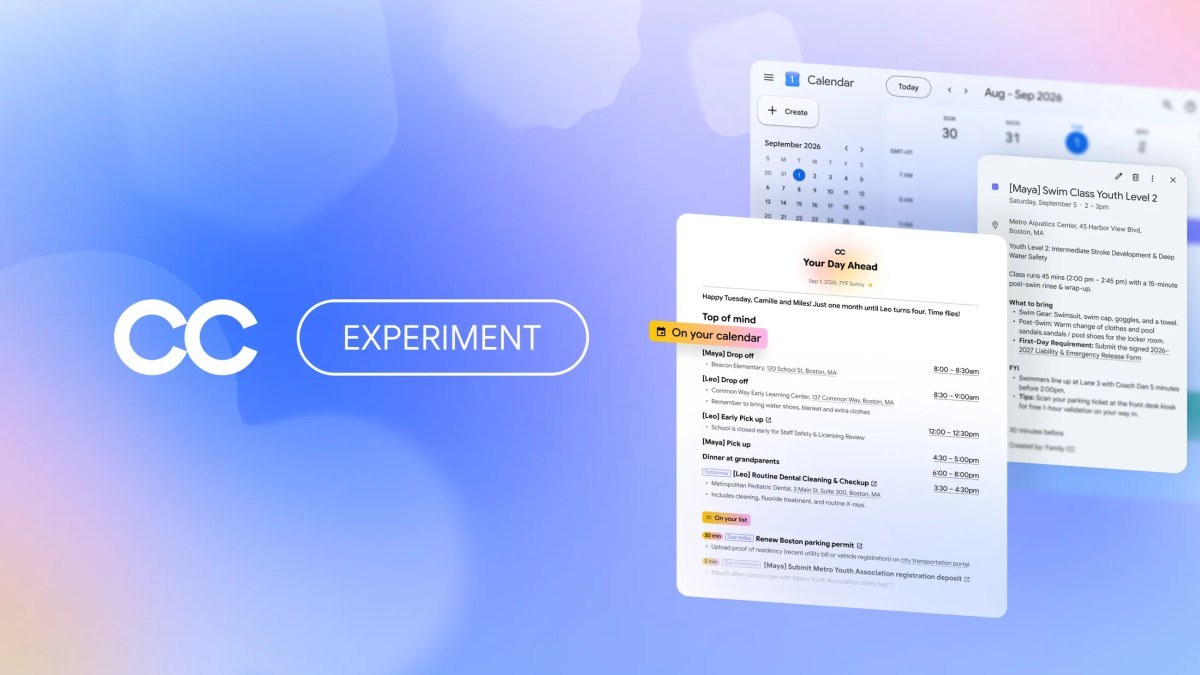

Your kid’s school sends emails to your spouse’s inbox. The swim team schedule lives in a group chat. The orthodontist confirmation? That’s on your phone, in an email you half-remember reading. Google CC is Google’s attempt to fix exactly this mess, and it now works for your whole family.
What Google CC actually is
Google CC started life as a Google Labs experiment: a personal agent that read your Gmail, Calendar, and Drive, then sent you a “Your Day Ahead” briefing each morning. Back in May, Google folded the idea into the Gemini app as Daily Brief. That version still works for one person.
The new CC goes a step further. It now works for your whole household, which changes what it can do. Instead of one inbox, it connects the emails, calendars, and task lists of up to six family members, and it turns that shared mess into one organized plan.
Google announced the family version on September 17, 2026. You can read the official announcement on the Google blog for the full details. Here’s the short version of what changed.
How the family setup works
CC gets its own Google account. That sounds like a small detail, but it’s the cleverest part of the whole design. Because CC is a real account with its own identity, every family member can see exactly who they’re sharing things with, and CC can’t act outside your group without permission.
Each person decides what CC sees. Your spouse might share school emails. You might share the vet and the soccer club. Your teenage daughter shares nothing, if that’s her call. The agent only reads what each member hands over, and anyone can change their sharing settings at any time.
There are three ways to feed it:
- Auto “cc” CC: pick senders whose emails should always flow in, like your kids’ school or the travel site you book through. Once a week, CC sends you a private list of new senders it noticed, and you decide which ones to allow.
- Send it to CC: forward a one-off email, a text about soccer practice, even a photo of a birthday party invite. CC reads it and files it where it belongs.
- Share folders and calendars: give CC access to a Drive folder or add it to a Calendar, and it works with what’s already there.
Setup takes a few minutes per person, and there’s no hardware, no subscriptions to juggle, and nothing to install beyond the Google apps you already use.
What CC does all day
The morning brief is the anchor. Each day, everyone in the family gets a shared “Your Day Ahead” email: who needs to be where, what’s due, and what CC already handled yesterday. No more “why didn’t anyone tell me about the teacher workday” conversations at 7am.
Then it does actual work. According to Google, CC can:
- Pull dates and to-dos from shared emails into a family Calendar and task list automatically
- Fill out permission slips and activity registration PDFs (with your permission, and it asks when it’s missing info)
- Build school supply shopping lists and weekly meal plans
- Check live drive times between back-to-back activities using Google Maps
- Create shared Docs and Sheets when coordination needs a home
It also builds memory over time, and this is where it gets interesting for anyone who’s used AI assistants before. CC separates household knowledge from personal knowledge. It learns your go-to grocery list applies to everyone, while your daughter’s dietary preference stays attached to her, not broadcast to the group.
Under the hood, every Google CC instance runs on its own isolated cloud computer powered by Gemini models and Google’s Antigravity agentic harness. For you, that means it can actually execute tasks (opening forms, checking maps, creating documents) instead of just suggesting them.
Who it’s for (and who should skip it)
CC fits families where logistics land in five different places. Two working parents, a couple of kids in activities, maybe a grandparent who helps with pickup. If your household runs on one shared calendar that one organized person maintains, CC will feel less revolutionary.
Three limitations matter before you get excited:
- It’s U.S. only for now, and you need a personal Google account (work and school accounts don’t work).
- You must be 18 or older. Teens can’t join with their own accounts, even though they’re often the source of the schedule chaos.
- It’s an experiment. Google Labs products sometimes graduate, sometimes don’t. Google hasn’t announced pricing either, so treat it as free to try, not free forever.
If your family lives in Outlook, Apple Calendar, or anything non-Google, CC won’t help you yet. It connects to Gmail, Calendar, Chat, Docs, and Tasks. That’s the trade-off for how deeply it works inside the Google stack.
How to get access today
Here’s the current path, as of publication:
- Existing CC users will get an upgrade email from Google in the coming days. Accept it, then invite up to five family members.
- New users join the waitlist on the CC landing page. It takes an email address and about 30 seconds.
- While you wait, try the closest thing already available: the free Gemini Daily Brief, which gives you the personal (not family) version of the morning briefing. We covered how to set up Gemini’s daily brief in a separate guide.
Given that this is a waitlist launch, joining early is the only way to guarantee a spot in the first wave. Google hasn’t said how long the queue is.
How it compares to the other family AI apps
CC isn’t the first agent aimed at families. Fambot markets itself as an AI chief of staff for households, and we published a hands-on Fambot review earlier this month. The difference is reach: Fambot is a standalone app your family has to adopt, while Google CC plugs into the Google accounts most families already run on.
That’s also the risk worth naming. An agent with permission to read your school emails, fill out forms, and manage your calendar is a powerful position for any software. Google’s permission model here is genuinely thoughtful (per-member sharing, a verified agent identity, weekly sender reviews), but you should still think before auto-forwarding everything. Share the school and the swim club. Maybe not your entire inbox.
Should your family sign up?
If homework slips, carpools, and appointment emails routinely fall through the cracks, yes: join the waitlist today and test Google CC against your current system for a week. The morning brief alone replaces the group-chat status meeting most families never agreed to have.
If your household already runs smoothly on shared calendars, skip it for now and wait for the experiment to mature. Either way, the family-agent category just got its first serious contender, and the setup takes minutes. That’s worth 30 seconds on a waitlist.