


Switching AI assistants usually means starting over. Except now you don’t have to, because Google built a real way to transfer ChatGPT history to Gemini, and it takes maybe half an hour of actual work. Here’s the whole process, step by step, including the parts Google’s announcement conveniently skips.
Why your chat history matters when you switch
Your chat log isn’t just a pile of old conversations. It’s months of context: how you like your emails phrased, what your side project is about, the meal plans, the budget spreadsheets you talked through at midnight. Start a fresh assistant and all of that context is gone. The new tool answers fine. It just doesn’t know you.
That’s also why memory matters more than most people realize. We covered what ChatGPT remembers about you when its memory update rolled out, and Google has its own version with Gemini’s memory controls. Your history and your memory are the two things worth moving. Everything else can be rebuilt in an afternoon.
What actually moves over (and what doesn’t)
Google’s import covers two things: your saved memories and preferences, plus your chat threads. That’s it. Here’s the honest breakdown before you transfer ChatGPT history to Gemini, so nothing catches you off guard.
| ChatGPT item | Moves over? | Where it lands in Gemini |
|---|---|---|
| Chat threads | Yes, via ZIP upload | Chats list, marked with an import icon |
| Memories and preferences | Yes, via a summary prompt | Gemini’s saved memory |
| Custom instructions | No | Copy and paste them yourself |
| Custom GPTs | No | Rebuild from scratch |
| Projects | No | Rebuild, files re-upload manually |
| Images and files from old chats | No | Stay behind in the export ZIP |
That last row surprises people. The ZIP contains your text chats, but Gemini won’t pull images or attachments out of old conversations. So if a chat matters because of a file inside it, download that file first. Annoying? A little. Still better than losing two years of threads.
Transfer ChatGPT history to Gemini step by step
Google posted the official walkthrough on its blog, and there’s a dedicated import page at gemini.google/import-memory. The whole flow runs through five steps. Two happen in ChatGPT, two in Gemini, and one is just checking the result.
Before you start, three requirements: you need a personal Google account (work and school accounts can’t do this), you need to be 18 or older, and the feature isn’t available in the European Economic Area, Switzerland, or the UK. Also turn on “Keep Activity” in your Gemini settings, because the memory features depend on it.
Step 1: request your ChatGPT data export
Do this first, because it’s the slowest part.
Open ChatGPT, click your name in the bottom left, then go to Settings and open Data controls. Next to Export data, hit Export, then Confirm export. OpenAI emails you a download link, and that link expires in 24 hours, so don’t request it and forget about it for a week.
Exports can take up to 7 days, though most arrive the same day. One catch: this works on Free, Plus, Pro, and most individual plans, but Business, Enterprise, and Healthcare workspaces don’t support this export. If you’re on a company workspace, you’d need to copy your important chats manually.
Step 2: save the stuff Gemini can’t import
Give yourself 15 minutes here. Open your custom instructions (Settings, then Personalization) and copy them into a doc. If you built custom GPTs, open each one and copy its instructions. If you use Projects, download the files you care about and copy any project instructions.
None of this imports automatically. It’s boring work, but your future self will thank you when the new setup feels like the old one on day one.
Step 3: import your memories with Google’s prompt
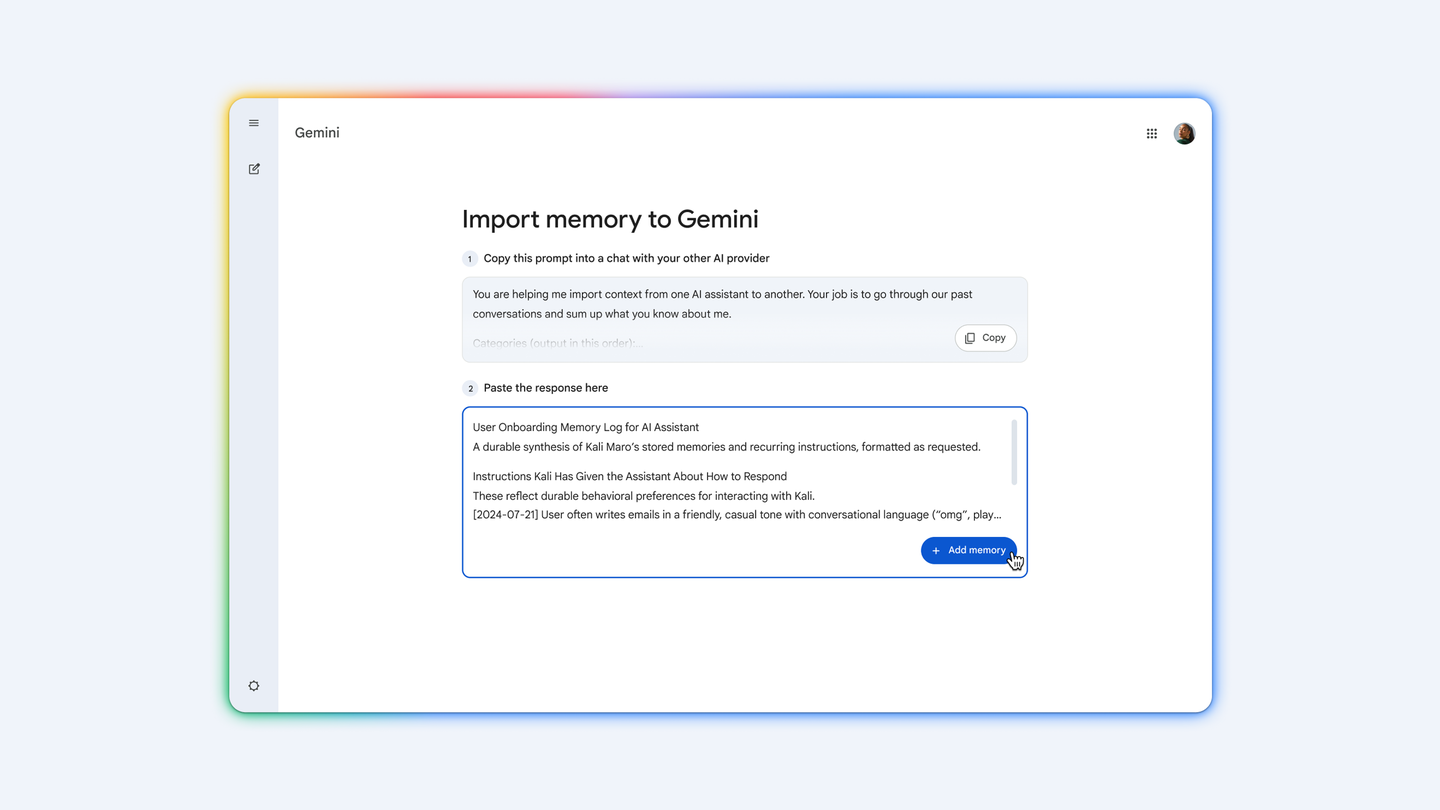
Now the clever part. Google’s import flow gives you a prompt to paste into ChatGPT. It asks the model to summarize everything it knows about you: your preferences, your style, your ongoing projects.
Copy that prompt from Gemini’s import settings, paste it into a new ChatGPT chat, and send it. What comes back is a summary of your remembered context. Read it once and strip out anything outdated or anything you’d rather not carry over, because this text is about to become Gemini’s knowledge of you. Then paste the edited version into Gemini and confirm Add memory.
Takes about five minutes. And it’s the step that makes the biggest difference on day one, because the new assistant immediately knows how you work.
Step 4: upload your chat history ZIP
Back on the import page, find the Import chats section and hit Add. Select the ZIP you downloaded in step 1.
Limits to know: the file must be under 5 GB, and you can upload up to 5 ZIP files per day. Processing can take up to a day depending on how big your history is. When it finishes, your old threads show up in the Chats list with a little imported icon, and you can search them like normal.
One warning worth tattooing somewhere: if you re-upload the same ZIP later, Gemini adds the new conversations and overwrites the ones it imported from that file before. So don’t re-upload casually.
Step 5: check what actually landed
Don’t skip this. Open two or three of your old chats and skim them. Then ask Gemini directly: “What do you know about my work?” If the answer sounds like you, the import did its job. If something’s off, fix the memory now while it’s fresh.
Spot a bad import? You can delete a single chat from its menu, or wipe an entire batch by hitting the trash icon next to that import entry in Settings.
Coming from Claude instead
The same flow works. In Claude, click your name, open Settings, then Privacy, and hit Export data next to Export. Claude lets you pick a date range, which is nicer than ChatGPT’s all-or-nothing export. The download link arrives by email, and from there it’s the same Gemini import: memory prompt first, ZIP second.
Fixes for common import problems
Most of these have two-minute fixes, so don’t panic if you can’t transfer ChatGPT history to Gemini on the first try.
The import option doesn’t show up. Check the three requirements: personal account, 18+, outside the EEA/Switzerland/UK. Also use gemini.google.com in a browser, because the import doesn’t appear in the Gemini app on every surface yet.
The upload gets rejected. Your ZIP is over 5 GB or you’ve already hit the 5-per-day limit. Split the export or wait until tomorrow.
The download link expired. That’s the 24-hour window closing. Request a new export from ChatGPT and grab the new link fast.
Something imported twice or wrong. Delete the import entry entirely and re-import from a clean state. Fiddly, but it works.
The takeaway
You can transfer ChatGPT history to Gemini in one sitting if you start with the export, since that’s the only step with real waiting involved. Move the memory, upload the ZIP, then spend five minutes checking the result. And once you’re settled, it’s worth going one step further: you can build your own AI memory system that follows you across assistants, so the next switch costs you nothing at all.
Try it this weekend. Your chats took months to build; they’re worth 30 minutes to keep.