
You have probably asked ChatGPT or Claude to make you a PowerPoint. The result was… underwhelming. Walls of bullet points, broken layouts, random font sizes, and a file that crashes when you try to edit it. The problem is not the AI. It is the format. PowerPoint files are massive XML documents that language models simply cannot write reliably. Slaide fixes this by giving AI a format it actually understands: plain text.
Here is how Slaide AI presentations work, why they look better than anything ChatGPT has ever exported, and how to start making slides with Claude in about five minutes.
What makes Slaide AI presentations different
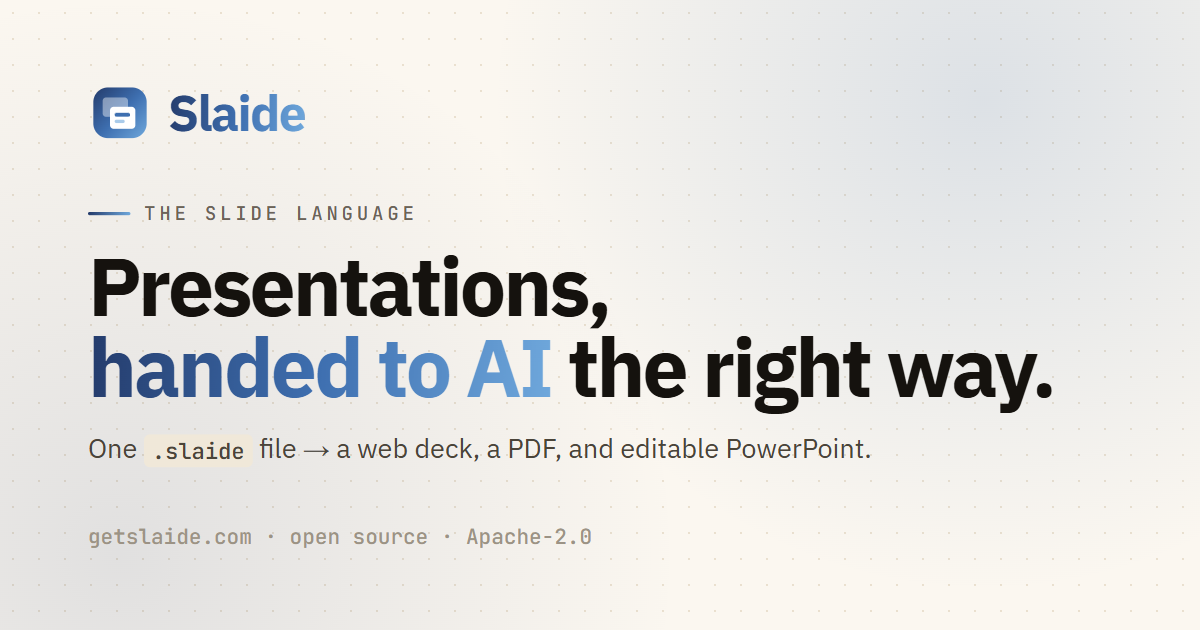
Slaide AI presentations start with an open-source slide format built for AI. Instead of fighting with PowerPoint’s 4MB XML structure, you write a plain-text .slaide file that combines Markdown for your content with a small YAML block for the design theme. One file, about 10 kilobytes, produces a polished web deck, a print-ready PDF, and an editable PowerPoint — all from the same source.
The project is Apache-2.0 licensed, meaning it is free to use however you want. No account required, no API keys, no monthly subscription.
The core insight is simple: AI models are great at writing text. They are terrible at placing pixels. So Slaide separates the two. You (or your AI) write the words in Markdown. The theme handles every visual decision — type, color, grid, spacing, animation. The model never has to think about design, and the design never depends on the model getting layout XML right.
Why AI struggles with PowerPoint files
If you have ever tried to generate a .pptx file with AI, you have seen the results. Sometimes it works. Usually it does not. Here is why.
A single PowerPoint slide is not just text and images. It is a deeply nested XML structure with absolute pixel coordinates, font specifications, color hex codes, shape properties, and relationship mappings. A typical 10-slide deck is around 4MB and 11,000 lines of XML. AI models hallucinate this constantly — misaligned text boxes, overlapping elements, corrupted relationships between slides and layouts.
Worse, if you try to version-control a .pptx file, the diffs are unreadable. You cannot see what changed between two versions because the XML reorders itself. Git becomes useless for collaborating on slide content.
Slaide sidesteps all of this. The .slaide format is about 40 lines of plain text for a basic deck. Content goes in Markdown slots (cover, bullets, statement, quotes). The theme YAML handles everything visual. Diffs are clean. Version control works. And AI writes it right the first time, almost every time.
How Slaide works
The .slaide file format
A .slaide file looks like this:
---
master: ./aurora.yaml
title: Launch
---
layout: cover
---
We ship 300+ decks a week, zero pixels placed by hand.
That is it. The YAML front matter tells Slaide which theme to use. The rest is Markdown content mapped to named layouts (cover, bullets, statement, quote, and more). You never touch pixel coordinates or font sizes. The theme system handles all of it.
One source, three outputs
From a single .slaide file you get:
- A navigable web deck that runs in any browser
- A print-ready PDF with proper page breaks
- An editable PowerPoint file that opens in Keynote, Google Slides, or PowerPoint
All three outputs are generated from the exact same source text. They cannot drift apart. If you change a number in the .slaide file, the web deck, PDF, and PowerPoint all update. No manual syncing across formats.
How to create AI presentations with Slaide
Step 1 — Install Slaide
Slaide runs on macOS. You can also use the web-based editor at getslaide.com to try it without installing anything. For the full experience with AI integration, grab the desktop app or install via the command line.
Step 2 — Connect your AI agent
This is where Slaide gets powerful. The tool has a built-in MCP server and an Agent Skill that works with Claude Code, Codex, and Cursor. Once connected, your AI agent understands the entire Slaide language — all layouts, all themes, all formatting rules. You do not have to prompt it to follow a specific template. It just knows.
To set this up, load the Slaide Agent Skill in Claude Code or add the MCP server configuration to your agent’s settings. The documentation walks you through the exact steps.
Step 3 — Write your first deck
Tell your AI agent what you want. Something like: “Create a 10-slide pitch deck for a SaaS startup that helps restaurants manage inventory. Use the Aurora theme.”
The agent drafts the .slaide file, validates it, and you can review it as plain text. Edit it by hand if you want — it is just Markdown. Ask the agent to revise specific slides. Iterate until it looks right in the preview.
Step 4 — Export to PowerPoint or PDF
One command converts your .slaide file to any output format. The web deck renders instantly in your browser. PDF export handles print layouts. PowerPoint export creates a file you can hand to anyone — they do not need Slaide or any special software to view it.
Slaide vs other AI slide tools
There are plenty of AI presentation tools out there. Most of them work the same way: you type a prompt, the AI generates slides in a proprietary format, and you get a limited number of exports per month on a paid plan.
Slaide is different in a few ways that actually matter:
- Open format. Your slides live in plain text files you own. No vendor lock-in.
- AI-native. The format was designed for AI to write, not retrofitted to accept AI input.
- Version control. Track slide changes in Git. Review diffs like code.
- Multiple outputs. Web, PDF, and PowerPoint from one source. Not one or the other.
- Free. Apache-2.0 licensed. No credits, no subscriptions, no paywalls.
Tools like Tome and Gamma are good for quick decks when you do not care about ownership or customization. Slaide is better when you want real control, clean exports, and an AI workflow that does not fight the format.
Who should use Slaide AI presentations?
If you are a freelancer creating decks for clients, Slaide saves you serious time. You can draft a full presentation with Claude in minutes, fine-tune the text, and export a PowerPoint the client can actually edit. No more rebuilding layouts in PowerPoint after the AI export breaks.
If you are a startup founder, Slaide means your pitch decks stay in version control. Your team can collaborate on slide content the same way they collaborate on code. No more “Final_v3_real.pptx” files floating in Slack.
If you are just someone who needs to make slides occasionally, Slaide AI presentations are faster than opening PowerPoint and designing from scratch. The AI writes the content, the theme handles the design, and you export to whatever format your audience needs.
The bottom line
Slaide solves a real problem that has frustrated anyone who has tried generating presentations with AI. The issue was never the intelligence of the model — it was the format. By giving AI a plain-text language it can actually write, Slaide turns Claude, Codex, or Cursor into a surprisingly capable slide designer. If you want to see Slaide AI presentations in action, try it at getslaide.com. Open your AI agent, load the Slaide skill, and generate your first deck. The output will look better than anything you have gotten from “create a PowerPoint” prompts, and the workflow is way less painful.