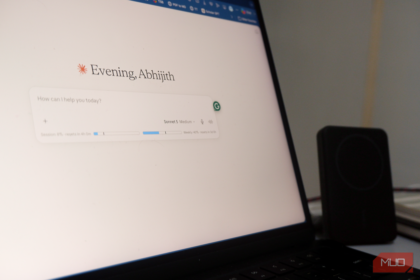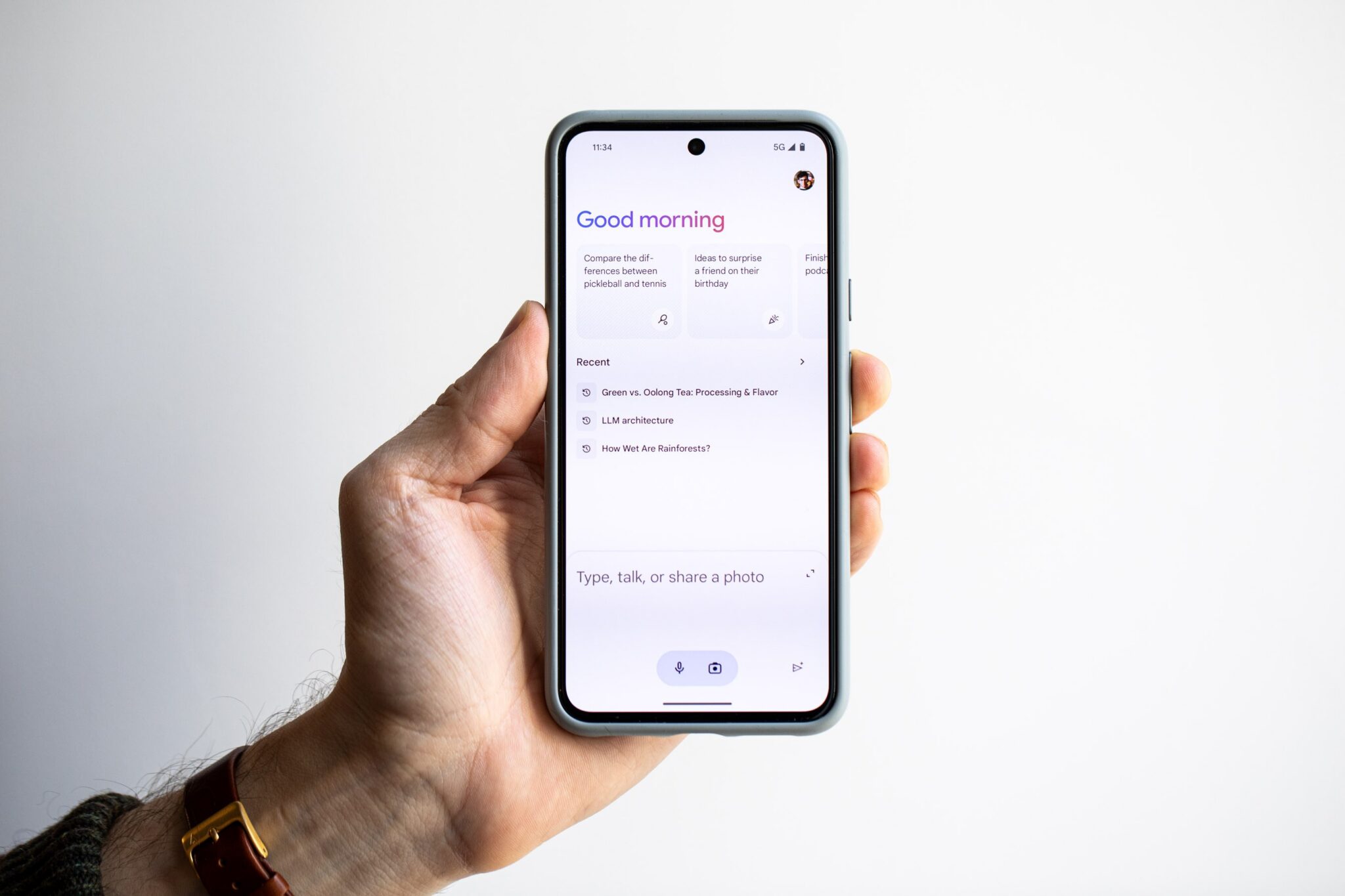

The Problem: Gemini Isn’t a Drop-In Replacement
Google killed Google Assistant. Not “deprecated.” Not “sunset.” Killed. And they replaced it with Gemini whether you like it or not. Here’s how to make gemini behave like google assistant — in five steps, in order. If you’ve tried using Gemini the way you used Assistant, you already know it doesn’t work the same. Commands that worked for years now get you a paragraph about “I’d be happy to help with that” instead of just turning off your lights.
Assistant was simple. You said “Hey Google, turn off the living room lights” and it happened. You said “set a timer for 10 minutes” and it did.
Gemini wants to chat. It wants to explain. It wants to personalize your results using your Gmail, your Calendar, your Search history, and your YouTube watch history. That’s great for some things. It’s terrible when you just want your porch light off.
The migration started rolling out in September 2026. Phones, tablets, Wear OS watches, Android Auto — all forced over. Smart home speakers and TVs are next. You can’t stop it. But you can make it work.
Step 1: Set Gemini as Default Assistant Everywhere
Don’t wait for the prompt. Do it manually now so you control the transition.
Phone & Tablet (Android): 1. Open Settings → Google → All services → Search, Assistant & Voice → Google Assistant 2. Tap “Digital assistant app” or “Default assistant app” 3. Select “Gemini” (not “Google Assistant” — that option disappears after the update) 4. Confirm the switch
Wear OS Watch: 1. On the watch, swipe down → Settings (gear icon) → Apps → Assistant 2. Or use the Google Pixel Watch app on your phone → Assistant → Default assistant → Gemini 3. If you don’t see the option yet, your watch hasn’t received the update. Check weekly.
Android Auto: 1. Connect your phone to the car 2. Open Android Auto on your phone → Settings → Google Assistant → “Hey Google” detection 3. The assistant in Auto now follows your phone’s default. If your phone is on Gemini, Auto uses Gemini.
Google Home / Nest Speakers (Do This Even Though It’s “Optional”): 1. Open Google Home app → tap your profile picture (top right) → Home settings 2. Look for the banner: “Upgrade to Gemini for Home” — tap it 3. Follow the prompts for each home you manage
Why do this? If your phone runs Gemini and your speaker runs Assistant, they fight. Both try to answer. Both fail. One system, one assistant.
Step 2: Connect Smart Home Devices to Gemini
You did the Home migration in Step 1. Now verify every device actually works.
Open Google Home app → Devices. Tap each light, switch, thermostat, lock. Say “Hey Google, turn on [device name].” If it responds with a Gemini-style explanation (“I’ve turned on your living room light”) instead of just doing it, the device is on Gemini but the personalization is cluttering the response.
Fix that in Step 3.
Step 3: Turn Off Personalization Features You Don’t Need
This is where most people go wrong. They leave everything enabled and wonder why Gemini writes a novel when asked to set a timer.
Open the Gemini app on your phone → Profile picture → Settings → Personal Intelligence → Connected Apps.
Disable These (They Add Clutter, Not Value):
- Google Workspace — Unless you constantly ask “summarize my emails” or “what’s on my calendar tomorrow,” this makes simple commands slower. It searches your Drive, Gmail, and Calendar for every query.
- Search Services — This lets Gemini use your Search history to “personalize” answers. For smart home commands, it’s useless overhead.
- YouTube — Unless you ask “play that video I watched yesterday,” this adds latency.
- Maps — Only useful for “navigate to my usual coffee spot” type commands.
Keep These Enabled (They’re Essential):
- Google Home — Controls your smart devices. Disable this and your lights stop working.
- Utilities — Handles timers, alarms, stopwatch, reminders. This is the “just do it” engine.
- Tasks / Keep / Calendar — Keep ONE of these if you use voice reminders. Tasks is the modern default. If you’re a Keep person, keep Keep. Don’t enable all three.
The rule: If you don’t use the feature weekly, disable the connected app. You can always turn it back on.
Step 4: Create Custom Commands With “Instructions for Gemini”
This is the feature nobody talks about. It’s the closest thing to Assistant’s “shortcuts” — but more powerful.
Gemini app → Profile → Settings → Personal Intelligence → Instructions for Gemini.
Tap “Add instruction.” Type in plain English. Examples that work:
If a prompt consists solely of “good night,” turn off the lights in the living room and bedroom and set the thermostat to 68.
Always use Google Keep to store notes and reminders. Never use Tasks.
When I say “movie time,” turn on the TV, set the living room lights to 20%, and play the “Movie Night” playlist on the living room speaker.
If I ask for a timer, just set it. Don’t confirm. Don’t explain. Just start the countdown.
The last one is the game-changer. Assistant never said “I’ve set a timer for 10 minutes.” It just beeped. This instruction brings that back.
You can add dozens. They stack. They work across phone, watch, Auto, and Home speakers (if you did Step 1).
Pro tip: Test each instruction immediately after saving. Say the trigger phrase. If Gemini chats instead of acting, reword the instruction to be more imperative (“Just do X” not “Please do X”).
Step 5: Replace Routines With Scheduled Actions
Assistant had Routines. Gemini has Scheduled Actions. They live in the same place but work differently.
Google Home app → Automations → Add → Scheduled action.
Time-based (replaces “Good morning” / “Bedtime” routines):
- Name: “Morning startup”
- Time: 6:30 AM, weekdays only
- Actions: Turn on bedroom lights → 50% brightness. Turn on kitchen lights. Read weather. Read calendar. Start news briefing.
Voice-triggered (replaces “Hey Google, movie time”):
- Name: “Movie mode”
- Starter: “When I say ‘movie time'” (or your custom phrase)
- Actions: Turn on TV. Set living room lights to 20% warm. Close bedroom blinds. Set thermostat to 71.
The key difference: Scheduled Actions run on Google’s servers, not your phone. They work even if your phone is off. They’re more reliable than old Routines ever were.
Pro Tip: Instructions Are the Real Power User Tool
Most people stop at basic commands. Instructions can handle context, preferences, and multi-step workflows.
I work from home 9-5. During those hours, “do not disturb” means silence notifications but allow calls from my spouse and kids’ school.
I prefer metric units for cooking, imperial for weather. When I ask “what’s 350 degrees in celsius,” give me 177°C. When I ask “what’s the temperature,” give me Fahrenheit.
My wife’s name is Sarah. My kids are Emma and Jake. Use these names for reminders and messages. Don’t ask “which Sarah?”
When I dictate a message, send it immediately. Don’t read it back. Don’t ask for confirmation.
These persist across devices. Set them once, they work everywhere Gemini runs.
What to Do When Things Break
Both Assistants Respond at Once:
You didn’t migrate your Home speakers (Step 1). Do it now. Or: one device hasn’t updated yet. Wait 24-48 hours for the rollout.
Commands Not Working on Wear OS / Auto:
The watch/car hasn’t received the Gemini update. Check for system updates. Force-close and reopen the Google app on the phone. Re-pair the watch if needed.
Smart Home Devices Not Responding:
- Google Home app → device → settings → “Remove device” → re-add
- Check the device firmware (manufacturer app)
- Make sure Google Home Connected App is enabled (Step 3)
Gemini Still Chats Too Much:
Add an Instruction: “For smart home commands, timers, alarms, and calculations — just do it. No confirmation. No explanation. Action only.”
Takeaway
Google forced this migration. You can’t stop it. But you can make gemini behave like google assistant in about 20 minutes.
Do the five steps in order. Test after each one. Add Instructions for your top 5 daily commands. You’ll get your workflows back — and honestly, Instructions make some things better than Assistant ever was.
Start with Step 1 right now. The September push hits everyone eventually. Once you make gemini behave like google assistant, you’ll wonder why you ever tolerated the chatty version.