
What Is Gemini Chrome Select from Screen
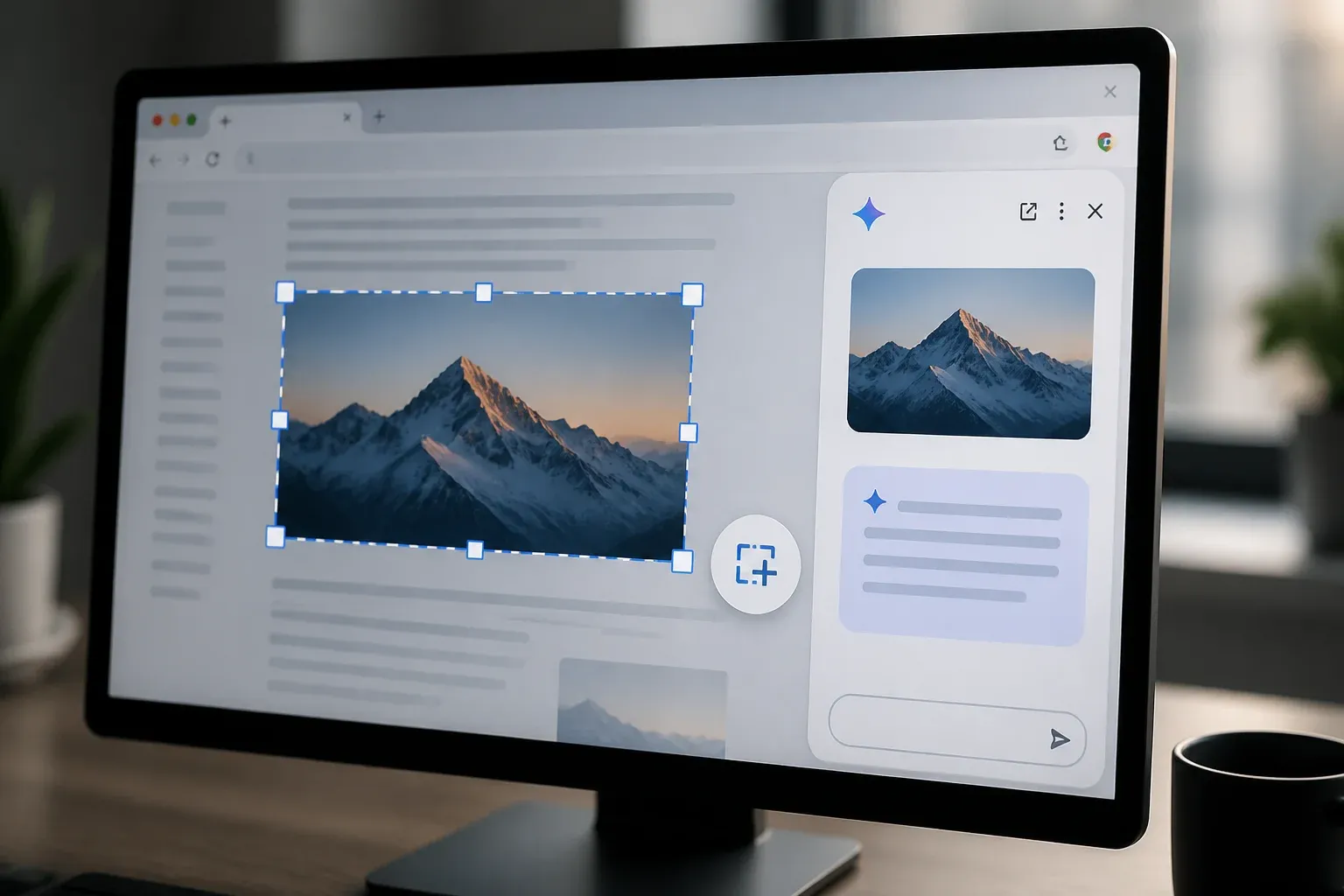
Select from Screen is a Chrome extension feature that works directly in Gemini’s side panel. When you highlight any piece of content on a webpage—whether it’s a paragraph of text, an image, a table, or even a section of code—you can right-click and send that selection directly to Gemini for analysis.
How It Works: Simple Three Steps
Step 1: Highlight content you want to analyze on any webpage.
Step 2: Right-click anywhere on the selected area and choose “Send to Gemini”.
Step 3: Gemini immediately processes your content, providing analysis, questions to consider, summaries, or whatever specific help you need.
When to Use Select from Screen (vs Full-Page Analysis)
Select from Screen shines when you need focused analysis of specific content, not an overview of an entire page. Perfect use cases include product comparison research, code debugging, article summarization, data extraction, and visual content analysis.
Pro Tips for Making the Most of Select from Screen
Combine with existing workflows by highlighting multiple pieces of content across different pages and asking Gemini to synthesize them all at once. Use natural language prompts for better results, save important analysis, and practice multi-page research.
Benefits: Time Saved and Productivity Gained
Instant context switching, focused analysis, better note-taking, and enhanced learning. No more copy-paste delays, no more tab switching, no more losing your place.
Real-World Examples
E-commerce shopping research: compare products, technical documentation: debug code snippets, academic research: analyze papers, language learning: translate and explain content.
Bottom Line: Why This Feature Matters
Gemini Chrome Select from Screen isn’t just another AI feature—it’s a fundamental shift in how we interact with information online. It removes friction from the research process, letting you get AI-powered insights instantly without disrupting your workflow.