
You pick up your phone and there it is: forty-one notifications, two of which matter. Most Galaxy AI features want applause for generating photos and translating live conversations. Meanwhile, the genuinely useful one sits buried in your settings, sorting your notifications quietly. It’s called Notification highlights, and it works entirely on your phone.
Two features hiding under one setting
Here’s the first confusing thing. Notification highlights isn’t one feature, it’s two, and they do different jobs. You’ll find both under Settings, then Notifications, then Notification highlights.
The first is Prioritize notifications. It watches which alerts you actually tap and which ones you swipe away, then reorders your notification panel so the stuff you care about sits on top. The second is Summarize notifications, which condenses long message threads into a couple of readable sentences before you ever open the app.
Neither one asks you for input after setup. No prompts, no suggestion cards, no pop-ups begging for attention. You flip the switches once and forget they exist, which is exactly how phone features should work.
It runs on your phone, not in a data center
This is the part that surprised me. Most Galaxy AI tools, the photo editing, the chat translation, the drawing assist, ship your data off to a server somewhere for processing. Samsung lets you force some of that to run locally, but the default usually involves the cloud.
Notification highlights plays a different game. All the analysis, both the prioritizing and the summarizing, happens entirely on-device. Nothing leaves your phone. For anyone uneasy about a company’s servers reading their WhatsApp groups, that’s a real difference, not a marketing checkbox.
It also explains the feature’s biggest weakness. On-device models are smaller than server farms, so summaries are shorter and simpler than what a cloud assistant might write. For “your landlord confirmed the repair for Tuesday”, that’s plenty. For a heated 40-message group debate, you’ll get the gist, not the drama.
How to set it up in two minutes
Ready to try it? The whole setup takes about as long as making coffee.
- Open Settings and tap Notifications.
- Tap Notification highlights. Depending on your region and software version, it may live under Settings, then Galaxy AI, instead, so check there if you don’t see it.
- Toggle on Prioritize notifications first. Give it a few days to learn your habits.
- Toggle on Summarize notifications if you want message digests.
- Check the supported apps list and make sure your main messaging apps are enabled.
That’s genuinely all of it. The learning part is where patience pays off. Samsung says the prioritization improves as it studies your patterns, so don’t judge it on day one. By the end of the first week, the reorder starts feeling obvious in retrospect, like the phone quietly understood you.
The catch: your phone and your apps
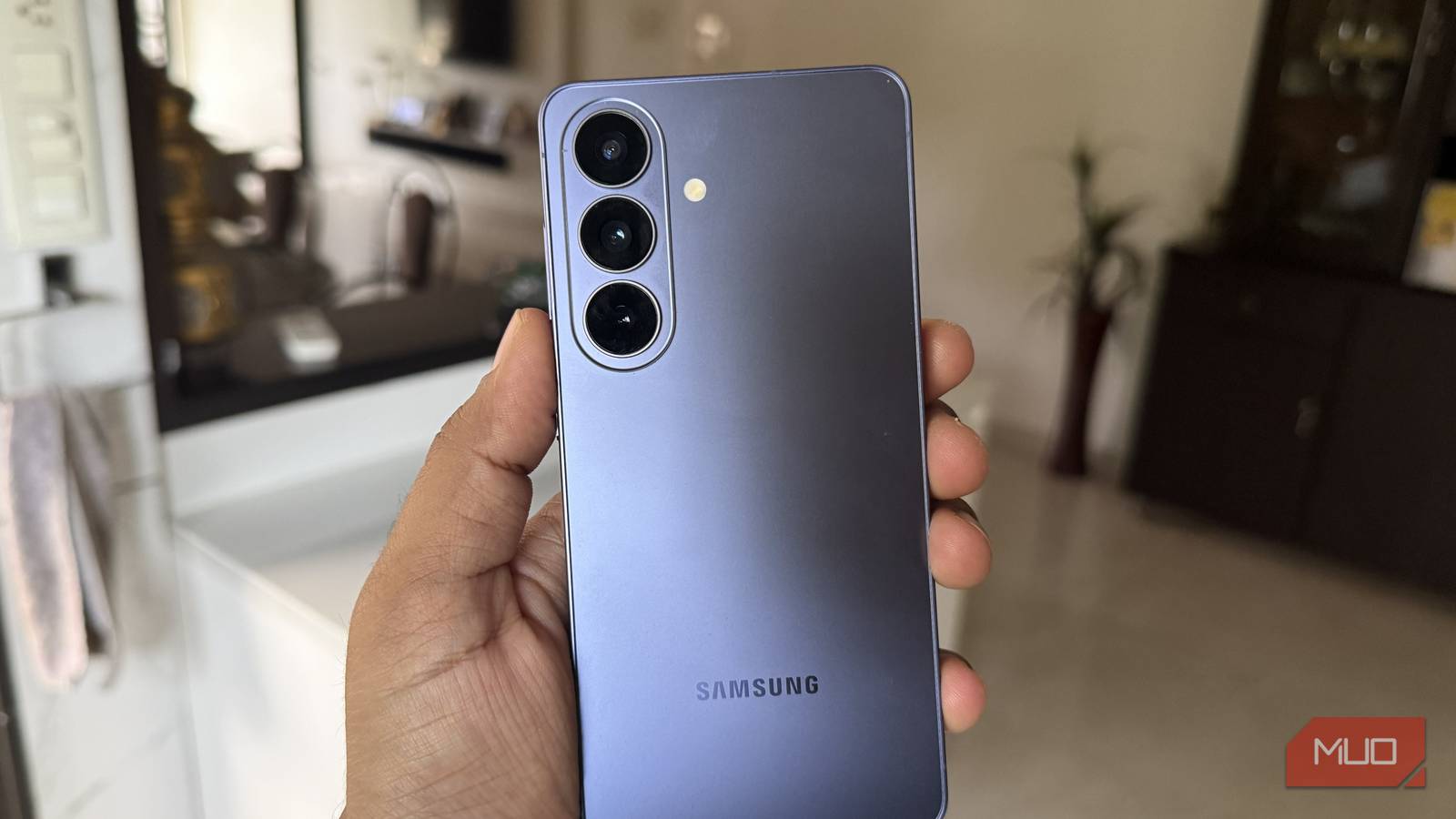
Before you go hunting through settings, know the limits. Notification highlights currently ships on the Samsung Galaxy S26 series, and older Galaxy models don’t have it yet. Samsung’s own support documentation confirms the S26 exclusivity for now. Whether it trickles down to older flagships through an update is anyone’s guess.
Summarize notifications also works only with a specific list of messaging apps: WhatsApp, Telegram, Google Messages, Instagram, TikTok, and a few dozen more. If your chats live in some niche messenger, don’t expect summaries there. Prioritize notifications, on the other hand, works across the board since it’s sorting by your behavior, not reading message content.
One more honest note: the summaries are deliberately plain. You get facts, not tone. Sarcasm doesn’t survive summarization, so maybe still read the message from your mother-in-law yourself.
What about Pixel and iPhone?
You’re not stuck with Samsung if you want this kind of help. Google rolled out AI Notification Summaries to Pixel 9 and newer phones back in November, with the A-series left out, and it works about the same: long message in, short digest out. Apple does its own version on iPhone too.
The difference is the packaging. Samsung bundles the summaries with a prioritization layer and runs the whole thing on the phone. Pixel’s summaries are honestly the better written ones, but there’s no matching sort-your-notifications brain behind them yet. iPhone’s summaries came first, though the supported apps list differs.
Pick whichever phone you already own. This is one category where nobody needs to switch brands.
How it stacks up against the flashy stuff
Galaxy AI gets marketed through showpieces, so a quiet utility like this never makes the commercial. But compare what each actually saves you:
| Galaxy AI feature | What it does | Daily value |
|---|---|---|
| Notification highlights | Sorts and summarizes alerts on-device | Saves minutes every single day |
| Circle to Search | Search anything on screen | Handy, used a few times a week |
| Live Translate | Real-time call translation | Great, but niche for most people |
| Photo Assist | Generative photo editing | Fun, occasional use |
The feature you use passively, without opening an app or typing a prompt, is usually the one worth the most. If this list surprises you, our ranking of Galaxy AI features goes deeper on which ones earn their keep.
Why on-device AI is the direction
Zoom out for a second. Samsung isn’t doing on-device summarization to be trendy. Processing locally means faster results, no upload lag, no subscription upsell in the middle of your notifications, and no server reading your messages. It’s the same philosophy behind the broader shift we covered in our guide to using AI on your phone without internet.
Battery and heat are the trade-offs, though the workload here is small enough that you won’t notice. The bigger deal is trust. A feature that never phones home is a feature that can’t leak what it read.
Small, boring jobs are where AI quietly earns its keep. Sorting notifications is exactly that kind of job. Samsung’s own support pages walk through the toggles if you want the official instructions: Notification highlights support guide. The hands-on take at MakeUseOf is worth a read too.
Give it one week
If your phone is a wall of noise and you own a Galaxy S26, turn on Notification highlights today and leave it alone for a week. Let Prioritize notifications learn your habits, enable Summarize for the messaging apps you actually use, and see if your morning scroll gets shorter.
It won’t demo well in a keynote. It will save you time tomorrow morning. That trade seems fair.