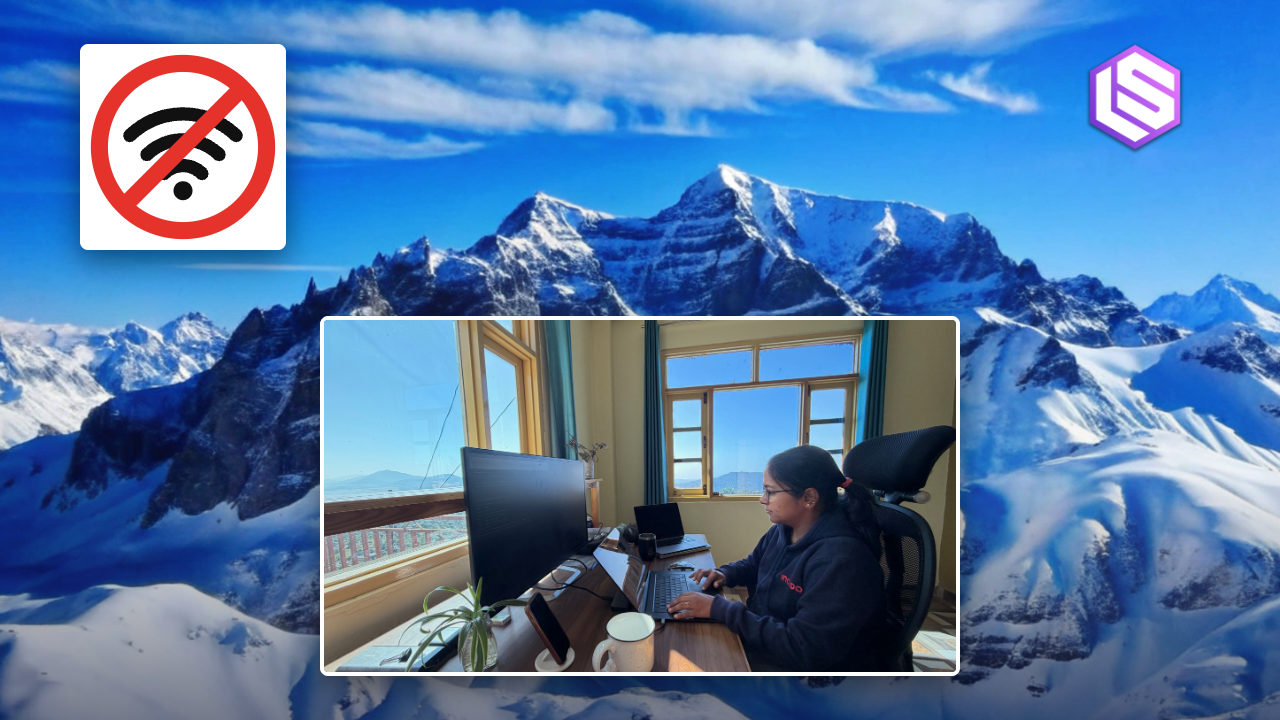

Wi-Fi dies mid-flight and your AI coding assistant goes with it. An engineer living in the Himalayan foothills got tired of that, so she built a fully offline coding agent that reads code, fixes bugs, and runs tests with the internet switched off. Her setup takes about an hour, and you can copy it tonight.
The engineer is Rittika Jindal, a principal engineer at Thomson Reuters, and she documented the whole experiment in a writeup on Latent Space. Her conclusion after weeks of daily use: small tasks survive offline just fine. Big ones don’t, and knowing the difference is most of the trick.
What an offline coding agent can actually do
Here’s the part that surprised me. A project already sitting on your laptop gives the agent plenty to work with, even with zero connectivity.
An offline coding agent can explain a function you don’t recognize, dig into a failing test, or refactor a small module. It can even finish half-built code, as long as the model, your project’s dependencies, and the test tools live on your machine.
What it can’t do offline is anything that needs the outside world. Installing a new package fails. Looking up documentation online fails. So the prep work, downloading everything before you lose the connection, is where these setups are won or lost.
The three-piece stack
The whole thing is three free tools wired together:
- OpenCode, an open-source coding agent that reads your files, proposes edits, and runs commands like your test suite. It asks permission before touching anything.
- Ollama, the local model runner that serves an AI model on your own laptop.
- Qwen 3.5, an open-weight model you download once and keep forever.
OpenCode handles the conversation with your project. Ollama handles the model. Your laptop handles everything, because there is no everything else.
Aider is the main alternative if you prefer a guided editing workflow, and it supports Ollama too. But OpenCode is what the tested setup uses, so that’s what this offline coding agent walkthrough sticks with here.
Picking a model size you can actually run
Qwen 3.5 comes in several sizes, and this choice decides whether the thing runs or crawls. Bigger scores better on coding benchmarks but eats RAM and disk.
| Model | Download size | LiveCodeBench v6 | BFCL-V4 (tool calling) |
|---|---|---|---|
| Qwen 3.5 4B | 3.3-4.0 GB | 55.8 | 50.3 |
| Qwen 3.5 9B | 6.6-7.6 GB | 65.6 | 66.1 |
| Qwen 3.5 27B | 17-20 GB | not listed | not listed |
The 9B version is the sweet spot for most laptops. It scores meaningfully higher on both code generation and tool calling, which matters because an agent lives or dies by calling tools with the right arguments. Budget 12-16 GB of memory for it, plus headroom for your editor and the agent’s context window.
Already got a machine dedicated to this stuff? Our guide to turning an old PC into a local AI server covers the bigger-iron version of the same idea.
Setting it up while you still have internet
Do all of this before you go offline. The setup below mirrors the one from the original walkthrough, which includes a GitHub repo with example projects and tests.
1. Install the tools
Get Ollama and OpenCode installed, then clone the example project. OpenCode 1.19.4 is the version the walkthrough used.
2. Point OpenCode at your laptop
OpenCode reads a project config file called opencode.json. Two settings matter: model picks Qwen 3.5 9B, and baseURL points at Ollama’s local address, http://127.0.0.1:11434/v1. The tested config also makes the agent ask before editing files or running shell commands, and blocks its web tools, since those would be useless offline anyway.
3. Start Ollama locked to localhost
This command keeps the model service on your machine and disables Ollama’s cloud features:
OLLAMA_HOST=127.0.0.1:11434 OLLAMA_NO_CLOUD=1 OLLAMA_CONTEXT_LENGTH=65536 ollama serve4. Download the model
In a second terminal, run ollama pull qwen3.5:9b and wait. It’s a multi-gigabyte download, so maybe put the kettle on.
5. Dry-run while online
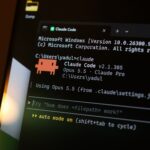
Open OpenCode from the project folder with opencode --pure, then give it a diagnostic prompt like “Read expense_total.py and run the tests. Explain the bug without editing any files.” If it answers, the plumbing works. Now kill your Wi-Fi.
The offline session: fixing a real bug
The example project ships with a broken expense calculator. It’s supposed to total five expenses, including a refund, and print 25.50. Instead it prints 8.00, because the function overwrites its total on every loop instead of adding.
First, run the existing tests yourself: python3 -m unittest -v. Three of five fail: decimal handling, refunds, and the sample data. Keeping those tests unchanged matters. They’re the independent judge of whether the agent actually fixed anything.
Then hand the bug to OpenCode. It reads the file, proposes a one-line fix, and asks permission before applying it. You review the diff, approve it, and rerun the tests. All five pass. On a laptop. In an airplane seat. That’s the whole loop, and it works offline because every piece, model included, never left your machine.
Want to try the exact same project she used? The full setup, examples, and test suites live in her opencode-qwen-local-setup repo on GitHub, free to clone.
Rules that make offline sessions work
The original write-up tested this offline coding agent repeatedly, and a few patterns separate smooth sessions from frustrating ones:
- Prep the project, not just the model. Dependencies and any docs you’ll need go on disk before you disconnect.
- Do one full dry-run online. Same command, same model, same config as the real thing.
- Give the agent the exact test command. The test setup used unittest, but the agent initially suggested pytest. One sentence in your prompt saves a detour.
- Keep tasks small and check the result. One bug, one review of the diff, one test run. Then the next task.
- Watch your RAM. The model download isn’t the only cost. Big context windows and a browser full of tabs compete for the same memory.
Where this setup hits its limits
Honesty time. A 9B model on a laptop is not a frontier model in the cloud, and the benchmark gap shows in harder work. Big refactors across unfamiliar frameworks will disappoint. The research paper that benchmarked OpenCode found it solved 50% of hard terminal tasks with a strong cloud model, and burned roughly 40 times more tokens than a simpler agent to do it. On a laptop, with a smaller model, expect that success rate to drop on anything big.
There’s also a reason bigger local models keep showing up in the news. If you’d rather push a gaming GPU harder than a laptop CPU, our guide to running Qwen locally on a gaming PC with Strata is the next step up, and the local LLM on your phone guide shows how far down this rabbit hole goes.
None of that kills the use case. Flights, trains, cabin-in-the-woods weekends, insecure hotel networks: those are exactly the moments a local agent earns its keep.
Takeaway
Install Ollama, pull Qwen 3.5 9B, and connect OpenCode to it while you’ve still got internet. Then turn off your Wi-Fi and hand it one small, test-covered bug. Fixing real code at 35,000 feet changes how you think about what “needs the cloud” actually means.