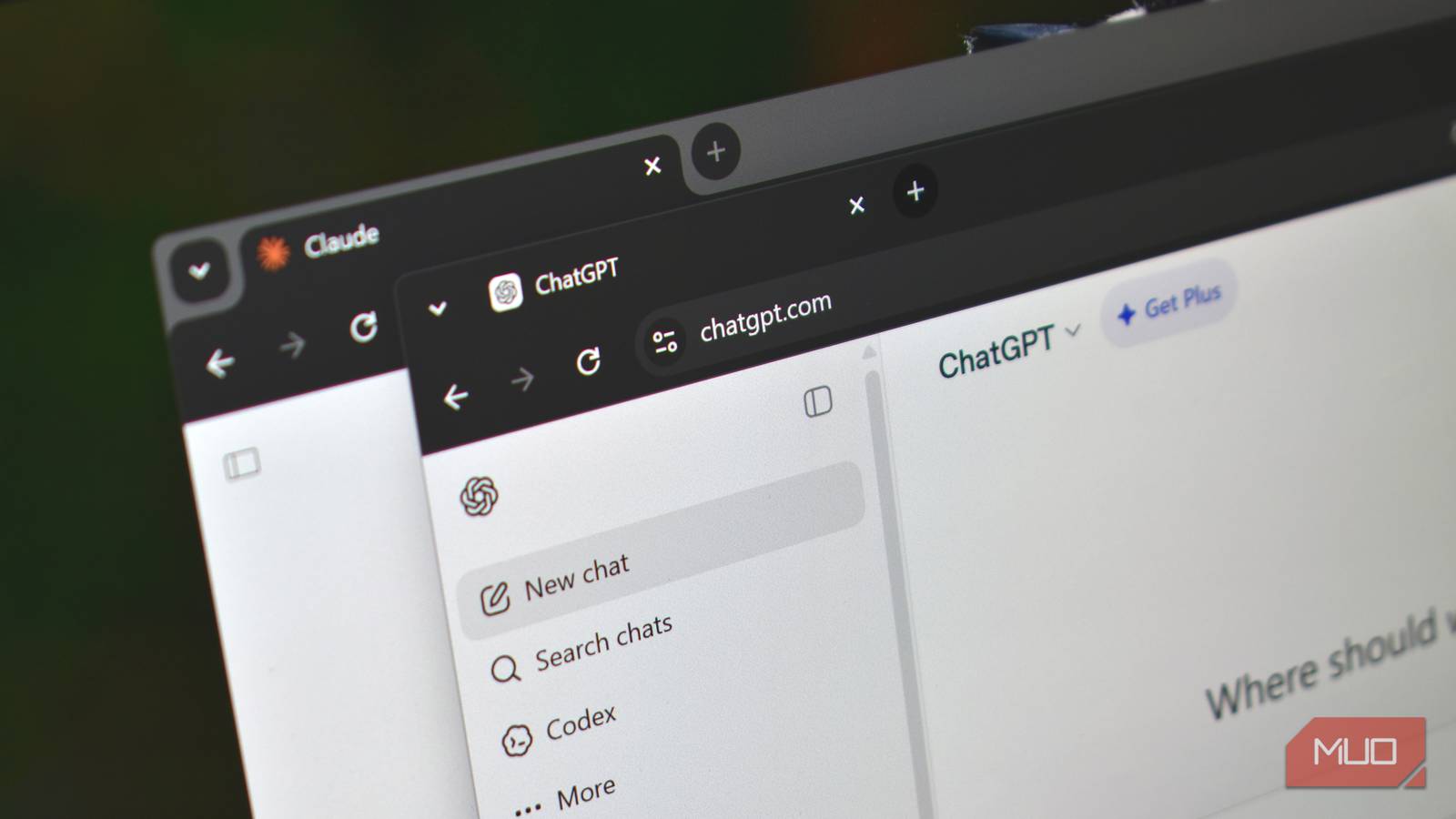

You just spent an hour getting ChatGPT tuned exactly how you like it. Then you open Claude the next morning and it has no idea who you are, what you do, or why the other chatbot felt so smart. A simple AI memory system fixes that, and it takes about 20 minutes with nothing fancier than a text file.
Why chatbots keep forgetting who you are
Every AI tool keeps its own private notebook about you. ChatGPT’s memory doesn’t talk to Claude’s memory. Gemini keeps a third one. So every time you try a new tool, you start over: re-explain your job, re-paste your style rules, re-answer the same “what are you working on?” questions.
It’s worse than annoying. If you bounce between two or three tools a week, that’s an hour or more every month spent on re-introductions. Plus the built-in memory drifts. It “remembers” an old preference from March, mixes one client’s context into another client’s work, and quietly stores stuff you never asked it to keep.
Anthropic’s built-in Claude memory helps, and we already covered how to switch it on. But it lives inside Claude. It doesn’t follow you over to ChatGPT, and you can’t actually see most of what it stored about you.
What an AI memory system actually is
Here’s the fix a growing number of people are landing on: stop letting each chatbot keep its own notes and keep one set of files that every tool reads. That’s an AI memory system in its simplest form. Your memory lives in documents you own, and each assistant gets pointed at them instead of guessing from chat history.
The version we’re building uses markdown files. Markdown is plain text with a few simple symbols for formatting (two asterisks make text bold, for example). Any editor opens it, AI models read it well, and you can see every line yourself. No hidden settings page. No mystery blob of stored facts you can’t inspect.
A minimal setup needs three files:
| File | What goes in it |
|---|---|
| about_me.md | Who you are, what you do, how you want replies formatted, standing rules |
| projects.md | What you’re working on right now, where each thing stands, what’s next |
| archive.md | Finished projects, kept in short form in case a new one needs old context |
Paid-plan users who let the AI edit files sometimes add a fourth: changelog.md, a running log of edits, so you can always see what changed. That’s the whole structure. Because it’s yours, you can bend it however you want. Freelancers add a clients.md. Students add a classes.md. Start with three and let it grow.
Build it in about 20 minutes
Step 1: write the files
Open Notepad on Windows or TextEdit on Mac (set it to plain text) and create about_me.md. Ten to fifteen lines is plenty. What belongs in there:
- Your job and the type of work you actually do
- Format rules: short and casual, no jargon, steps instead of essays, whatever you keep repeating
- Standing context: current clients, tools you use, deadlines that matter
It can read like this: “I run a small Etsy shop selling printable planners. When I ask for writing, keep it friendly and under 200 words. I hate marketing jargon. My current projects: holiday product line, Pinterest pin templates.” Short beats thorough. This file gets pasted into prompts, so every wasted line costs you context space.
Fill projects.md with one short block per project: what it is, where it stands, what’s next. Toss anything finished into archive.md, a few lines each, or the file bloats within a month. And if writing about yourself feels awkward, there’s a shortcut: ask ChatGPT or Claude to draft the files from your chat history, then edit every line before you trust it. The draft usually comes back 80% right and 100% too flattering.
Step 2: hook it into Claude
Claude’s free plan reads files live from Google Drive, which makes this the easy one. The whole thing takes three steps.
- Put your three files in a folder in Google Drive (the desktop app or drive.google.com both work).
- In Claude, open Settings, then Connectors and switch on Google Drive.
- Add one line to your custom instructions on the web app (Settings, then the “Instructions for Claude” box under your account): “At the start of any new chat, read about_me.md and projects.md from my Google Drive and treat them as the source of truth about me and my current work.”
Now every new Claude session starts already knowing you. Because Claude reads the live Drive version, edits show up immediately. Change projects.md in Notepad at 9am, and the 9:15 chat already knows.
Step 3: hook it into ChatGPT
ChatGPT’s free plan won’t read your Drive. So the move is different: paste.
Go to Settings, then Personalization, then Custom instructions (our custom instructions walkthrough covers that page line by line). In the traits box, add: “I keep my preferences and current projects in a markdown memory file. When I paste it, treat it as the source of truth and skip the background questions.”
Then paste about_me.md at the start of any chat that matters. Yes, that’s manual. Still, it takes ten seconds, and you decide exactly which conversation gets which context. Sign in at chatgpt.com to set it up. Some paid plans can even edit the memory files for you between sessions, and that’s when changelog.md earns its keep: one glance shows you everything the AI touched.
Keep it alive without the upkeep eating your week
A memory file nobody updates is a calendar from two years ago. Because your AI memory system is only as good as its last edit, build one small habit: end any session that actually decided something with this prompt. “List the meaningful changes from this chat that I should add to my memory files, and anything already in there that’s now redundant.” It answers in seconds. You pick and choose from its suggestions, edit the files, done.
Do a bigger audit once a month. Delete finished projects. Kill preferences you’ve drifted away from. When the AI suggests something you’d rather it forget, remove it on the spot. This five-minute loop is the entire maintenance cost, and it replaces clicking through three different apps’ memory settings.
Want the fancy version later? Open-source tools like Basic Memory let AI tools read and write a local folder of markdown automatically over something called MCP (we explain that in plain English in our Claude Code notes guide). Solid upgrade path. Not needed on day one.
When the built-in memory is still the better pick
Honesty time. Not everyone needs this. If you use one AI tool for everything and never touch the others, built-in memory is less work and honestly good enough. The MakeUseOf writer who built this exact setup (his full write-up is worth a read) says the same thing: an external system is overkill for single-tool people.
For everyone juggling two or more assistants, the trade looks like this:
| Built-in chatbot memory | Your own AI memory system | |
|---|---|---|
| Where it lives | Inside each app | Your files, any device |
| Works across tools | No | Yes |
| You can read it | Partially, app by app | Every line, any editor |
| Setup effort | None | About 20 minutes, once |
| Upkeep | Automatic but drifts | Five minutes per session |
| Best for | Single-tool users | Multi-tool users |
Clear winner for multi-tool people: the file system. You own it, you can audit it, and it survives switching tools entirely. If you try a new chatbot in February, your AI memory system comes with you. Its memory doesn’t.
Your move
Write the three files tonight. Ten lines in about_me.md beats a perfect file that never gets made. Tomorrow, wire up Claude’s Drive connector and paste the file into ChatGPT once before your first real task. By Friday you’ll have stopped paying the re-explanation tax in every tool you use, and switching apps will feel like moving with your stuff instead of starting from a stranger’s empty apartment.