
You’ve got seven tabs open and three of them are selling the same couch at different prices. As of October 15, ChatGPT Chrome tabs support means you can stop copying and pasting links around and just ask it to compare them for you.
What changed on October 15
OpenAI updated its ChatGPT extension for Chrome, and this one is bigger than the usual bug-fix bump. The short version: ChatGPT can now see the tabs you already have open. Not a screenshot, not a paste. The actual pages.
The company announced it on X with a line that sums up the pitch: “bringing the power of computer use to anyone who uses Chrome.” That’s the key idea here. Browser agent features mostly lived in research demos or paid enterprise tools until now. This is the biggest change to ChatGPT Chrome tabs since the extension launched, and it puts those powers in front of around seven million users, on every ChatGPT plan, including free.
There are two halves to the update, and they work differently. In Chat mode, ChatGPT reads across your open tabs and gathers information. Ask it to compare three product pages, summarize a long article, or check a pricing page against your budget, and it pulls from what’s already on your screen. You tag Chrome in the prompt with an @ mention, and off it goes.
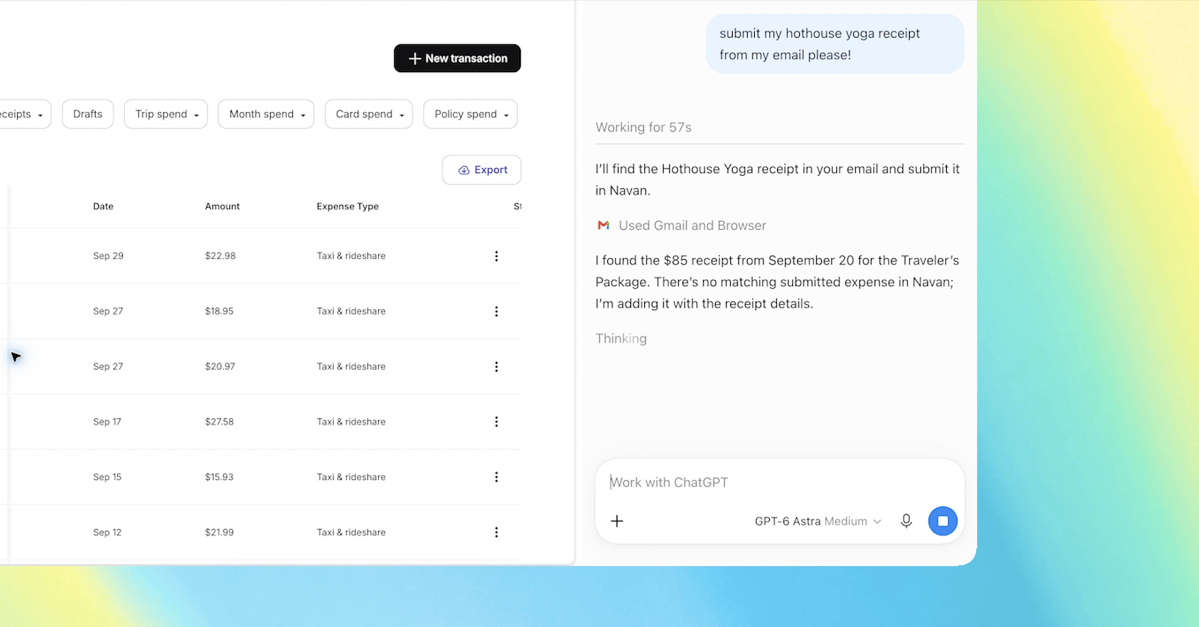
Work mode goes a step further. Here ChatGPT doesn’t just read your tabs, it acts inside them. It can fill out forms, send messages, download files, and even wrangle a pile of messy tabs into organized groups. If you’ve followed the rise of AI browser agents, this is the same idea brought to the browser you already use. And it leans on your logged-in browser profile rather than a separate sandbox.
Chat mode vs Work mode at a glance
The two modes solve different problems, so it’s worth being clear about which one you’re using before you fire off a prompt.
| Chat mode | Work mode | |
|---|---|---|
| What it does | Reads your open tabs and answers questions | Controls tabs: clicks, types, downloads, organizes |
| Typical tasks | Compare products, summarize articles, check specs | Fill forms, send messages, build comparison sheets |
| Risk level | Read-only, low risk | Takes actions, so supervise it |
| Best example | “Compare these three couches by price and delivery” | “Fill this registration form and stop before submitting” |
That “stop before submitting” bit in OpenAI’s own example is worth noticing. Even the company’s demo prompts for ChatGPT Chrome tabs assume you’ll keep the final click for yourself on anything that matters.
Setting it up in about five minutes
You need two pieces: the Chrome extension and the ChatGPT desktop app. The desktop app is what lets ChatGPT actually control tabs, so don’t skip it.
Here’s the quick path:
- Update or install the ChatGPT extension from the Chrome Web Store. It’s the official one from OpenAI, currently at version 1.26.x.
- Open the ChatGPT desktop app on Mac or Windows and go to Settings, then Computer Use.
- Select Chrome and follow the prompt to connect it. Chrome will throw a wall of permission requests at you. More on that below.
- Back in the desktop app, confirm Chrome now shows a Manage button. That’s your signal it’s connected.
- Start a chat and type @ to pick Chrome as the tool. Then just describe what you want.
One nice touch: there’s also a side chat now. Click the ChatGPT icon in Chrome’s toolbar and a panel opens next to whatever page you’re reading, with your full chat history attached. Chrome, Edge, Brave, and Vivaldi all support it. Opera gets the tab features but no side chat, so start those tasks from the desktop app instead.
Things Chat mode is surprisingly good at
The comparison use case is the obvious winner. OpenAI’s demo had ChatGPT compare three sofa listings across dimensions, material, delivery time, and return policy, then summarize the differences. That’s maybe twenty minutes of squinting and switching tabs, done in one prompt.
Shopping aside, a few more that work well:
- Research dumps. Five articles open for a project? Ask for a combined summary with the disagreements flagged.
- Spec checking. “Which of these laptops has the best battery life and a user-replaceable RAM slot?” It reads the pages so you don’t have to.
- Price tracking across sellers. Same product, four store tabs, one answer with links back to each page.
- Video catch-up. On a supported page like YouTube, it can pull the timestamped transcript and tell you what a 40-minute video actually says.
None of this is rocket science. It’s just reading, and it’s the boring tab-juggling kind of reading you’d otherwise do yourself.
Work mode: the stuff that actually saves hours
This is where the update stops being a convenience and starts earning its keep. Work mode uses OpenAI’s computer use capability, and the current GPT-6 Astra model is genuinely good at multi-step browser tasks.
The practical examples from OpenAI’s documentation:
- Form filling. Hand it an event brief and a registration page, and it fills in the fields. It stops before submitting so you can check its work.
- Vendor comparison sheets. Give it five supplier tabs and ask for a spreadsheet comparing pricing and features, with source links included.
- Inbox and message drafting on site. It can work inside Gmail, LinkedIn, Salesforce, or internal dashboards, because it uses your logged-in session rather than a separate login. If you’ve tried the Codex browser automation workflows, this feels familiar but friendlier.
- Download wrangling. Invoices, receipts, PDFs. It grabs files from open pages, and it asks permission before every download.
- Tab cleanup. Forty open tabs from a research spiral? It can sort them into named groups.
The signed-in session detail matters more than people realize. Cloud browser agents start from a blank profile, so they choke on anything behind a login. ChatGPT Chrome tabs work on sites where you’re already signed in, which covers most of the internet you actually use for work.
The permission settings worth five minutes of your time
Now the part that deserves your attention. To control tabs, the extension asks Chrome for broad access: the ability to read and change data on all websites, your browsing history, downloads, bookmarks, and tab groups. That’s a lot of trust to hand one extension.
ChatGPT layers its own controls on top, and they’re actually decent:
- It asks before touching each new website, keyed to the site’s domain. You can allow once, allow for that site, allow all sites, or decline.
- “Allow for all sites” is labeled as elevated risk, because after that it stops asking. I’d leave it off.
- It always asks before referencing your browser history or downloading and uploading files.
- You can review and revoke site permissions anytime in the desktop app under Settings, then Computer Use.
My honest take: use it per-site, not globally. Close tabs with banking or medical stuff before you invoke it, since your open tabs are some of the most personal data on your machine. And treat form filling as something you watch, not something you walk away from. The feature is new, and the failure mode of an AI clicking the wrong button in your logged-in session is not fun to unwind.
Where it falls short
Worth knowing before you build your whole workflow around it. OpenAI hasn’t spelled out whether free users get the full Work mode tab control or just Chat mode reading, so expect some plan-based limits as the rollout settles. The extension’s rating on the Chrome Web Store is a rough 2.4 stars, which mostly reflects early bugginess rather than the new features. And on Mac, Computer Use needs Screen Recording and Accessibility permissions, which some people will rightly balk at.
There’s also the trust question with any agent that reads your screen. OpenAI’s own docs tell you to treat webpage content as untrusted, because a page can contain text that tries to trick the model. We’ve covered this territory before with files you should never upload to ChatGPT, and the same instinct applies here: keep sensitive stuff out of the AI’s view and you avoid most of the risk.
Your first three tasks with ChatGPT Chrome tabs
Start small and build trust as you go. First, install the extension and connect it to the desktop app, then try a pure read task: compare two product tabs you already have open. Second, graduate to a Work mode task with low stakes, like having it organize your tabs into groups. Third, try a supervised form fill on something trivial, watch how it works, and decide from there how much you want to hand over.
The tools for this kind of browser help have been “almost there” for two years. This is the first version of ChatGPT Chrome tabs that’s easy enough for a beginner and free enough to just try. Five minutes of setup, and your tabs start working for you.