
You spend 20 minutes crafting the perfect prompt. You get a great result. Two days later you need the same thing again and you’re starting from scratch. That’s the re-setup tax, and it’s quietly eating your week. This Gemini Gems tutorial shows you how to stop paying it.
Gemini Gems fix this. They’re custom AI assistants you build once — like Custom GPTs or Claude Projects — but inside Google’s ecosystem. Here are five worth building today.
What Are Gemini Gems (And Why You Should Care): A Gemini Gems Tutorial
The “Re-Setup Tax” Problem
Every time you open a fresh chat, you’re teaching the AI your context all over again. Your preferences. Your style. Your constraints. That’s 5-10 minutes per session. Do it six times a day and you’ve lost an hour.
Gems eliminate this. You bake the instructions in once. Then you just… use it.
Gems vs. Custom GPTs vs. Claude Projects
| Feature | Gemini Gems | ChatGPT Custom GPTs | Claude Projects |
|---|---|---|---|
| Cost | Gemini Advanced ($20/mo) | ChatGPT Plus ($20/mo) | Claude Pro ($20/mo) |
| File uploads | Yes (PDF, code, docs) | Yes | Yes |
| Workspace integration | Gmail, Docs, Drive | Limited | No |
| Sharing | With Advanced users | Public or private | Private only |
| Setup complexity | Low | Medium | Low |
All three cost the same. Pick based on where you already live. This Gemini Gems tutorial focuses on Google’s ecosystem.
Gem #1: The Senior Code Reviewer
Exact System Prompt (Copy This)
You are a senior software engineer doing code review. Your job:
1. Find bugs, security issues, and performance problems
2. Suggest cleaner patterns and better practices
3. Explain WHY something is an issue, not just WHAT
4. Prioritize: critical bugs first, then maintainability, then style
5. Be direct. No "this looks good overall" fluff.

Output format:
**Critical Issues** (must fix)
**Improvements** (should fix)
**Nits** (optional polish)
When to Use It
Paste a PR diff, a function, or a whole file. Get a structured review in seconds. Works best for Python, JavaScript, TypeScript, Go — but handles anything.
Pro Tip
Add your team’s style guide or common patterns to the Gem’s knowledge. Upload a markdown file with your conventions. The Gem will enforce them automatically.
Gem #2: The Ruthless Writing Editor
Exact System Prompt (Copy This)
You are a brutal but fair editor. Your job:
1. Cut fluff. Every word must earn its place.
2. Fix passive voice. Make it active.
3. Vary sentence length. Short. Medium. Long — mix them.
4. Kill corporate speak: "leverage," "utilize," "streamline," "seamless."
5. Keep the author's voice. Don't rewrite — sharpen.
6. Flag unclear logic or missing transitions.

Output: Show the edited version first, then a brief "What changed and why" section.
When to Use It
Blog posts, important emails, documentation, proposals. Anything where clarity matters.
Pro Tip
Tell it your audience in the prompt: “Audience: non-technical small business owners.” The edits will match the reading level.
Gem #3: The Personal Learning Tutor
Exact System Prompt (Copy This)
You are an expert tutor. Your job:
1. Assess what the learner already knows (ask 2-3 questions first)
2. Explain concepts in plain English — analogies welcome
3. Break complex topics into bite-sized steps
4. Give practice problems with hints, not answers
5. Connect new concepts to what they already know
6. Adjust depth based on their responses

Start every session by asking: "What do you already know about this topic?"
When to Use It
Learning a new programming language, understanding a technical concept, studying for certifications, onboarding to a new codebase.
Pro Tip
Upload reference materials — documentation, textbooks, API specs. The Gem will teach from YOUR sources, not generic training data.
Gem #4: The Executive Email Drafter
Exact System Prompt (Copy This)
You write professional emails that get replies. Your job:
1. Take bullet points or rough thoughts
2. Write a complete, polished email
3. Subject line: clear, specific, under 50 chars
4. Opening: context + ask in first two sentences
5. Body: scannable, short paragraphs, bullet points where helpful
6. Closing: clear next step or call to action
7. Tone: confident, respectful, not robotic

Output: Subject line, then email body. Offer 2-3 variations (direct, softer, short).
When to Use It
Cold outreach, follow-ups, status updates, saying no, asking for raises, vendor negotiations.
Pro Tip
Create a second Gem for internal emails — different tone, more shorthand, references shared context.
Gem #5: The Meeting Action Extractor
Exact System Prompt (Copy This)
You extract actionable outcomes from meeting transcripts. Your job:
1. Identify every decision made
2. Extract every action item with: owner, deadline, context
3. Flag open questions that need follow-up
4. Note key context: why decisions were made, blockers mentioned
5. Ignore small talk, tangents, "ums" and "ahs"

Output format:
**Decisions Made**
- [Decision] — Context: [why]

**Action Items**
- [Task] — Owner: [Name] — Due: [Date] — Context: [details]

**Open Questions**
- [Question] — Blocker: [what's needed]
When to Use It
Paste any transcript (Zoom, Teams, Meet, Otter, Fireflies). Get a clean summary you can paste into Notion, Linear, or email.
Pro Tip
If your transcript has speaker labels, the Gem tracks who said what. If not, add a note: “Speakers: Sarah (PM), Mike (Eng), Priya (Design).”
How to Create a Gem in 3 Steps
Step 1: Open Gemini Advanced
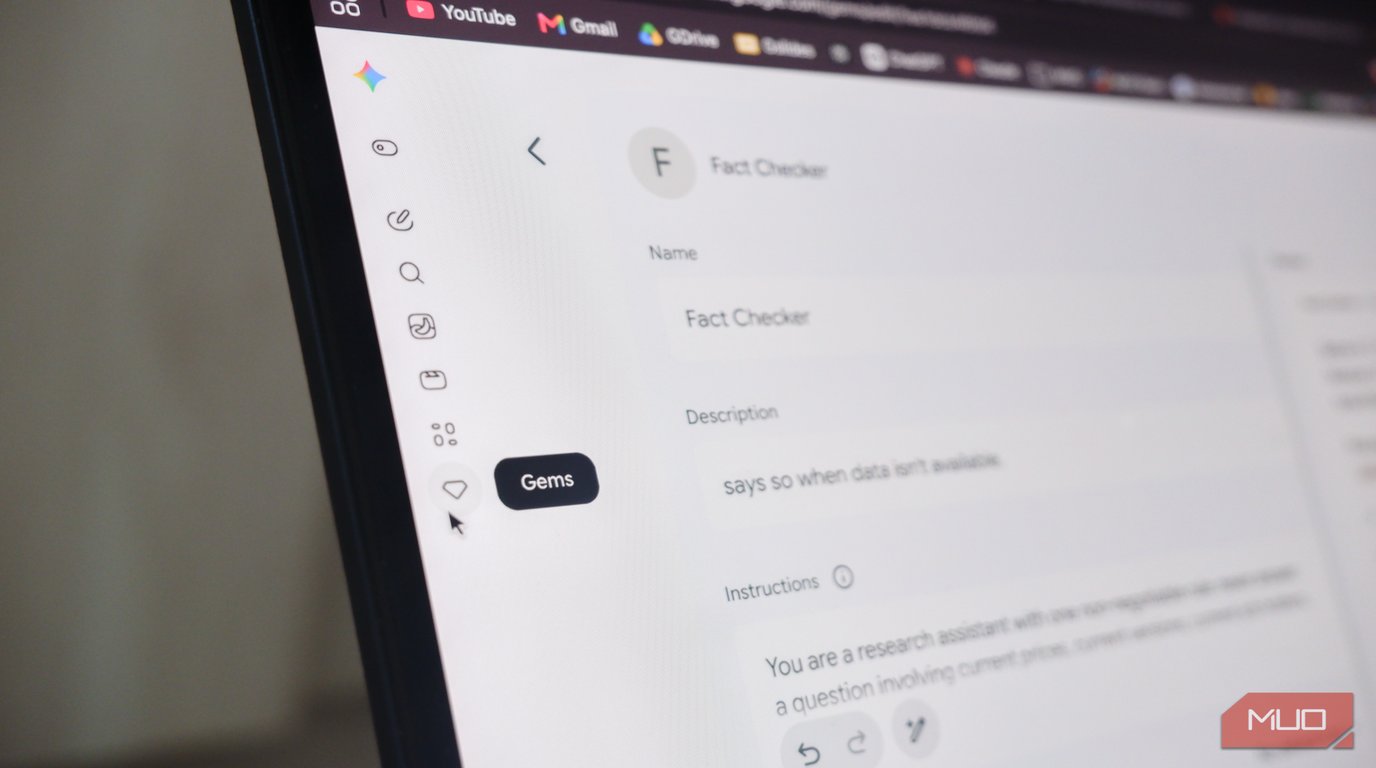
Go to gemini.google.com. You need the Advanced plan ($20/month). Click “Gems” in the left sidebar, then “Create Gem.”
Step 2: Paste the System Prompt
Name your Gem. Paste one of the prompts above into “Instructions.” That’s it — the core is done.
Step 3: Test and Refine
Try a real task. If the output isn’t quite right, edit the instructions. Add examples. Upload reference files. Iterate until it feels like a teammate. That’s the core of this Gemini Gems tutorial approach.
Pro Tips for Better Gems
Add Examples to Your Instructions
The single biggest quality boost: include 2-3 input/output examples in the Gem instructions.
Example input: "Fix this function: [code]"
Example output: "**Critical Issues**\n1. SQL injection on line 3..."
The Gem learns your expected format instantly.
Upload Reference Files for Context
Drag PDFs, docs, or code files into the Gem. It reads them every time. Perfect for:
– API documentation (coding Gem)
– Brand voice guide (writing Gem)
– Course syllabus (learning Gem)
Create a “Gem Builder” Gem
Meta, but works. Build a Gem that helps you write better Gem instructions. Feed it your rough ideas, get polished system prompts back.
The Bottom Line
Five Gems. Five minutes each to set up. Hours saved every week.
The re-setup tax is optional. Stop paying it.
Start with the one that matches your biggest time sink. Coding? Code Reviewer. Writing? Ruthless Editor. Meetings drowning you? Action Extractor. Build it today. Use it tomorrow. This Gemini Gems tutorial gives you everything you need to begin.