


Your tax documents are sitting in Drive, your spending is tracked in Wallet, and Google’s AI could see exactly none of it. That changed on Monday, when Google AI Mode learned to tap both, and the answers it gives you are about to get a lot more personal. Here’s what it does, what it costs (nothing), and where the off switch lives.
What Google actually announced
Google calls the feature Personal Intelligence, and it’s been rolling out in pieces all year. Search’s AI Mode could already connect to Gmail, Google Calendar, and Google Photos. Now Drive, Google Wallet, and the Gemini app are joining the party.
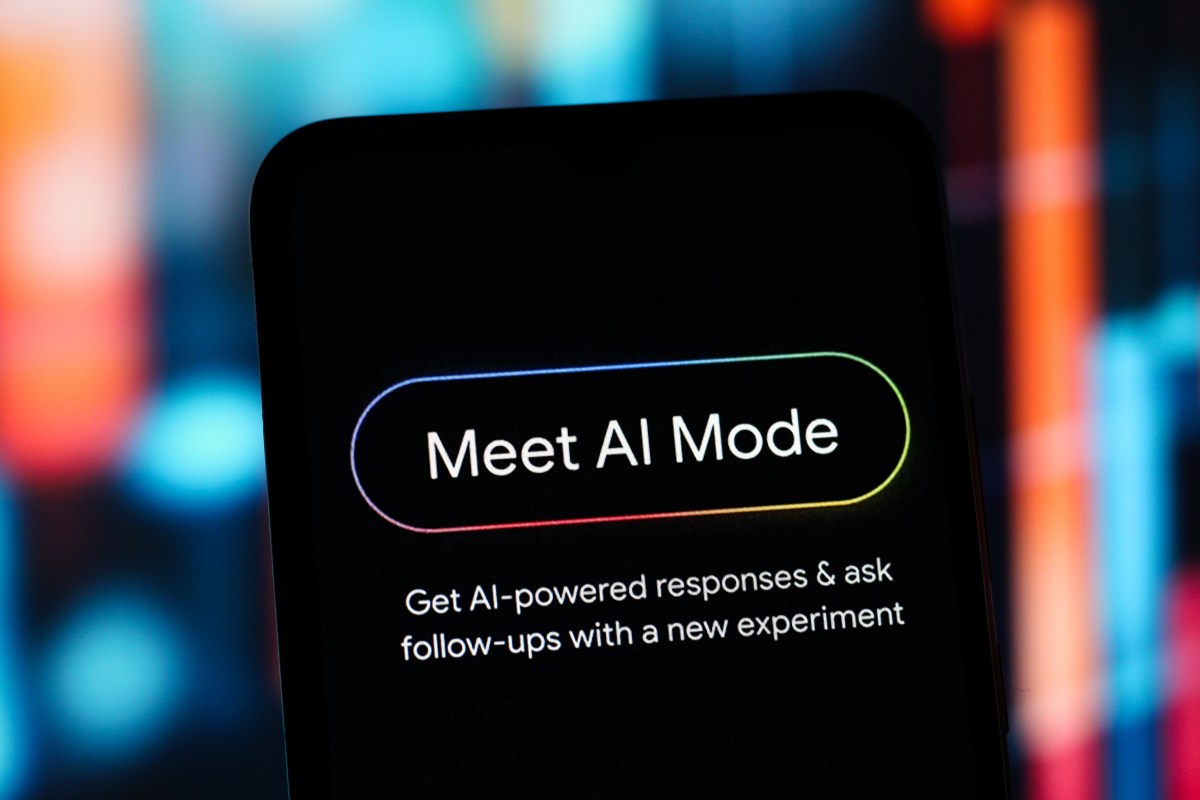
The pitch is simple. Instead of a generic answer, Google AI Mode pulls context from your own stuff and tailors the response to you. Ask about tax season and it can actually look at the files in your Drive. Ask where your money went last month and it can read your Wallet data. No more copy-pasting your own life into a chatbot.
Two things stood out in Google’s announcement. First, Wallet is read-only, full stop. The AI can see accounts and spending, but it cannot move, manage, or spend your money. Second, everything is optional. You connect apps one at a time, and you can switch the whole thing off whenever you want.
Connecting Drive: your files join the conversation
Drive is the big one for most people, because that’s where documents actually live. Google’s example is a good one: important info about a project or a big decision is usually scattered across docs and spreadsheets. Google AI Mode can now read across all of it.
The tax season example Google gave is worth picturing. Connect Drive, ask for a personalized plan, and the AI works from your actual files instead of generic advice. Freelancers, this one’s for you. Your 1099s, your expense spreadsheet, your half-finished quarterly estimates, all of it becomes context.
Here’s how to turn it on:
1. Open Google Search on your phone or desktop and switch to AI Mode (the tab under the search box, or the AI Mode icon in the app).
2. Tap your profile picture in AI Mode, then find the Personalization or Personal Intelligence settings.
3. Select Google Drive and confirm the connection. Google will show you exactly what the AI can access, and you can disconnect later with one tap.
4. Ask something that needs your files. Try “look at my documents and build me a tax season plan” or “summarize the project files I worked on this month.”
That’s it. The first answer might feel strange, in a good way. It’s referencing your actual documents, not a template.
One honest note: results depend on how organized your Drive is. If everything is named “untitled document (47),” the AI has the same problem finding things you do. A messy Drive means generic answers, so this feature quietly rewards a ten-minute cleanup. If you’re new to the feature itself, start with a beginner guide to Google’s AI search box and come back.
Connecting Wallet: money insights without money moves
The Wallet integration is aimed at your budget. Google says connecting it lets Google AI Mode help you track financial goals, cut everyday spending, and get more out of credit card rewards. All of that is the kind of work most of us keep meaning to do and never do.
The read-only rule matters, so let’s be precise about it. AI Mode can read account information and transactions. It can’t transfer money, pay bills, or touch anything. If the idea of an AI near your finances makes your skin crawl, this boundary is the reason it might be tolerable anyway.
Practical uses that actually work:
- “Where did I overspend last month, and what are the two biggest categories?”
- “Which of my cards gives the best rewards for groceries?”
- “I want to save $2,000 by March. Based on my spending, what should I cut?”
Now, a caveat from someone who reads the fine print for a living: an AI reading your spending data is still a company reading your spending data. Google’s pitch is that the connection is opt-in and reversible, which is true. Whether you trust the trade-off is your call, and skipping Wallet costs you nothing except those money insights.
Sharing context with the Gemini app
The third piece is subtle but useful. The Gemini app and AI Mode now share context between them.
Say you spend twenty minutes in the Gemini app planning a trip, comparing options, refining the itinerary. Later, you search for something trip-related in Google. AI Mode already knows the context. You don’t start over, don’t re-explain, don’t repeat yourself. The same works in reverse: research you do in Search shows up in the Gemini app.
For anyone who has ever pasted the same background info into three different AI chats this week, this is the fix. Context follows you instead of living in a single tab. It’s the same idea behind Gemini’s memory controls, taken one step further.
The Personalization icon: see what the AI knows
Google is also adding a “Personalization” icon that appears below AI Mode responses. Tap it, and you see which personal context the answer used.
This is a bigger deal than it sounds. The scariest part of personalization has always been the invisibility. What did it read? How much did it use? The icon turns the magic trick face-up. If an answer used your Drive files, you’ll know. If it ignored your personal data entirely, you’ll know that too. Google AI Mode shows its work, which is more than most AI features can say.
Consider it a built-in audit button. Rolling out soon, per Google, so don’t panic if you don’t see it yet. The official Google Search blog is where the feature details land first.
Turning it all off
Full control lives in the same settings menu where you connected things. Personal Intelligence can be switched on or off at any time, per app or entirely.
Want Drive connected but not Wallet? Fine. Want everything off until tax season? Also fine, and honestly not a crazy strategy. The toggle takes one tap. If you’ve already tightened up how Google uses your Gmail data for ads, this menu sits in the same neighborhood.
Is it worth connecting your stuff?
Here’s my take after living with it. Drive: yes, especially if you handle your own taxes or run any kind of side business. The personalized answers save real time, and the read is low-risk.
Wallet: try it for a month if you’re actively trying to cut spending or optimize rewards. The insights are genuinely useful, and read-only is a meaningful safety line. If you’re private to a fault, skip it and lose little.
Gemini context sharing: just turn it on. It’s the least sensitive piece and saves the most repetitive typing.
The bigger shift is worth naming, too. Search used to answer the world’s questions. Now it answers your questions, using your data, on request. That’s a different product than the search box you grew up with, and the competitors can’t copy it, because they don’t have your Drive. Whether that level of integration is comfort or creepiness depends on the day. The off switch, at least, is real.
So give it a spin this week: connect Drive, ask for one personalized plan, and tap the Personalization icon when it shows up. Ten minutes, and you’ll know exactly whether this belongs in your routine.