


Most AI voice tools charge you per minute, lock your audio in the cloud, or both. NVIDIA PersonaPlex does neither. It’s a free speech model that runs entirely on your own hardware — you talk to it, it talks back, and nothing leaves your machine.
The weird part? It actually feels like a real conversation.
What NVIDIA PersonaPlex actually does (and why it’s different)
Here’s what makes PersonaPlex different from basically every other AI voice tool: it’s not text-to-speech. It’s not speech-to-text piped into a chatbot. It’s a full-duplex speech model.
That sounds like jargon, so here’s what it means in plain English. When you talk to ChatGPT’s voice mode, here’s what happens behind the scenes: your voice gets transcribed to text, that text goes to a language model, the model writes a text response, and then a separate system turns that text into audio. Four steps. There’s always a delay, and the voice never quite sounds natural because it’s reading text, not thinking in sound.
PersonaPlex skips all that. You speak directly into it, and it generates a spoken response from an audio stream. No transcription step. No text middleman. It processes your incoming audio and its own outgoing audio at the same time, which is why conversations feel surprisingly fluid.
NVIDIA released it in January 2026 as a 7-billion-parameter model built on top of Moshi, an open-source speech model from Kyutai. The company fine-tuned it for controllable voices and personas, meaning you can tell PersonaPlex to “be a friendly teacher” or “talk like a customer service agent,” and it adjusts its personality accordingly.
The whole thing is open-source. The model weights are on Hugging Face, and once you download them, there are no API keys, no subscriptions, and no per-minute billing. Your conversations stay on your computer.
What you need before you start
Hardware requirements (it’s less than you think)
The official documentation recommends around 19GB of VRAM for the full-precision version. That sounds like a lot until you realize that an RTX 3090 or 4070 Ti Super has 24GB. A used 3090 goes for under $700 on eBay right now, and it runs PersonaPlex in real-time with zero issues.
But what if you don’t have a beefy GPU? The community already solved that. Two projects have added quantization support:
- PersonaPlex ComfyUI integration — offers 8-bit and 4-bit quantization, dropping VRAM needs to roughly 8-16GB
- moshi.cpp — a CPU-friendly port that reportedly runs well even on an RTX 2070 Laptop with 8GB of VRAM
So no, you don’t need a $2,000 workstation. A mid-range gaming laptop from the last few years can handle this.
On the software side, you’ll need Python 3.10+, PyTorch, the Opus audio library, and a Hugging Face account (to accept the model license). Nothing exotic.
How to set up PersonaPlex on your computer
The setup process is straightforward, though it involves a few terminal commands. Here’s the condensed version:
Step 1: Clone the PersonaPlex repository from NVIDIA’s GitHub and create a Python virtual environment.
Step 2: Install the dependencies (PyTorch and the Opus audio library are the main ones).
Step 3: Log into Hugging Face from your terminal and accept the PersonaPlex model license. The model is about 9GB, so expect a short wait on the first download.
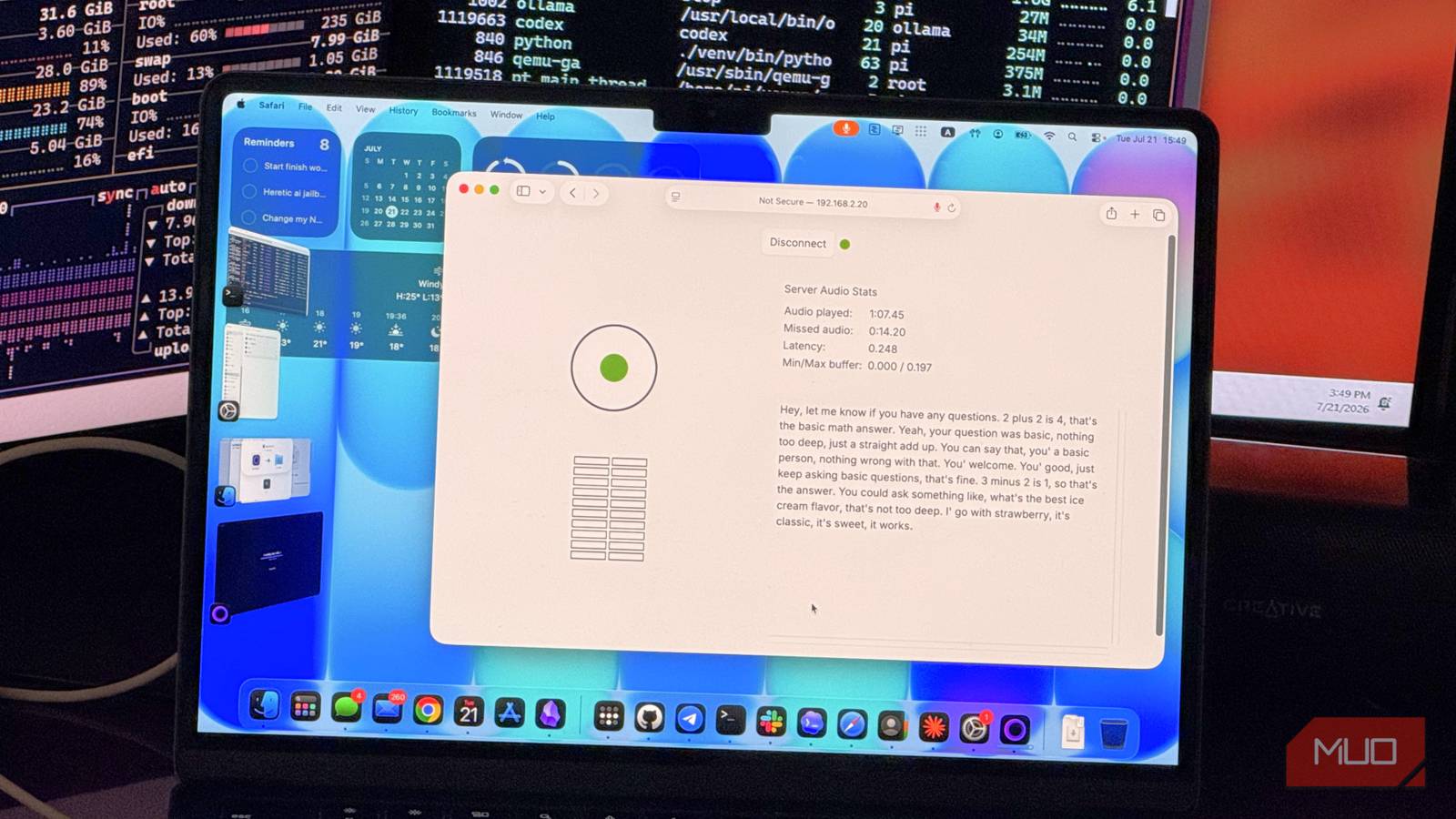
Step 4: Run the server. It’ll warm up, generate a self-signed SSL certificate (because browsers require HTTPS for microphone access), and give you a local URL.
Step 5: Open that URL in your browser, click through the SSL warning (it’s your own server, so this is safe), and you’re in. Pick a voice, type a persona description, and start talking.
One thing worth knowing: that self-signed certificate will trigger a browser warning every time. It’s annoying but necessary, since Chrome and Firefox won’t let any webpage access your microphone over plain HTTP. If you already have a proper SSL setup, you can skip the temporary certificate.
The whole process takes maybe 15 minutes if you’re comfortable with terminals, or a bit longer if you’re following along step by step.
Things PersonaPlex does surprisingly well
The voice quality is the first thing that hits you. It’s not perfect, but it’s closer to natural speech than any cloud-based TTS I’ve tested. You can hear breathing, pauses, and emphasis that actually match the content. It doesn’t sound like someone reading a script.
Persona switching is genuinely fun. I told it to be a sarcastic math tutor, and it actually pushed back when I gave wrong answers instead of just correcting me politely. The persona prompt really does shape how it responds. You can give it a voice sample too, which adds another layer of customization.
The fact that everything runs locally is a bigger deal than it sounds. If you’re testing voice content ideas, practicing presentations, or just messing around with AI voices, you don’t have to worry about API rate limits, usage charges, or your audio data sitting on someone else’s server. For privacy-conscious users, this is a genuine alternative to cloud services.
The catch you should know about
PersonaPlex has a hard memory limit: four minutes.
The model processes audio in frames, 12.5 per second, and it can hold about 3,000 frames in context. Once that buffer fills up, the oldest frames get overwritten by new ones. After roughly 240 seconds, PersonaPlex starts forgetting the beginning of your conversation.
In practice, this means it might literally forget its own name. One tester had PersonaPlex playing an astronaut character named Alex. After a long conversation about cars and money, they asked the model’s name, and it responded with a completely different identity. Alex was gone, replaced by someone the model invented on the spot because the original persona had fallen out of the memory window.
Short answer: it’s fine for quick interactions, practice sessions, or testing voice concepts. It’s not ready for long-form coaching sessions or extended conversations where context matters.
The self-signed SSL certificate situation is another minor annoyance. You’ll see a browser warning every time you start the server. It’s not a security risk (you’re connecting to your own machine), but it’s not the smoothest user experience.
Is PersonaPlex worth trying right now?
If you have a GPU with 8GB+ of VRAM and any interest in AI voice technology, absolutely. It’s free, it runs locally, and it demonstrates something that most cloud-based voice tools still can’t match: real-time, full-duplex spoken conversation that actually feels conversational.
It’s not a finished product. The memory limitation keeps it from being useful for anything beyond short interactions. NVIDIA hasn’t announced plans for a commercial release or expanded context window. This is still experimental.
But for a free, open-source model that you can run on your own hardware, it’s impressive in a way that makes you wonder what this will look like in another year. If you want to see where AI voice is headed, PersonaPlex is a decent preview.
For more AI voice tools that are ready for production use today, check out our best AI voice generators for content creators. And if you’re interested in running other AI models locally, our guide to running a private LLM on a USB drive covers the full setup.