
Handing an AI agent your password is like giving a house sitter the keys, the alarm code, and your diary. Except the sitter never leaves, and it remembers everything. 1Password for Agents launched this week with a better deal: the agent gets you signed in without ever seeing the password.
Why your AI agent shouldn’t know your passwords
AI agents are everywhere now. They browse, they book, they buy, and every one of those actions starts with a login. Until this week, the only way to give an agent access was to paste your actual password into its prompt or hand it to a browser extension and hope for the best.
That’s a terrible trade. Your password is the single most valuable string of text you own. Share it with an agent and you’re trusting three things at once: that the agent’s maker stores it safely, that it won’t leak into a log file, and that the agent won’t wander somewhere you didn’t intend. We’ve already seen what happens when agents and private data mix badly, from the Slack leak that exposed agent conversations to entire malware campaigns run by AI tools.
The folks at 1Password clearly heard the same worry from their customers, because 1Password for Agents removes the password from the agent’s hands completely.
What 1Password for Agents actually does
The idea is simple once you see it. Your passwords stay in your vault, where they’ve always been. When an agent hits a login screen, it doesn’t ask you for the password. It asks 1Password.
Here’s the sequence from 1Password’s product page:
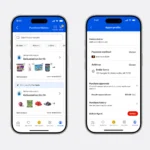
- The agent reaches a sign-in form and requests the credential it needs.
- A unique digital key proves the agent’s identity to 1Password, so a random app can’t pretend to be your assistant.
- You see which login the agent wants and why, then you approve or deny.
- If you approve, 1Password fills the sign-in form directly on the website.
- Once the site accepts the login, 1Password strips the credential back out, so the agent can’t read it or reuse it later.
At no point does the password or a one-time code pass through the agent. Not in memory, not in a prompt, not anywhere. From the agent’s point of view, it simply ended up logged in.
Think about what that changes. A prompt-injection attack that tricks your agent into revealing credentials now reveals nothing, because the agent never held them. Someone digging through agent logs finds no passwords, because there are none to find. The scariest part of agent workflows just got a lock on it.
How to set it up
Setup is refreshingly short. As of launch week, it works like this:
- Check your account domain. 1Password for Agents is available at no extra cost for Individual and Family plans hosted on 1Password.com. Accounts on 1Password.ca aren’t supported yet.
- Update 1Password, then connect your agent. Supported personal and coding agents connect through the integration cards on 1Password’s site; some are live now, others are on a waitlist while support rolls out.
- Pick which logins the agent may use. You choose the vault items it can request, so your bank login can stay off the menu while your newsletter account is fair game.
- Work as usual. Next time the agent needs to sign in somewhere, an approval prompt appears and you decide on the spot.
That last step is the whole product, honestly. You go from “I hope it finds the right password” to a two-second yes-or-no.
What it costs
The feature itself is free on eligible plans. You still pay for the 1Password plan underneath, and 1Password’s public pricing looks like this:
| 1Password plan | Price | Includes 1Password for Agents? |
|---|---|---|
| Individual | $2.99/month | Yes, on 1Password.com accounts |
| Families | $4.99/month | Yes, on 1Password.com accounts |
| Business | $7.99 per user/month | Not this feature; companies get 1Password Unified Access instead |
There’s a 14-day free trial if you’re starting from zero. And if you run a business, the enterprise story is different: 1Password shipped Unified Access back in March 2026 for companies deploying agents at scale, with the auditing and credential governance a family vault doesn’t need.
How this compares to the old ways
To see why this matters, put the three ways people currently give agents access side by side:
| Method | Agent sees the password? | You approve each login? | Reused later? |
|---|---|---|---|
| Paste it into the prompt | Yes, in plain text | No | Probably, in chat history |
| Browser extension carries it | Effectively, via the session | Not usually | Possible |
| 1Password for Agents | No | Yes, every time | No, credential is removed after sign-in |
The first two methods still work, and plenty of people will keep using them. But look at what the third column exposes. A password pasted into a chat lives in that chat forever, on servers you don’t control. An extension session can be steered anywhere once it’s open. The vault approach burns the credential after each use, which closes the door behind the agent every single time.
What happens when something goes wrong
No system survives contact with a confused agent, so the failure modes matter as much as the happy path.
Deny a request and the agent simply doesn’t get in. It should report back that it couldn’t sign in, and you can take over manually. Nothing breaks; the vault just stays shut.
Approve something and watch the agent do something odd inside the account? Sign out of that site from another device or reset the session through the site’s own security page. The password itself was never exposed, so there’s nothing to rotate in a panic, which is exactly the point.
Want an agent gone entirely? Disconnect it in 1Password’s settings and the digital key it used stops working. No hunting through old chats for a password you shared six prompts ago, because there isn’t one.
That’s the quiet revolution here. Every credential-sharing horror story ends with “change all your passwords now.” This one ends with “disconnect the agent.”
Approving a login is not approving everything. 1Password’s own guidance says to review the task and the account before you approve, because once the agent is inside an account, what it does there depends on the agent and the site. You’re gating the door, not babysitting the guest. If that sounds nerve-wracking, pair this with the basic lockdowns in our local AI security checklist and you’ll be ahead of almost everyone.
Agent support is also rolling out gradually. Launch works with supported personal and coding agents only, not every AI tool with a browser bolted on. If your favorite assistant isn’t on the list, the waitlist is the move. And if you use ChatGPT’s cloud browser to sign in to sites for you, note that’s a different mechanism with different tradeoffs, at least for now.
Canadians, check your domain before getting excited. The 1Password.ca limitation is real and easy to miss.
Should you let agents log in for you?
Short answer: yes, with boundaries. Agents are genuinely useful when they can act, and refusing to ever let them sign in means missing most of the value. 1Password for Agents is the sanest version of this I’ve seen, because the credential stays in your vault and you get an explicit yes-or-no moment for every request.
If you already let agents do real work for you, this closes the ugliest gap in the workflow. If you’re new to agents, start with one low-stakes account, watch what the agent actually does after you approve, and expand from there.
Passwords are for keeping. Approvals are for giving.