



Every Mac has that one chore you keep putting off. Renaming 60 files, copying addresses out of a PDF into a shipping form, rebuilding the same weekly report for the fifth time. Gemini computer use is Google’s fix for exactly this kind of work, and it landed on Mac last Thursday.
What Gemini computer use actually is
You describe the job in plain English. Gemini then opens apps, clicks buttons, types text, and moves through menus for you, all inside a separate background window. Your screen and cursor stay free, so you can keep working while it runs. A live preview sits right in your chat, and you can pause or stop the whole thing at any point.
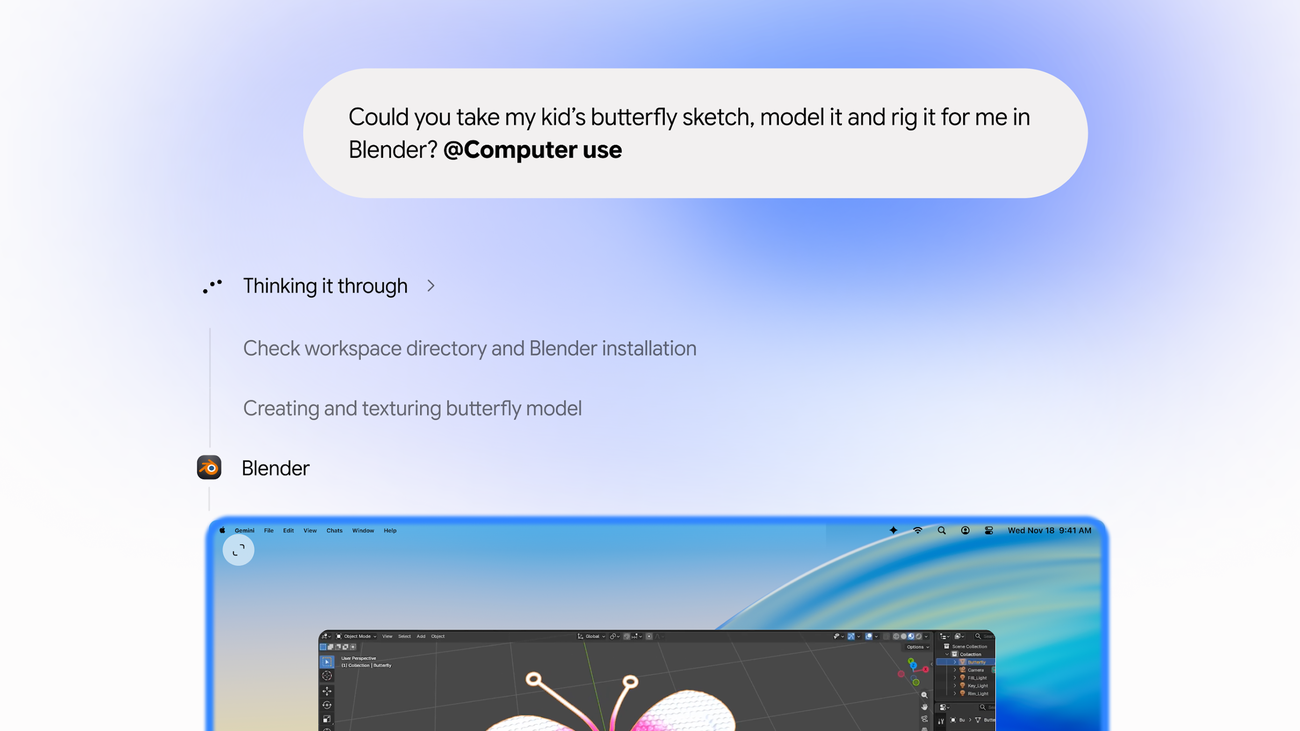
It’s not a browser gimmick, either. The feature drives native Mac apps, local files, and websites together, which is what makes multi-step chores possible. We covered OpenCode Browse before, an agent that lives in your browser only. Google announced Gemini computer use for Mac last Thursday, and it goes further because the whole desktop is fair game (as long as you allow it). Google’s own demo takes a kid’s butterfly sketch, models it, and rigs it in Blender without anyone touching the timeline.
What you need before you start
Here’s the catch: Google locked this to paid plans. Free Gemini users can read about the feature all day, but computer use requires a Google AI subscription. You also need the right hardware and account type:
- An Apple Silicon Mac (M1 or newer) running macOS Sequoia 15.0 or later
- A personal Google account, and you must be 18 or older (work and school accounts are out for now)
- A Google AI Plus, Pro, or Ultra subscription
- English settings and a US location, since the rollout hasn’t gone global yet
Google’s own plans page lists four tiers, and every one of them includes family sharing with up to five people:
| Plan | Monthly price | Storage | Who it fits |
|---|---|---|---|
| Google AI Plus | $4.99 | 400 GB | Curious beginners |
| Google AI Pro | $19.99 | 5 TB | Daily Gemini users |
| Google AI Ultra 5x | $99.99 | 20 TB | Heavy creative and dev work |
| Google AI Ultra 20x | $199.99 | 30 TB | Power users who hit limits |
Start with Plus if you just want to test the agent. Upgrade later only if you bump into usage caps, because most starter tasks never get anywhere near them.
Setup takes about two minutes
Everything happens in the desktop app, so there’s nothing to configure in a browser. The full setup, straight from Google’s support page:
- Install the app. Grab the Gemini app for Mac at gemini.google/mac.
- Open Settings. Click the Gemini menu, then Settings, or just press ⌘ + ,.
- Find the toggle. Pick Computer use in the side menu.
- Allow access. Turn on Allow Gemini to work with your Mac.
- Approve permissions. macOS will ask for Accessibility and Screen & System Audio Recording access. Say yes to both.
- Enable backups. Turn on Use on-demand file backups while you’re there. Trust me on this one.
One extra tip from Google’s docs: pick a Gemini 4 Hydrogen or newer model for better task quality. Running a task is just as simple. Click Task below the chat box, then type @Computer use followed by what you want done. Want a bigger view of what the agent is doing? Click Full screen in the preview. Having regrets? Stop task ends everything instantly.
Five Mac tasks worth handing over first
Google’s own examples lean creative and tedious, which happens to be exactly where this tech shines. These five are the best starting points:
- Shipping forms without the typing. Pull weights, dimensions, and addresses out of local PDFs and let the agent fill in every box of a carrier’s quote form. If you ship products regularly, this alone justifies the $4.99.
- Batch-listing items for resale. This one makes money. Point Gemini computer use at a folder of product photos, and it researches prices, logs item details, and stages listings on resale platforms while you do literally anything else.
- Photo edits at scale. Batch color-grading in your design app, or the Lightroom workflow Google describes: import a trip folder, apply one filter, clean up backgrounds, export everything as 4K.
- A deck built from live data. Metrics and screenshots pulled from several dashboards, assembled into a Google Slides presentation. Monday reporting just lost its worst 40 minutes.
- Expense reports from receipts. The agent digs through your Downloads folder, extracts the details, and fills in your expense tracker. Nobody’s favorite chore. Nobody.
The safety rails (use these two)
An AI that clicks around your desktop deserves a little respect. Google built in guardrails, and two of them matter more than the rest.
First, on-demand file backups. With this on, the agent creates backup copies of files before touching them. Copies get deleted after 24 hours, or right away when you start a new task and accept the result. It’s the closest thing to an undo button, so leave it on.
Second, app permissions. You choose exactly which apps the agent can touch, and it asks for approval before key actions. Keep that list short. Google’s support page lists real risks: the agent can read MFA codes visible in desktop apps, it operates inside your logged-in sessions, some actions can’t be reversed, and untrusted content on screen can trick it into jumping to another allowed app. In other words, don’t invite it into your banking app or password manager, and don’t let it drive your code editor on day one.
This matches the advice in our token fraud guide: least privilege beats cleanup every time. Gemini computer use is powerful precisely because it acts on your behalf. That power is also the risk.
How it compares to the alternatives
So should you automate with a desktop agent, a cloud agent, or classic workflow automation? Different jobs, honestly.
| Approach | Best at | Starting cost |
|---|---|---|
| Gemini computer use | One-off, messy tasks across your local apps and files | $4.99/mo (Google AI Plus) |
| Cloud agent tasks, like Tasks in Gemini | Web errands: bookings, purchases, sign-ins | Included with plans, rolling out free |
| Workflow automation (Zapier) | The same pipeline repeating forever, across 8,000+ apps | Free for 100 tasks/mo, Pro at $19.99/mo |
The pattern is simple. Recurring, well-defined pipelines belong in Zapier (we walked through a full CRM setup if you want the long version). Web errands belong to cloud agents. The messy local stuff, the kind that touches files on your desktop and apps you already use? That’s Gemini computer use territory.
Where it falls short
Honesty time. The rollout is narrow: US only, English only, paid plans only. Older Intel Macs are left out entirely, and Google hasn’t said when other countries get access.
Also worth knowing: the agent will make mistakes. Google says so itself, right in the support docs. Treat it like a new intern, not a finished product, and check the output the first few times. That goes double for anything that sends messages, spends money, or deletes files.
One more bit of context: Apple is adding stricter full disk access warnings and controls in macOS 27.3, aimed exactly at AI agents like this one. The guardrail race is just getting started.
The bottom line
If your Mac runs Apple Silicon and you’ve been curious about AI agents, this is the friendliest entry point yet. Five dollars a month, two minutes of setup, and your cursor never gets hijacked.
Do this today: check your chip under the Apple menu, install the app, flip on computer use with backups enabled, then hand over one low-risk chore. Cleaning up a stuffed Downloads folder is a great first test. Once you trust it there, the shipping forms and batch edits will pay for the subscription fast.