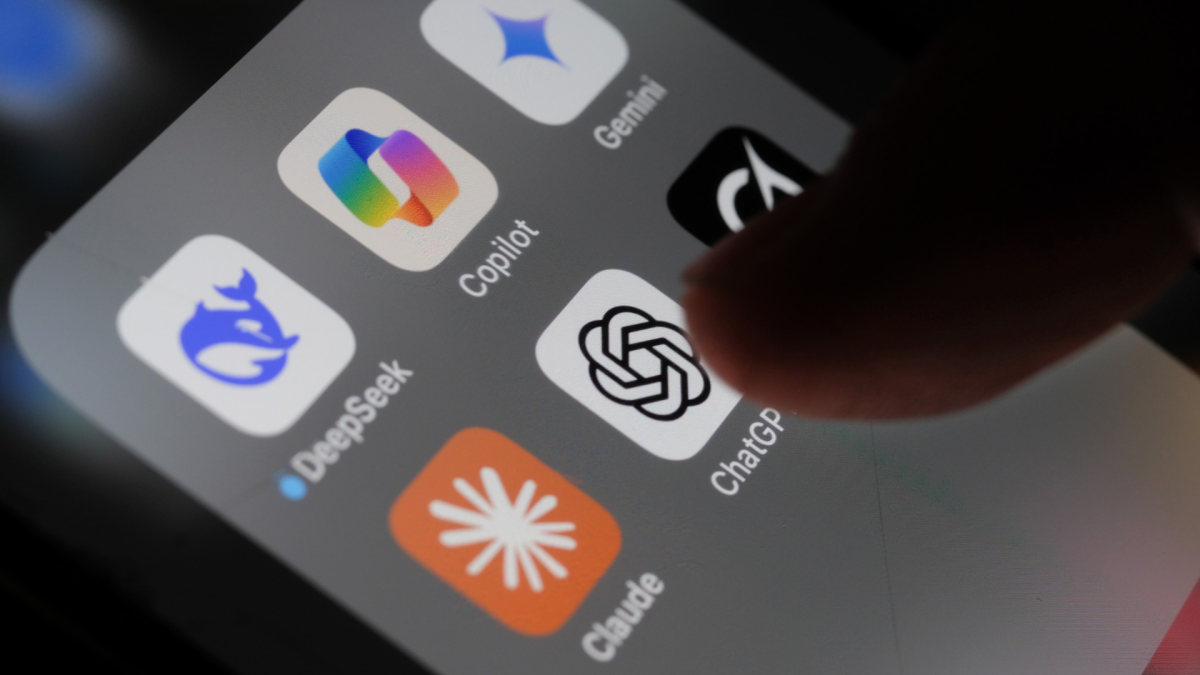

Handing your phone to a friend shouldn’t feel like a privacy risk. But if you use ChatGPT for anything personal, your whole chat history sits right there in the sidebar, one glance away. ChatGPT locked chats fix that, and setting them up takes about a minute.
What ChatGPT locked chats actually do
OpenAI started rolling out this feature on October 20, and it does one specific job: it hides chosen conversations behind a four-digit PIN, Face ID, or Touch ID.
Once you lock a chat, three things happen. It disappears from your regular chat history. It drops out of pinned conversations. And it stops showing up in search results within the app.
The chat isn’t gone, though. Unlike temporary chats, which don’t get saved at all, ChatGPT locked chats are kept so you can come back to them later. You just have to unlock the vault first.
There’s a separate memory too. Locked chats share their own memory among themselves, so ChatGPT still remembers context inside that section. New details from a locked chat won’t leak into your regular chats, which is a nice touch if you keep work and personal stuff apart.
One more thing before you go hunting for the button: the rollout is gradual. OpenAI started pushing it on Tuesday, so if you don’t see the lock option yet, that’s normal. Give it a few days before assuming something’s broken.
How to lock a chat in ChatGPT
Here’s the part you came for. ChatGPT locked chats work the same on mobile and desktop.
- Open the conversation you want to hide.
- Tap the options menu (the three dots or the profile icon, depending on your device).
- Select Lock chat.
- If you don’t have an account PIN yet, you’ll be prompted to create one. Enter a four-digit code, then enter it again to confirm.
- The chat moves into a project called Locked chats.
Want to start a fresh private conversation instead? Go to Projects, then Locked chats, unlock with your PIN or biometrics, and type your message there.
When you’re done, tap Lock now. Everything hides again until you come back.
Setting up your PIN the right way
A PIN is only as good as the one you pick. Don’t use your birthday. Don’t use 1234. You’d be surprised how many people still do.
You can also turn on biometric unlock in the Account PIN settings, so Face ID or Touch ID handles it instead of typing anything. That’s faster, and honestly it’s harder for someone to shoulder-surf.
One warning before you go further: resetting your PIN deletes every locked chat, file, and piece of content protected by the old PIN. Permanently. There’s no recovery. So pick a PIN you’ll actually remember, because forgetting it costs you the whole vault.
What locked chats hide (and what they don’t)
This is where a lot of the coverage gets it wrong, so let’s be precise.
Locked chats are hidden from:
- Your main chat history sidebar
- Pinned conversations
- Search results inside the app
They are not hidden from:
- OpenAI’s own systems. Locking doesn’t change how long chats are retained.
- The “Improve the model for everyone” setting. That stays exactly as it was (you can turn it off separately in Settings, then Data controls).
- Things ChatGPT already remembered about you before you locked the chat.
There are limits on which chats can be locked too. Temporary chats, archived chats, group chats, chats created from a shared link, chats with scheduled tasks, and chats with meeting recordings can’t be locked at all.
Locked chats are not encrypted
Here’s the thing no one tells you: this is a screen-level lock, not a security vault.
OpenAI’s own support page says ChatGPT locked chats aren’t end-to-end encrypted and don’t sit in a separate encrypted vault. The feature protects your conversations from people who pick up your phone. It does nothing against OpenAI retaining data, and it changes nothing about how your data is handled behind the scenes.
That’s still worth having. Most privacy leaks don’t come from server breaches, they come from a partner scrolling your phone or a coworker grabbing it to check the time. As TechCrunch reported when the feature launched, this is about those hand-your-device moments.
If you want actual data protection, locking chats isn’t it. You’d want to combine this with turning off training in Data controls and being choosy about what you type into any AI in the first place.
How it compares to WhatsApp and Telegram locks
Chat apps trained everyone to expect this kind of feature, and the versions aren’t identical. If you already lock chats elsewhere, here’s how they stack up:
| App | What you can lock | Lock method | End-to-end encrypted? |
|---|---|---|---|
| ChatGPT | Individual conversations | PIN, Face ID, Touch ID | No |
| Individual chats in a hidden folder | Fingerprint or Face ID | Yes, all chats by default | |
| Telegram | Secret chats (device-specific) | Passcode on the whole app | Secret chats only |
Notice the pattern. WhatsApp locks are cosmetic plus biometric, but the underlying chats were always end-to-end encrypted anyway. Telegram’s secret chats are truly encrypted but clunky, which is why most people never use them. ChatGPT locked chats are the newest and the weakest of the three on the security axis, because there’s no encryption layer underneath. They protect you from eyeballs, not from the company. Knowing that difference is the whole game.
Who should actually bother? Anyone who shares a device, hands their phone to kids, or uses ChatGPT for things they’d rather keep to themselves. If you’re the only person who ever touches your phone and you chat about the weather, skip it. For everybody else, the one-minute setup is an easy yes.
Smart ways to use locked chats
A few use cases where this genuinely helps:
- Job hunting. Searching for a new job while employed? Those “help me polish my resignation letter” chats don’t need to greet anyone who borrows your phone.
- Money and health questions. Debt questions, therapy-adjacent stuff, symptoms. Personal, and nobody’s business but yours.
- Surprise planning. OpenAI literally mentions gift planning as a use case. Locked chats mean the birthday trip stays a surprise.
- Shared devices. Family tablet, hand-me-down phone, whatever. Anyone can use ChatGPT Free now, and free accounts get this feature too.
On that last point: ChatGPT locked chats are available on Free, Go, Plus, Pro, Business, Enterprise, and Edu plans. The only exception is ChatGPT for Healthcare. So you don’t need to pay anything to use this.
Pair it with the rest of your privacy setup
Locking chats is one piece. If you’re serious about keeping your data to yourself, do two more things while you’re in the settings.
First, check what ChatGPT knows about you and clean up old chats you wouldn’t want resurfacing. Our guide on searching your AI chat history across every assistant shows you how much is actually sitting there.
Second, remember that ChatGPT already had a privacy controversy this month over ad targeting using your prompts. Between that and the new lock feature, it’s clear the pressure is working. Keep it on.
Your next step
Open ChatGPT, pick the one conversation you’d least want someone else reading, and lock it right now. Then set a PIN that isn’t guessable and enable Face ID if your phone supports it. One minute of setup, and the next time you hand your phone over, your business stays yours.
Sources: Lifehacker’s walkthrough of locked chats and TechCrunch’s launch coverage, both from October 20, 2026.