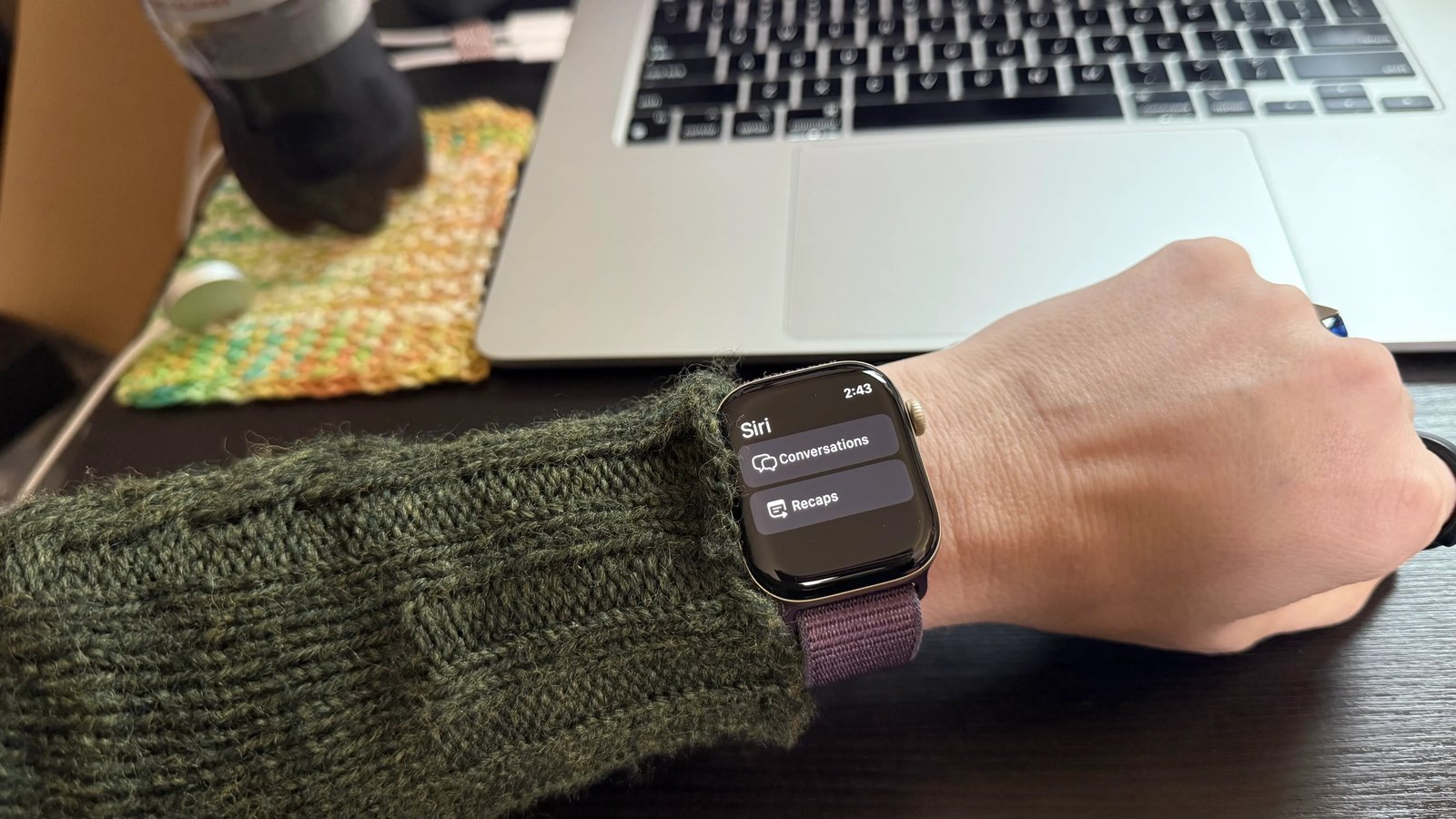

Your Apple Watch now listens to your conversations and writes summaries of them. It’s called Siri Recap, it just landed in a watchOS 27.3 developer beta, and it’s exactly as useful and exactly as creepy as that sounds.
What Siri Recap actually does
Apple groups Siri Recap into a family of listening features it calls audio intelligence. Some of them have been quietly running on your wrist for years. One is brand new. Seeing the full lineup helps, because each feature answers a different question about the sounds around you.
| Feature | What it does | Where you see it | Worth your time? |
|---|---|---|---|
| Music recognition | Identifies songs automatically (Shazam built in) | On the watch | Yes, zero effort |
| Sound recognition | Alerts you to doorbells, crying babies, alarms | Watch notifications | Yes, great accessibility tool since 2020 |
| Live Rewind | Transcript of the last 15 seconds of speech | On your wrist | Mostly a demo trick |
| Siri Recap | Summarizes whole conversations | Siri app on your phone | Promising, with real flaws |
Siri Recap is the ambitious one. It summarizes conversations in roughly hour-long chunks and files them in the Siri app on your phone. You get no transcript to read, no audio to play back, and no speaker names either, so a recap will never tell you who said what. The watch simply listens while the feature is on, then hands you a bullet-point version of your day.
Live Rewind is its little sibling. It shows a 15-second transcript of whatever speech the watch just detected, right on your wrist. At Apple’s event it demoed beautifully: a waiter listed the specials, and a diner glanced down at exactly the right moment. Daily use is another story. By the time you think to check what someone just said, the 15 seconds have already passed. It also stumbles on song lyrics. As a result, Live Rewind mostly answers a question nobody asked.
How to turn on Siri Recap
The feature is picky about hardware. You need an Apple Watch Series 12 or an Ultra 4, plus an iPhone 16 or newer, and the 16e doesn’t count. A passcode on the watch is mandatory too. Without it, anyone who grabbed your wrist could read your day. Before you install a beta just for this, it’s worth remembering what the last round of iPhone updates already shipped.
Here’s the setup, step by step:
- Install the watchOS 27.3 developer beta on your Apple Watch, and keep your iPhone on its latest software.
- Open the Watch app on your phone, tap Siri, then toggle Siri Recap on.
- Set a listening schedule if you want boundaries. For example, 9 a.m. to 5 p.m. keeps it working during the workday and silent at dinner.
- Follow the audio connection upgrade step the setup walks you through.
- Find the new Control Center button on the watch. That’s your kill switch, and it works instantly.
Once it’s on, recaps show up in the Siri app on your phone. Apple keeps them for about a week. After that they’re gone, unless you save one to Notes first.
What it gets right
The hour-by-hour structure is the best part. At the end of an evening, you can scroll through what happened at dinner, on the school pickup run, and at the library stop. Most of us forget half of that by the next morning. As a memory aid, it works.
When a conversation stays on one topic, the summaries are genuinely good. Specific facts and dates get pulled out and highlighted, like the date options everyone tossed around for a holiday party. That’s the kind of detail you’d otherwise text yourself at midnight. Meanwhile, misheard or half-remembered names stop being a problem, because the recap is the note you never took.
There’s also a strange privacy bonus hiding in the design. No transcript exists and no recording exists, so there’s nothing to play back and nothing to prove anyone said an exact phrase. You can honestly tell people you’re not recording them. Technically, that’s true.
Where it falls apart
Now the ugly part, because the failures are not subtle. Names trip it up constantly. One early tester discussed a family member’s health with her son, and the recap confidently reported the prognosis of her “father.” That family member is not anybody’s father. She recommended a book to her son, and the recap described the book’s contents but dropped the title entirely. The author’s name surfaced in the intro, then vanished from the notes where it mattered.
Separating topics is another weak spot. In one case, a husband mentioned paying for a child’s course registrations, and later the same child talked about an unrelated exam. Siri blended all of it into one muddled recap that got nearly every detail wrong. Disagreements flatten too: when two people argued about the timeline for space colonization, the recap recorded a shared debate without either side’s actual position. A human note-taker would never make that mistake.
And there’s no way to steer it. You can’t tell it what to pay attention to, when a conversation really starts, or which details matter to you. You get what the model decides is important.
The privacy catch
Here’s the tension nobody should skip. The people talking to you don’t know your watch is summarizing their words. One tester left the feature running through a choir practice and later found recaps of private chats with other members before and after rehearsal. Those people assumed a normal conversation. There was no recording, sure. But the content still ended up written down somewhere they never agreed to.
If you turn this on, treat it like a guest quietly taking minutes in the corner. For everyday chatter, that changes nothing. For a friend venting about a health scare or a coworker complaining about a boss, it changes everything. The Control Center toggle exists for exactly these moments. Use it.
Always-on listeners aren’t new, by the way. Pendants like the Omi AI wearable already record and transcribe everything around you, microphone and all. Siri Recap is actually the politer version, since it keeps no audio. Politer is not the same as harmless, though.
Should you actually turn it on?
My verdict: turn it on, but only with a schedule and a finger on the kill switch. If your days are a blur of school runs, meetings, and errands, the recaps genuinely help you reconstruct what happened and what was decided. Pair that with iPhone Shortcuts with Apple Intelligence and your watch becomes a real productivity tool instead of a fancy timer.
Skip it, for now, if most of your conversations are sensitive: client calls, family medical topics, anything with legal weight. The accuracy problems make it useless for exactly the conversations where getting details right matters most. A summary that invents the wrong relative or drops the book title is worse than no summary, because you might trust it.
The hardware bar is high anyway. The Apple Watch Series 12 runs about $390, and an iPhone 16 is required on top of that. Nobody should buy two new devices for a beta feature. But if the right hardware is already on your wrist, this is the first conversation summary tool that actually respects the room it listens to, most of the time.
Your move
If you’ve got a Series 12 or Ultra 4, join the developer beta, set Siri Recap to your work hours, and try one full day with it. Keep the Control Center button close, save the one recap that’s actually useful to Notes, and judge for yourself whether your evenings really need summarizing. Just tell the people close to you what that little button does before they end up in your notes.