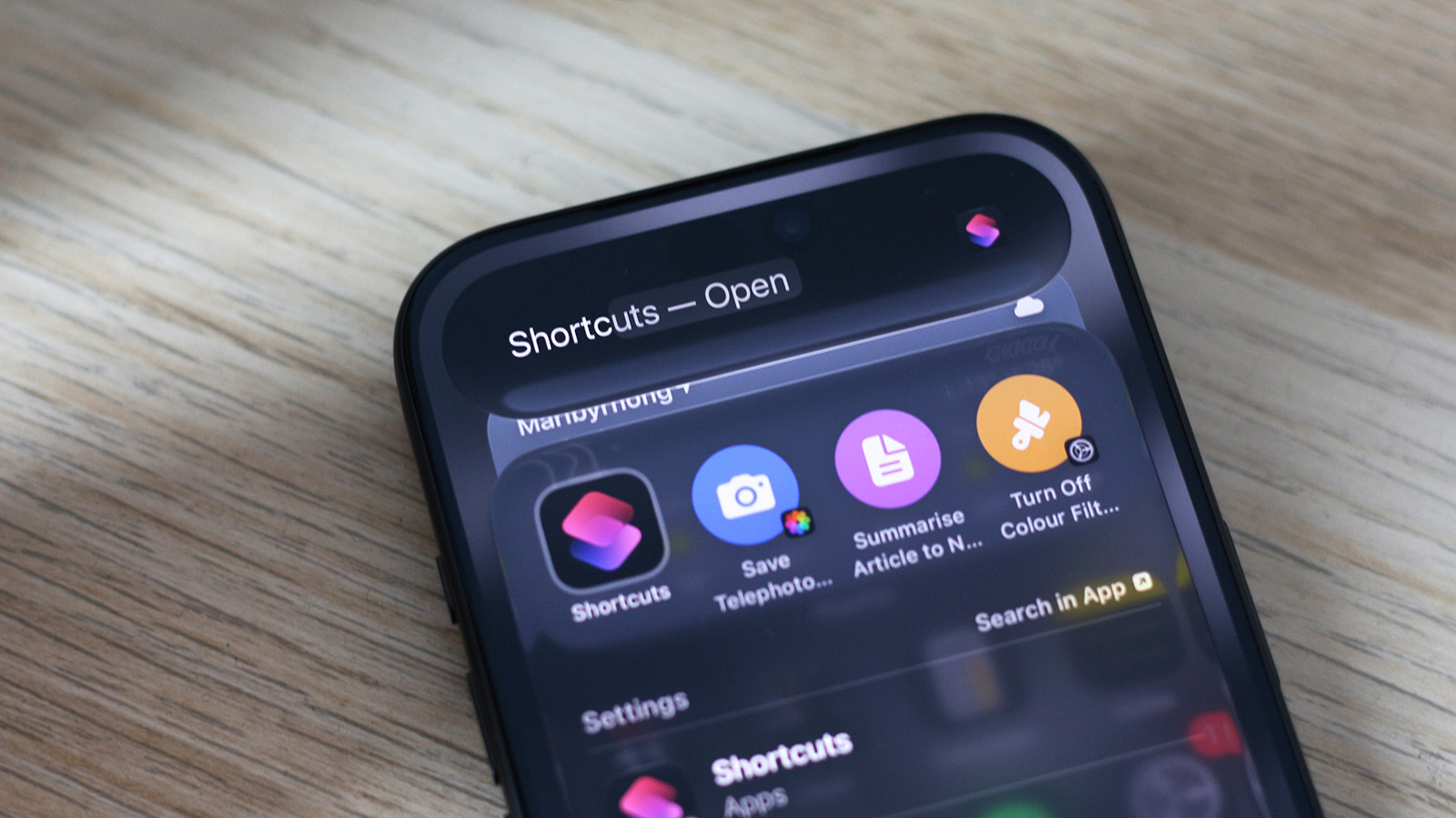

Your iPhone can already do the boring parts of your day for you. Most people never open the Shortcuts app, which is odd, because iPhone Shortcuts with Apple Intelligence can summarize articles, polish emails, and chain tasks together while you do something better with your time.
Your phone has been hiding an automation engine
Here’s the loop most of us run dozens of times a week. You see something interesting, copy the text, hop into a chatbot app, paste it, type a request, wait, then copy the answer back to wherever it came from. Six steps for a two-second job.
A shortcut collapses that loop into one tap. You tell your phone what to do once, and from then on it just does it. The result lands in your Notes app, your clipboard, or right on screen, and you never had to open a chat window.
Apple made this a lot smarter with iOS 27. The Shortcuts app now includes a Use Model action, which means any automation can call Apple Intelligence or ChatGPT mid-flow and use the response in the next step. That single change turned a basic automation tool into something closer to a personal AI worker.
What the Use Model action really does
Think of Use Model as the brain you can drop into the middle of any shortcut. It takes text, an image, a calendar event, or the output of a previous step, sends it to an AI model, and passes the answer along. You choose which model does the thinking, because they’re not all good at the same jobs.
iPhone Shortcuts with Apple Intelligence gives you four options, and picking the right one matters:
| Model | Best for | Internet needed? |
|---|---|---|
| On-Device | Quick, simple requests when you want privacy and speed | No |
| Cloud | Everyday tasks handled by Apple’s Private Cloud Compute | Yes |
| Cloud Pro | Long documents and requests that need extended context | Yes |
| ChatGPT | Broad world knowledge and complex, chatty drafts | Yes |
Two extras are worth knowing. Follow Up shows you the model’s answer mid-run and lets you refine it before the shortcut continues. And on the Cloud models you can switch on Broad World Knowledge, which lets the model pull in current info from the web, so a briefing shortcut can mention today’s actual weather instead of guessing.
Build your first shortcut in five minutes
Apple’s official Shortcuts guide walks through every one of these actions if you want the full manual. But here’s the fast path, and it genuinely takes about five minutes.
Step 1: Start a new shortcut
Open the Shortcuts app and tap the plus button. Give it a name you’ll recognize, like “Save article summary.”
Step 2: Add your input
Tap Add Action and choose how the shortcut gets its material. Receiving text from the Share Sheet is the most flexible start, because almost every app can share into it.
Step 3: Add the smart part
Search for Summarize Text for the simple version, or add Use Model for anything that needs actual thinking. Pick a model from the table above. For a long article, Cloud Pro is the safe pick.
Step 4: Choose where the result goes
Add one more action to finish the job: Copy to Clipboard, Show Result, or Append to Note. This is the step people forget, then wonder where their output went.
Step 5: Run it somewhere convenient
You can tap the shortcut in the app, ask Siri, add it as a widget, or set it to Back Tap. iOS 27 even lets you describe what you want in plain English and the app assembles the shortcut for you. It’s the same plain-English idea behind ChatGPT Sites, where you describe a website and get one.
Start from the Gallery instead
Building from scratch isn’t the only route. Open the Gallery tab in Shortcuts and look at the Apple Intelligence category. Apple ships ready-made shortcuts there that use the same smart actions, from text summaries to image creation, and it refreshes them with each iOS update.
Grab one, run it, then open it in the editor to see how it’s wired. Reverse-engineering a working shortcut teaches the logic faster than any tutorial, and swapping in your own prompt takes seconds. Check the Gallery whenever you update iOS, because the examples double as prompt inspiration for shortcuts of your own.
Make it run itself
A shortcut you tap is good. One that fires on its own is better. iOS 27 has automations built right into shortcuts now, and they sync between your devices, so the one you set up on your phone also runs from your iPad.
The triggers are pleasantly practical. Time of day gets the obvious jobs done: a weekday briefing at 8 a.m. beats remembering to ask. When I open an app works great for things like starting a focus timer. There’s also alarm dismissed, Wi-Fi networks, battery level, and more.
Start with one automatic trigger, not five. Otherwise your phone starts doing things you didn’t ask for, and trust is hard to win back after a shortcut posts something to the wrong place. Android owners get a version of this too, which we covered in our guide to Gemini automations on Android.
Five shortcuts worth stealing
Once the first one works, you’ll want more. These five earn their keep fast.
The article saver. Share any article into it, get three key points appended to a Notes page called Reading. Sunday-morning reading, pre-digested.
The morning brief. Calendar events plus weather feed a Cloud model with a prompt like “summarize my day in three funny lines with emoji.” Small thing. Makes the 7 a.m. alarm slightly less awful.
The email polisher. Select sloppy text anywhere, run Rewrite with a Professional tone, paste it back. No more sending the second-draft version by accident.
The caption factory. Feed it a photo, ask the ChatGPT model for five caption options in your usual voice. You can batch a week of posts in one sitting.
The voice note cleanup. Dictation into Proofread into clipboard. Your rambling 2 a.m. ideas come out readable.
Where iPhone Shortcuts with Apple Intelligence fall short
Honest section, because the marketing skips this part. Your phone needs to be an iPhone 15 Pro or newer, since the on-device model is heavy. Cloud features carry daily usage limits, and Apple has already said paid tiers for heavier use are coming, so today’s generosity may not last. Language support also varies by region, which matters if you mix languages day to day.
The model table helps you dodge most of that frustration, though. Keep simple jobs On-Device, save Cloud Pro for the long stuff, and you’ll rarely hit a wall. None of this changes the core appeal of iPhone Shortcuts with Apple Intelligence: the AI shows up inside the apps you already use.
Your first week plan
Pick one task you repeat at least three times a week, then build an iPhone Shortcuts with Apple Intelligence automation for it this weekend. Run it for a few days, then add a second one. By Friday you’ll have two automations saving you real minutes every day, and the copy-paste-into-a-chatbot habit will be gone. Start small, add an automation trigger when it proves itself, and let the collection grow from there.