



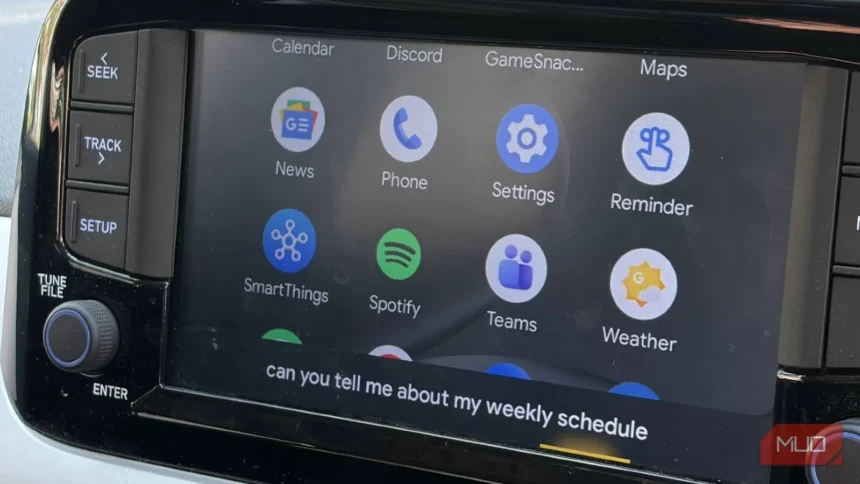
Gemini in Android Auto: Complete Beginner’s Guide (2026)
If you’ve been using Google Assistant in your car for years, you probably noticed something different recently. That familiar “Hey Google” experience is getting a major upgrade, and it’s called Gemini. Google is rolling out its AI-powered assistant across Android Auto, and it changes how you interact with your car in some pretty big ways.
However, if you’re not the type to follow tech blogs, you might be wondering what actually changed, whether your car supports it, and — most importantly — how to get it working. This guide covers everything you need to know, step by step, without the tech jargon.
What Is Gemini in Android Auto?
Gemini is Google’s newest AI assistant, and it’s replacing Google Assistant as the default voice helper in Android Auto. Think of it as Google Assistant’s smarter, more conversational successor. Instead of just responding to basic commands, Gemini can hold actual conversations, remember context, and handle more complex requests while you’re driving.
For example, instead of saying “navigate to the nearest coffee shop” and then separately asking “is it open right now?” you can simply say “find me a coffee shop nearby that’s open right now and has good reviews.” Gemini handles it all in one shot.
The best part? It’s a server-side rollout, which means you don’t need to download anything new or update your car’s software. Once your account is eligible, Gemini automatically takes over when you connect your phone to your car.
How Gemini Differs from Google Assistant
So, what actually makes Gemini better than the Google Assistant you’ve been using? Here are the key differences:
- Natural conversations: Gemini understands context across multiple questions. You don’t have to repeat yourself or phrase things like a robot command.
- App integration: Gemini connects to Gmail, YouTube, Spotify, and other apps to pull real information — not just search results.
- Smarter navigation: Gemini can find stops along your route, check traffic conditions, and adjust directions conversationally.
- Multi-step requests: You can ask Gemini to do several things at once, like sending a message and checking your calendar in a single sentence.
That said, the transition is still rolling out, so some features might feel familiar at first. Google built Gemini to feel like a natural evolution rather than a totally different product.
Who Can Use Gemini in Android Auto?
The good news is that Gemini in Android Auto is available widely. As of 2026, Android Auto works in over 46 countries and supports more than 500 car models. Additionally, Gemini itself is available in over 150 countries with support for 40+ languages.
On the other hand, there are a few things to check before you get started:
- Phone requirement: You need an Android phone running Android 9.0 or newer.
- Android Auto app: Make sure you have the latest version of Android Auto from the Play Store.
- Car compatibility: Your car needs to support Android Auto (either the wired or wireless version). You can check your vehicle at android.com/auto/compatibility/vehicles.
- Gemini app: Some users may need the Gemini mobile app installed to set it as their default assistant.
If you’re unsure whether your car supports Android Auto, that compatibility checker link above is the fastest way to find out. Just enter your vehicle’s make, model, and year.
How to Set Up Gemini in Android Auto (Step-by-Step)
Getting Gemini running in your car takes just a few minutes. Follow these steps and you’ll be up and running before your next commute.
Requirements Before You Start
Before diving into the setup, make sure you have everything ready:
- Your Android phone with Android 9.0 or later
- The latest Android Auto app (update it from the Play Store if needed)
- Your USB cable (if your car uses wired Android Auto)
- A Google account (which you almost certainly already have)
Enabling Gemini on Your Phone
First, you need to set Gemini as your primary digital assistant on your phone:
- Open the Google app on your Android phone (or the Gemini app if you have it installed).
- Tap your profile picture in the top-right corner.
- Go to Settings > Google Assistant (or Digital assistants on some phones).
- Look for the option to switch to Gemini as your default assistant.
- Tap Switch and confirm when prompted.
On some phones, you can also do this through Settings > Apps > Default Apps > Digital Assistant app. Either method works.
Switching to Gemini in Your Car
Once Gemini is your default assistant on your phone, the transition to Android Auto is automatic:
- Connect your phone to your car (via USB cable or wireless Bluetooth, depending on your setup).
- Wait for Android Auto to launch on your car’s display.
- When you say “Hey Google” or use the steering wheel voice button, Gemini should respond instead of Google Assistant.
If Google Assistant still answers, try these fixes:
- Restart both your phone and your car’s infotainment system.
- Make sure your phone’s Google app is updated to the latest version.
- Check that Gemini is definitely set as your default assistant (not just downloaded).
Gemini vs. Google Assistant: What Changes?
If you’ve been using Google Assistant in your car for years, the switch to Gemini might feel a little different at first. Here’s an honest look at what gets better and what might take some getting used to.
What Gets Better
- Multi-step commands: Instead of one command at a time, you can chain requests together. For instance, try saying “send a message to Mom that I’m leaving soon, and find me a gas station along the route.” Gemini handles both in one go.
- Natural language: You don’t need to memorize specific command phrases. Just talk normally, and Gemini figures out what you mean.
- Context awareness: Gemini remembers what you talked about, so follow-up questions work naturally. Ask about a restaurant, then say “what’s their most popular dish?” without repeating the restaurant name.
- Smarter search results: Because Gemini pulls from more apps and services, you get more useful answers, especially for things like finding specific emails or flight details.
What Might Frustrate You
- Response speed: Gemini can sometimes take a beat longer than Google Assistant, especially on slower connections. This should improve as Google optimizes the service.
- New habits: If you’ve spent years memorizing exact Google Assistant commands, you might need to relearn some phrasing. The good news is that Gemini is generally more forgiving about how you say things.
- Occasional fallbacks: In some cases, Gemini might hand off to Google Assistant for certain tasks. This is temporary as Google continues expanding Gemini’s capabilities.
Overall, the trade-off is worth it. Gemini is noticeably more capable, and once you adjust to the new style, going back feels like a step down.
How to Use Gemini Live in Your Car
One of the most exciting features coming to Gemini in Android Auto is Gemini Live — a continuous conversation mode where you can chat back and forth without saying “Hey Google” before every question.
Starting a Conversation
To activate Gemini Live, say “Hey Google, talk Live” while connected to Android Auto. From there, Gemini stays active and listens for your follow-up questions. It’s like having a passenger who happens to know everything.
Gemini Live is rolling out gradually, so if it’s not available in your car yet, don’t worry. Google is expanding this feature throughout 2026.
Best Gemini Live Use Cases for Drivers
Here are some practical ways to use Gemini Live on the road:
- Road trip planning: “I’m driving from Chicago to Detroit this weekend. What are some good places to stop for lunch along I-94?”
- Learning on the go: “Tell me some interesting facts about the city I’m driving through right now.”
- Brainstorming: “I need gift ideas for my wife’s birthday next week. She likes hiking and cooking.”
- Work prep: “Walk me through the main points of that email from my boss this morning.”
Because Gemini Live remembers context, you can have a natural back-and-forth conversation without repeating yourself. It’s a genuinely useful feature for longer drives.
What Can You Ask Gemini While Driving?
Let’s break down the most useful things Gemini can do for you behind the wheel, organized by category.
Navigation and Directions
Gemini’s navigation capabilities are a significant upgrade over what Google Assistant offered:
- “Find the fastest route to the airport right now, and check if there are any delays.”
- “I want BBQ for lunch. Any good places within a few miles of my route?”
- “How much longer until I get there, and is there a rest stop coming up soon?”
- “Take me to the nearest charging station for my EV.”
With the new Immersive Navigation feature announced at Google I/O 2026, Gemini can also provide detailed 3D map views showing buildings, traffic lights, lane counts, and crosswalks. It gives natural directions like “take a left at the next intersection” rather than just “turn left in 500 feet.”
Music and Entertainment
Music control has gotten smarter too. Gemini can create playlists and handle requests that Google Assistant would struggle with:
- “Play something upbeat for my morning commute.”
- “Create a happy playlist with family-friendly songs for a 3-hour drive.”
- “Play that podcast I was listening to yesterday morning.”
- “Switch to the news.”
For parked cars, the 2026 update brings HD video playback up to 60fps across BMW, Ford, Kia, Hyundai, Volvo, and Mercedes-Benz. What’s more, video automatically transitions to audio-only when you start driving — perfect for video podcasts that become regular podcasts when you hit the road.
Messages and Calls
Gemini handles communication in a much more natural way:
- “Send a message to Leo with my ETA and a thumbs-up emoji. And ask if he wants coffee later.”
- “Read my last text from Sarah and reply that I’ll call her when I park.”
- “Call the restaurant to see if our reservation is still for 7.”
- “I have a hotel reservation for tonight. Can you find the address in my email?”
Notice how Gemini can search your Gmail to find reservation details. That’s something Google Assistant simply couldn’t do.
EV and Vehicle Controls (Android Automotive Only)
Here’s an important distinction: some advanced features are only available on cars with Google Built-in (also called Android Automotive OS). This is Google’s system that’s built directly into the car, rather than running through your phone.
On Google Built-in vehicles, Gemini can:
- Control hardware like sunroofs (“Darken the sun roof”)
- Answer questions about your dashboard (“What does that warning light mean?”)
- Describe what your car’s cameras see (“What’s that building ahead?”)
- Tell you whether items will fit in your trunk
These features require deeper integration with the car’s hardware, which is why they’re limited to Android Automotive vehicles like the Volvo EX60. Standard Android Auto (through your phone) doesn’t support these vehicle-specific commands.
Tips and Tricks to Get the Most from Gemini
Ready to go beyond the basics? These tips will help you get more out of Gemini in your car:
- Be specific with multi-part requests: The more detail you give Gemini upfront, the better it performs. Instead of “find me food,” try “find me a highly-rated Italian restaurant within 10 minutes of my route that’s open now.”
- Use Gemini Live for longer drives: On trips over 30 minutes, activating Gemini Live turns your car into a conversational companion. It’s great for trip planning, learning, or just passing the time productively.
- Customize your widgets: The 2026 Android Auto update introduced customizable widgets on your car display. Add weather, contact shortcuts, or other quick-access widgets that Gemini can interact with.
- Pair with Spatial Audio: If your car supports Dolby Atmos spatial audio (available on select new models), pair it with Gemini for an immersive entertainment experience during longer stops.
- Check compatibility early: Not all features are available on all cars yet. Visit the Android Auto website regularly for the latest feature availability updates.
Known Issues and How to Fix Them
As with any new technology, a few hiccups are normal during the rollout. Here are the most common problems drivers have reported and how to solve them.
Gemini Reverting to Google Assistant
This is the most reported issue so far. If Google Assistant keeps answering instead of Gemini:
- Double-check that Gemini is set as your default assistant in your phone settings.
- Make sure you’re using the latest version of the Google app.
- Clear the Google app cache (Settings > Apps > Google > Storage > Clear Cache).
- If all else fails, try uninstalling and reinstalling the Google app updates.
Gemini Cutting Off Mid-Sentence
Sometimes Gemini might stop responding in the middle of an answer:
- This usually happens on slower data connections. Switch to a stronger Wi-Fi or 5G connection if possible.
- Try pausing briefly before speaking to give Gemini time to finish processing.
- If the issue persists, report it through the Android Auto feedback menu in the app.
Connection and Latency Problems
If Android Auto itself feels slow or glitchy:
- For wired connections, try a different USB cable — a damaged cable is the culprit more often than you’d think.
- For wireless connections, ensure Bluetooth and Wi-Fi Direct are both enabled on your phone.
- Restart both your phone and your car’s infotainment system.
What’s Coming Next for Gemini in Cars
Google has big plans for Gemini in vehicles, and 2026 is just the beginning. Here’s what’s on the horizon:
- Gemini Intelligence: A deeper AI integration coming first to Samsung Galaxy and Pixel phones (summer 2026), bringing features like Magic Cue — Gemini proactively surfacing relevant information like addresses and appointments based on context. This reduces the need to touch your screen while driving.
- Expanded Gemini Live: The continuous conversation mode is expected to reach all Android Auto users by late 2026.
- More vehicle partnerships: Google is expanding Google Built-in to additional car manufacturers, which means more drivers will get the deep hardware integration features like sunroof control and camera-based navigation.
If you’re interested in the broader Gemini ecosystem beyond your car, check out our complete beginner guide to Google Gemini Spark for a deeper dive into what Google’s AI can do across all your devices.
Frequently Asked Questions
What is Gemini in Android Auto?
Gemini is Google’s AI-powered assistant that’s replacing Google Assistant as the default voice helper in Android Auto. It offers more natural conversations, multi-step commands, and deeper app integration.
How do I turn on Gemini in Android Auto?
Set Gemini as your default digital assistant in the Google app settings on your phone. Once you do that, connecting your phone to your car will automatically use Gemini instead of Google Assistant.
Is Gemini better than Google Assistant in the car?
In most ways, yes. Gemini handles more complex requests, maintains conversation context, and integrates with more apps like Gmail and YouTube. The trade-off is slightly longer response times in some cases.
Can I switch back to Google Assistant?
Yes. You can change your default digital assistant back to Google Assistant in your phone settings at any time. The switch takes effect the next time you connect to Android Auto.
What cars support Gemini?
Any car that supports Android Auto will work with Gemini. For advanced features like vehicle hardware control, you need a car with Google Built-in (Android Automotive OS). Over 500 car models support Android Auto as of 2026.
Does Gemini work in Android Auto or only Android Automotive?
Gemini works in both. However, some advanced features (like controlling sunroofs or reading dashboard lights) are only available on cars with Google Built-in. Standard Android Auto through your phone gets the core Gemini experience.
How do I use Gemini Live while driving?
Say “Hey Google, talk Live” to activate Gemini Live mode. This keeps Gemini in a continuous conversation state so you can ask follow-up questions without repeating the wake word. Gemini Live is rolling out gradually throughout 2026.
Why does Gemini keep cutting off in my car?
This is usually caused by a slow data connection. Try switching to a stronger Wi-Fi or 5G signal. If the problem persists, ensure your Google app is updated and try clearing the app cache.