


How to Use Google Gemini 3.5 Flash Search: A Complete Beginner Guide
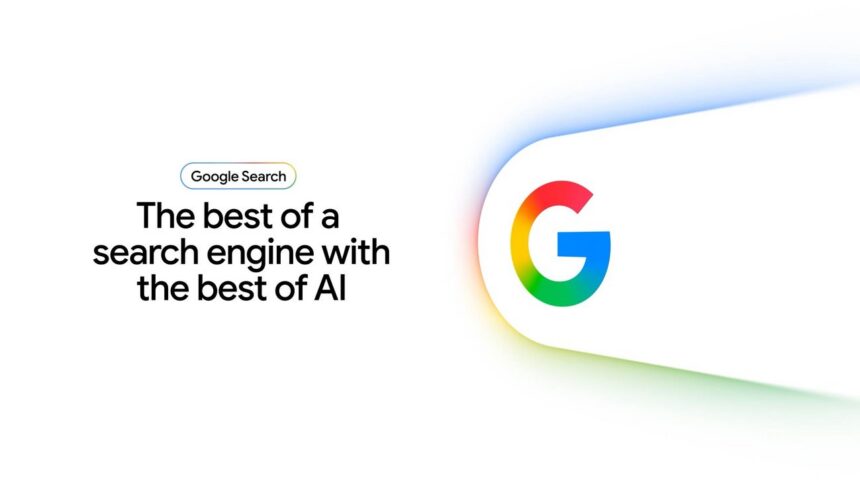
Google just did something it has not done in over 25 years — it completely redesigned the search box. The new experience is powered by Gemini 3.5 Flash, an AI model so fast it changed how Google Search works overnight. If you have heard about this on the news and are wondering what it actually means for you, you are in the right place.
In this guide, we will walk you through exactly how to use the new Google Search — step by step, no tech background needed.
What Is Gemini 3.5 Flash? (The AI Behind Google’s New Search)
Gemini 3.5 Flash is Google’s newest AI model, built specifically for speed and efficiency. While the name sounds technical, the idea is simple: it is a brain that understands your questions, processes images and files, and gives you smart answers — all in a fraction of a second.
According to Google’s own benchmarks, Gemini 3.5 Flash generates output four times faster than comparable models. Meanwhile, it actually outperforms the previous flagship, Gemini 3.1 Pro, on several challenging tests including coding tasks, multimodal understanding, and multi-step workflows. Companies like Shopify, Salesforce, and Ramp are already using it to power their own AI features.
For you as a regular Google user, here is what matters: the search results you get are now smarter, more relevant, and delivered faster — all without you needing to understand a single thing about AI.
Why Google Chose 3.5 Flash for Search
Google needed a model that could handle billions of searches per day without slowing down. Gemini 3.5 Flash hits the sweet spot — fast enough for real-time responses, smart enough for complex questions, and efficient enough to scale globally. As Google VP of Search Liz Reid put it, this is the biggest upgrade to the iconic search box since its debut over 25 years ago.
What Changed? Understanding the New Google Search Box
Open google.com right now and you will notice the search box looks different. Here is what actually changed and why it matters.
The Expanding Search Box
First, the box is bigger and it grows as you type. In the old days, Google punished long queries by cutting them off. Now, the box actively encourages you to ask full questions. Want to type a three-sentence problem? Go for it — the box expands to fit your words.
Multimodal Inputs — Text, Images, PDFs, Videos, Chrome Tabs
This is the big one. Previously, uploading an image or file meant navigating away to Google Lens or a separate AI Mode interface. Now, you can drop images, PDFs, videos, and even content from open Chrome tabs directly into the main search box. No extra clicks, no switching tabs.
For example, you can snap a photo of a weird plant, drop it in the search box, and ask “What is this and how do I take care of it?” — all from the same place you normally type “weather today.”
AI-Powered Query Coaching
Autocomplete has been replaced by something much smarter. As you type, Google’s AI actually helps you formulate a better question. Instead of just predicting the next word, it suggests fuller, more specific queries that get you better answers. Think of it as a friendly nudge toward asking exactly what you mean.
Want to see the visual changes up close? Check out our breakdown of what actually changed in the Google Search redesign — we cover every UI difference with screenshots.
AI Mode vs AI Overviews: What’s the Difference Now?
If you have been using Google Search over the past year, you might remember two separate AI features: AI Overviews (the summary panels at the top of results) and AI Mode (a deeper conversational search experience). Well, Google just merged them into one seamless flow.
Here is what that means for you in plain English:
- You no longer have to choose between traditional results and AI-powered answers. It is one experience now.
- Type a question and you get an AI Overview with supporting links alongside regular search results.
- Ask a follow-up question and the conversation flows naturally into a deeper AI Mode chat — no page reload, no interface switch.
- Your context carries through the entire conversation, so follow-up questions actually make sense.
AI Mode hit one billion monthly users in its first year, and AI Overviews reach over 2.5 billion people. Now those experiences are combined, and it is available worldwide on both mobile and desktop as of May 2026.
How to Use the New Google Search: Step-by-Step
Ready to try it yourself? Here is exactly what to do.
Step 1 — Open Google and Type a Question
Go to google.com. You will notice the search box is larger than before. Type your question naturally — full sentences work great here. For example: “What is the best way to learn guitar as a complete beginner in 2026?”
The box will expand as you type, so do not worry about running out of space.
Step 2 — Use AI Suggestions to Refine Your Query
As you start typing, Google’s AI coaching will suggest better, more specific versions of your question. You can click a suggestion to accept it or keep typing your own. Either way, this feature helps you ask the kind of question that gets the best answer.
Step 3 — Upload an Image or File Directly
Click the upload icon in the search box (or drag and drop). You can add photos, PDFs, documents, or videos. You can also drag content from an open Chrome tab straight into the box.
Pro tip: Combine text with an image for the best results. Upload a photo of your garden and type “How do I fix these yellow spots on my tomato plants?”
Step 4 — Continue with AI Mode Follow-Up Questions
After you hit search, you will see an AI Overview at the top with a conversational summary plus regular search results below. Click into the AI Overview to ask a follow-up — like “Can I use coffee grounds as fertilizer instead?” The conversation flows naturally, and the supporting links update to match your specific questions.
Step 5 — Use Gemini Spark for Ongoing Tasks
For more complex, ongoing tasks, Gemini Spark acts as your always-on AI assistant. Powered by the same Gemini 3.5 Flash model, Spark can help you manage tasks, monitor information, and take actions on your behalf over time. It is currently rolling out in beta for Google AI Ultra subscribers.
Curious about Spark’s full capabilities? Read our complete beginner guide to Gemini Spark to see everything it can do.
Gemini Spark: Your 24/7 AI Agent in Google Search
Gemini Spark deserves a closer look because it represents where Google Search is heading. Unlike the standard search experience, Spark runs on dedicated virtual machines in Google Cloud, available around the clock.
Think of it as an always-on assistant that can handle tasks like monitoring apartment listings, tracking sneaker drops, or watching market movements — and it alerts you when conditions you set are met. Google calls these “information agents,” and they are launching first for AI Pro and Ultra subscribers this summer.
For everyday users, Spark means Google Search is no longer just a question-and-answer tool. It is becoming a proactive assistant that works in the background while you live your life.
Want the full review? Check out our Gemini Spark review for a deeper look at whether it is worth using.
Why This Matters for Beginners
Here is the bottom line: you do not need to be a tech person to benefit from any of this.
The new Google Search saves time because you get better answers on the first try. Instead of clicking through three links and piecing together information yourself, the AI Overview gives you a clear, structured answer right away. Follow-up questions let you dig deeper without starting over.
Uploading images and files directly into the search box means you no longer need separate tools for visual search, document analysis, or research. It all happens in one place — the same Google homepage you already use every day.
And the best part? The core experience is completely free. Gemini 3.5 Flash powers the new search for everyone at no cost. Advanced features like information agents and custom mini-apps are reserved for paid tiers, but the everyday search improvements are available to all.
Frequently Asked Questions
Is Gemini 3.5 Flash search free?
Yes. The new search experience powered by Gemini 3.5 Flash is free and available wherever AI Mode is offered. Advanced features like information agents and custom mini-apps require a Google AI Pro or Ultra subscription, but the core search upgrades — AI Overviews, AI Mode, the new search box, and multimodal inputs — are available at no cost.
Do I need a Google account?
No Google account is required for basic search. However, connecting your Gmail, Google Photos, and Google Calendar unlocks “Personal Intelligence” features that give you more personalized results. You choose exactly what to connect, and it is available in nearly 200 countries and 98 languages.
What happened to the old search box?
The old search box is gone — replaced by the new, larger, expanding version. Traditional blue-link results still appear alongside AI Overviews, so the familiar Google experience is still there. It is just enhanced, not replaced.
Final Thoughts
Google Search has been the gateway to the internet for over two decades, and for the first time in 25 years, the front door looks completely different. The good news? It is easier to use, not harder. Gemini 3.5 Flash makes search smarter without making it more complicated.
Try it right now: Open google.com, type a full question, and see how the new AI Overview answers it. Or better yet, upload a photo and ask Google to tell you something about it.
Want more beginner-friendly AI guides? Check out our OpenRouter tutorial for beginners to learn how to access dozens of AI models from one dashboard — no coding required.