
You’re already paying for Gemini, and you’re still typing the same three prompts every morning like it’s a chore. Meanwhile, Gemini automations can check your inbox, track any topic you follow, and even reorder your coffee while you do actual work. Most people never open the one settings page that makes this happen.
What Gemini automations actually are
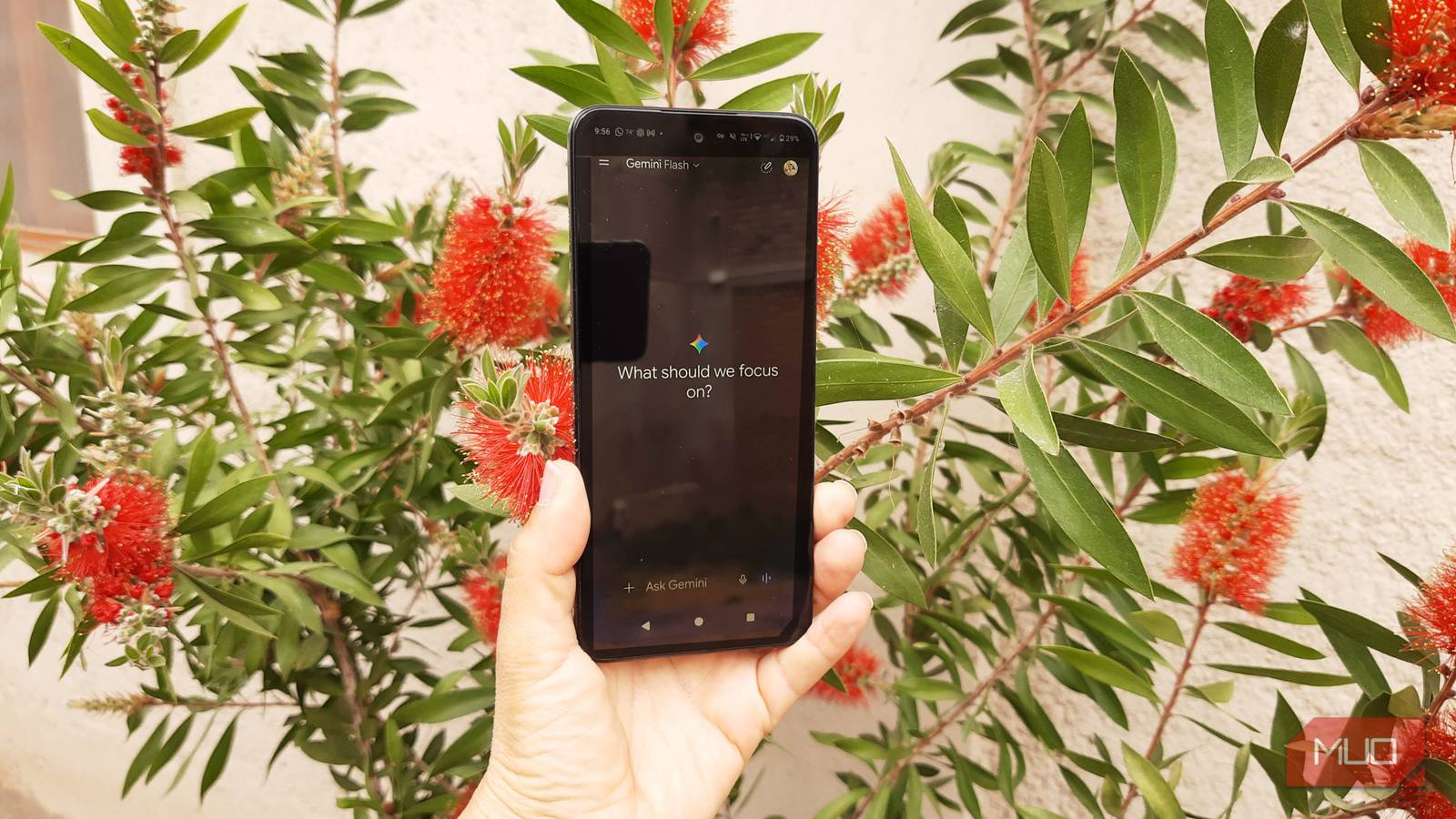
Gemini automations are built on a feature Google calls Scheduled Actions. You give Gemini a prompt and a schedule, and it runs that prompt without you opening the app. When the result is ready, you get a notification, and the full answer is waiting in a dedicated chat.
The idea is simple: anything you ask Gemini repeatedly should run itself. Weather plus outfit ideas every morning. A weekly rollup of new restaurants near you. A daily digest of your calendar, to-do list, and emails. Google’s own help page lists all of these as intended uses, and the official support page has the full setup details if you want the deep version.
Setup in two minutes
- Open the Gemini app or gemini.google.com.
- Type what you want and when it should run. Be specific: “Every weekday at 8 a.m., check my inbox and flag anything that needs a reply.”
- Submit and read Gemini’s reply. It repeats the schedule back so you can catch mistakes.
- Allow notifications when asked. Without them you’ll never see the results arrive.
- Manage everything later under your profile picture, then Scheduled actions.
Two rules before you start. First, Web & App Activity has to be on, or the whole feature stays hidden. Second, phones want a paid plan: Google AI Pro or Ultra. On the web, free accounts can create scheduled actions too, though Gemini prepares those results hours ahead instead of within the hour of delivery.
1. The morning briefing that replaces three apps
This one checks Gmail, Calendar, and Tasks every morning, then hands you a single summary instead of three apps’ worth of anxiety. When MakeUseOf tested it, Gemini reported no appointments, no unread emails needing replies, and zero drama, all before the first coffee. The result shows up as a phone notification, and tapping it opens the exact chat where the automation lives.
Here’s the part that makes it sticky. Under the summary, Gemini suggests follow-up prompts, like reading through the flagged emails or drafting replies. So the briefing doesn’t just inform you, it offers to do the next step.
If you’d rather talk to your inbox, we already covered Gemini’s voice control for Gmail, and it pairs nicely with this briefing.
Prompt to steal: “Every morning at 7:30, check my Gmail, Google Calendar, and Tasks. Summarize appointments, deadlines, and any email I should answer today. Keep it under 150 words.”
2. Topic tracking that catches news before you do
Tell Gemini to follow a topic and report back daily, and it behaves like a tiny news service with your name on it. In MakeUseOf’s test, it surfaced two stories the author hadn’t seen yet, including Google rolling out Skills, the feature that will eventually replace Gems. That’s the whole value proposition: the update finds you.
We broke down how to build your Gemini skills before Gems disappear, so that story has a follow-up attached if you want to act on it.
Prompt to steal: “Every day at 8 a.m., find the latest news from the past 24 hours about [your topic]. Stick to credible sources. Break it into three sections: what changed, who it affects, and why it matters. If you can’t confirm something, say so instead of guessing.”
That last line matters. Gemini still hallucinates, and a daily digest delivered with total confidence is exactly where invented details hurt. Telling it to flag uncertainty costs nothing and saves you from repeating nonsense at lunch.
3. Daily Brief, the automatic one you can’t customize
Daily Brief is different: Google generates it automatically once a day, no setup required. It opens with a section called Top of mind, which surfaces calendar conflicts, forgotten deadlines, and emails worth a look. Then comes Looking ahead, which is honestly the surprising part, since it picks up projects you’ve been working on and suggests next steps with real context, like project names and dates.
The catch is availability. It’s US-only for now, English only, adults only, and it needs a Google AI Plus, Pro, or Ultra plan. It also runs once per day, so anything that happens after your brief waits until tomorrow. And since Google has been trimming what free accounts get, check what the Gemini free tier changes already took away. If you don’t see Daily Brief yet, that’s the rollout, not you.
4. The weekend planner that does the boring searching
Ask Gemini to find three recently opened places in a specific neighborhood, mixing cafes, restaurants, and anything culturally interesting, and you get a weekend shortlist with websites and opening hours attached. MakeUseOf’s run surfaced three spots in Echo Park, plus follow-up prompts for building a full itinerary around them.
The trick that makes this trustworthy is one line: don’t guess if you can’t confirm the details. Gemini will still happily invent a plausible-sounding cafe, so make the prompt forbid it. You’ll double-check before driving anywhere anyway, but skipping the first 20 minutes of tab-hopping is the actual win here.
5. Screen automation, the beta that runs your other apps
This is the wildest one. Screen automation lets Gemini physically tap through other apps on your phone. In testing on a Galaxy S26 Ultra, MakeUseOf had it reorder a Starbucks drink: a Venti iced coffee, light ice, a splash of half-and-half, three pumps of classic syrup. Gemini found the previous order, rebuilt it, and stopped at a review screen showing $5.25, right before placing it.
Two controls stay on screen the whole time: Take over and Stop task. So when the robot hands wander somewhere you didn’t ask, you’re one tap from a leash. It’s still beta, and it only works on certain hardware, like the Galaxy S26 series, the Z Flip 8, and Pixel 10 models and up. Food orders, groceries, and ride booking are the intended use cases.
The five Gemini automations side by side
| Automation | What it does | Where it runs | What it needs |
|---|---|---|---|
| Morning briefing | Daily digest of Gmail, Calendar, and Tasks | Any Gemini app | Scheduled action, connected Google apps |
| Topic tracking | Daily news roundup on any subject | Any Gemini app | Scheduled action with credible-source prompt |
| Daily Brief | Auto morning digest with suggested next steps | Gemini mobile, US only | AI Plus, Pro or Ultra plan, English, 18+ |
| Weekend planner | Fresh local spots with hours and links | Any Gemini app | Scheduled action, location services on |
| Screen automation | Taps through apps like Starbucks or a rideshare | Galaxy S26, Z Flip 8, Pixel 10+ | Beta, supported phone |
The limits nobody mentions
Gemini automations have real limits, and you should know them before your first one quietly ghosts you.
- Ten active scheduled actions max per account. That’s plenty, but delete the ones you stop reading.
- Results are prepared in advance, so don’t ask for stock prices or anything that changes by the minute. Daily summaries and wrap-ups are the sweet spot.
- Location gets locked in when you create the action. Traveling? Create a new one or edit the location.
- Apps have to be connected first. If the action needs Gmail and it isn’t linked, Gemini will ask you to connect it.
- Ignore an action long enough and Google turns it off automatically. You can flip it back on in settings.
There’s a ceiling here too. This is prompt scheduling, not a full automation platform. If you want multi-app chains with conditions and filters, that’s Zapier territory, and our walkthrough on how to automate ChatGPT with Zapier transfers almost one to one.
Which one to set up first
Clear winner: the morning briefing. It asks for the least trust, since it’s reading your own calendar instead of predicting the future, it saves the most time, and it teaches you how scheduled actions behave before you hand Gemini anything riskier. Topic tracking is the right second pick. Screen automation is the toy you try last, when you have time to watch it work.
Set one up tonight
Open Gemini, paste the morning briefing prompt, and pick a time you actually check your phone. Tomorrow you get a notification instead of a to-do list. That’s the whole pitch: Gemini automations turn two minutes of setup into a quieter morning, and the first one is the hardest.