
There’s a stranger photobombing your beach photo and you want them gone. Apple’s AI can do that now, better than ever. The catch: the iOS 27 Clean Up tool hides behind three new modes, and picking the wrong one leaves you with a mushy mess where the stranger used to be.
What you need before you start
Quick checklist first, because nothing works without these.
You need a phone running iOS 27, with Apple Intelligence turned on. That combo requires an iPhone 15 Pro or newer, so older phones sit this one out no matter what. Apple lists the full hardware requirements on its iOS page. If you haven’t enabled Apple Intelligence yet, open Settings, tap Apple Intelligence and Siri, and flip it on. The first-time setup downloads some AI models to your phone, so maybe don’t start it on airplane mode.
Got all that? Good. Open the Photos app and pick a photo with something in it you’d happily delete. An ex, a stranger, a trash can, whatever. That’s your test subject.
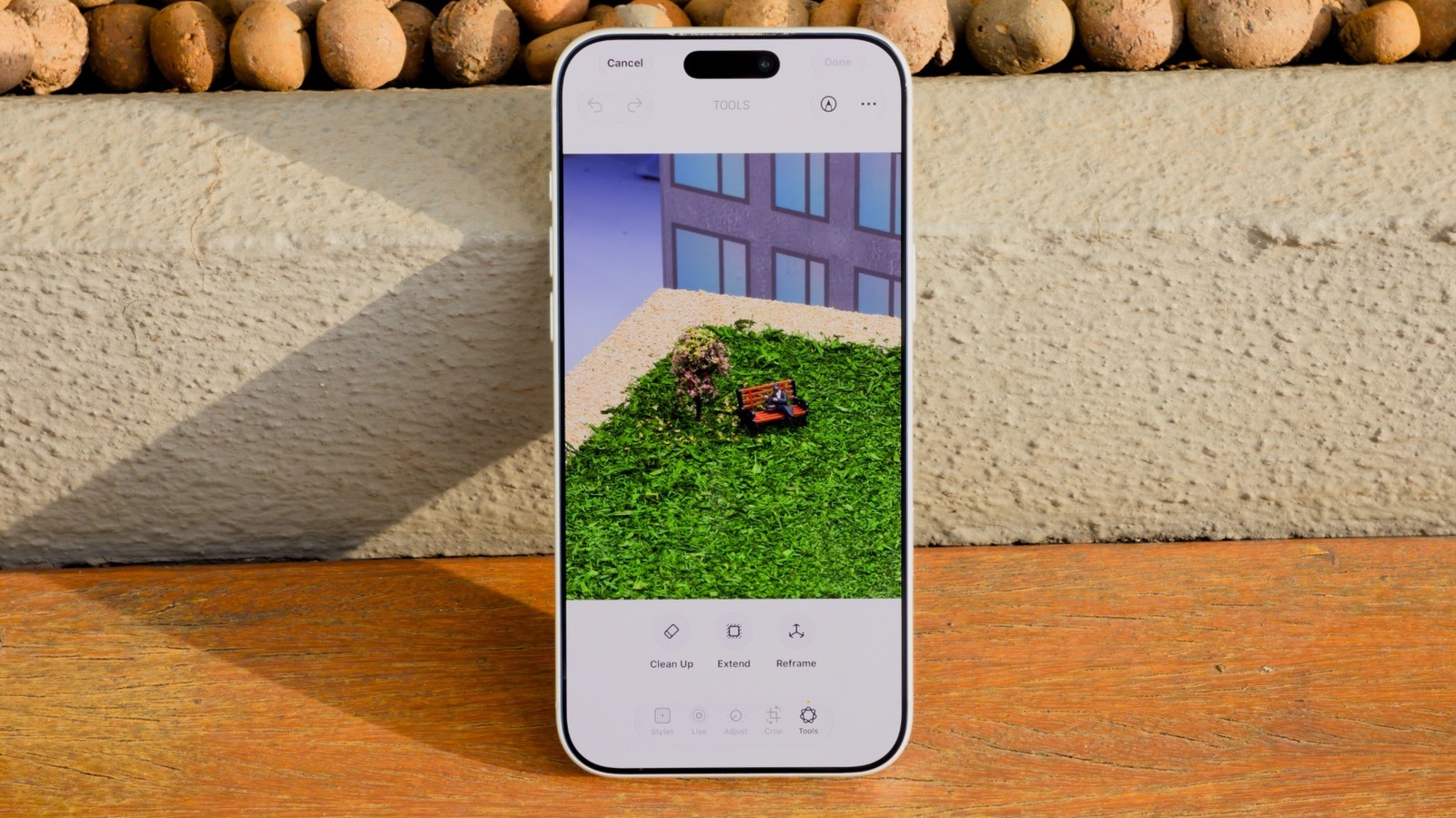
How to use the iOS 27 Clean Up tool
Apple didn’t exactly advertise where they put this thing. Here’s the path:
- Open your photo in the Photos app.
- Tap Edit at the bottom of the screen.
- Tap Tools in the menu that appears.
- Select Clean Up.
Now look at the top of the screen. There’s an Auto button. Tap it and you’ll see the real choices hiding underneath: Auto, Fast, and High Quality. This is the part nobody tells you about, and it changes everything about how your edit turns out.
To remove something, just brush your finger over it. The tool also tries to detect removable objects automatically and highlight them, which works fine sometimes. Honestly, though, it’s more reliable to circle the thing yourself. Draw around the object you want gone, lift your finger, and watch it disappear.
Auto, Fast, or High Quality: which mode wins
Here’s the actual decision you’re making every time.
Auto (the default) lets your phone decide. It looks at how complex the edit is and picks between the other two modes. For most quick edits, leaving it on Auto is fine and you’ll never think about it again.
Fast uses a smaller AI model. It’s quick and easy on your battery. Where it shines: simple stuff, like a trash can in the corner of a landscape, a wire stretching across a streetlight, or a wrapper on the ground. Straightforward objects on fairly plain backgrounds are its comfort zone.
High Quality uses bigger, smarter models that understand the image better. This is where the iOS 27 Clean Up tool does its best work: photobombers standing behind you in a selfie, people crossing a crowded background, anything with lots going on around the object you’re removing. The tradeoff: it takes longer and burns more battery. Worth it when the edit actually matters.
The one-line rule of thumb. Simple background, small object, Fast. Busy scene, people, or anything you plan to post, High Quality. Doubting yourself, let Auto drive.
When Clean Up gets it wrong
Let’s set expectations, because Apple’s version of this tool has a history of being the weakest link.
Even with the iOS 27 Clean Up tool, automatic detection misses things. The tool will cheerfully highlight a lamppost while ignoring the person standing next to it. Don’t fight it. Just draw your own circle over whatever you actually want gone, with a tighter outline than feels necessary. Big sloppy selections catch background texture the AI then has to invent, and that’s where weird smears come from.
Results also depend on what’s behind the object. Removing a person standing in front of waves? The AI just paints more waves, and it looks great. Removing a sign in front of a complex brick pattern? The AI has to rebuild every brick, and it might get squishy. Complex patterns behind the removal zone are where artifacts live.
If a result looks off, undo it and try again with a different selection. Second attempts often beat the first one.
Extend and Reframe: the new photo tricks
While you’re in there, iOS 27 shipped two more AI tricks worth knowing. Both live in the same edit menu.
Extend fixes the photo that’s too zoomed in. Say your selfie crops half your friend out. Pinch to zoom out on the photo and AI generates more image around the edges, filling in the scene so it looks natural. It takes a little while to process, which is normal, so give it a beat.
Reframe changes the angle. Shot the photo and you were looking slightly away from the camera? Reframe adjusts the perspective as if it was taken from a different spot. And here’s my honest take: it’s wild when it works and deeply weird when it doesn’t. Sometimes the result looks completely natural. Other times the AI hallucinates details (or people) that were never there, and you end up with a photo of a moment that didn’t quite happen. Try it, judge each result with your own eyes, and keep the original.
If you’re comparing phones in this space, we’ve covered how Google Pixel’s AI photo features rank, plus a look at Qwen Image 2.1 if you want free AI image editing beyond your phone. Apple’s not the only game in town, but the fact that this lives in your default Photos app, on-device, is the real advantage here.
One more thing worth trying: pair this with the AI features elsewhere in iOS 27, like running ChatGPT or Claude through Siri. The phone’s quietly turning into a real AI toolkit.
The takeaway
The iOS 27 Clean Up tool finally works the way Apple always promised: circle the photobomber, pick the right mode, done. Open Photos, tap Edit, then Tools, then Clean Up, and start with Fast for simple stuff and High Quality for the photos you care about. And give Extend a shot on your too-close selfies. Worst case, you undo it.