


How to Use Google’s New AI Search Box (Step-by-Step Guide)
Google just changed the way 2.5 billion people search the web. For the first time in 25 years, the familiar search box you’ve used every day looks completely different — and it can do things the old one never could. Here’s exactly what changed and how to use it right now.
Why This Matters
If you’ve ever typed a long, specific question into Google and gotten garbage results, you’re not alone. The old search box was designed for short keywords like “pizza near me” or “weather today.” However, when you need real answers to complex questions — like comparing products, understanding a document, or planning a trip — the old setup fell flat.
Meanwhile, AI tools like ChatGPT and Perplexity started eating into Google’s territory by letting people ask questions in plain English and get actual answers. As a result, Google’s response is the biggest search redesign in a quarter century, and it brings AI directly into the box you already know.
What’s New in the Redesigned Search Box
Google announced these changes at I/O 2026 on May 19. Most features are already rolling out worldwide. Here are the five biggest changes:
1. The Search Box Now Expands for Longer Questions
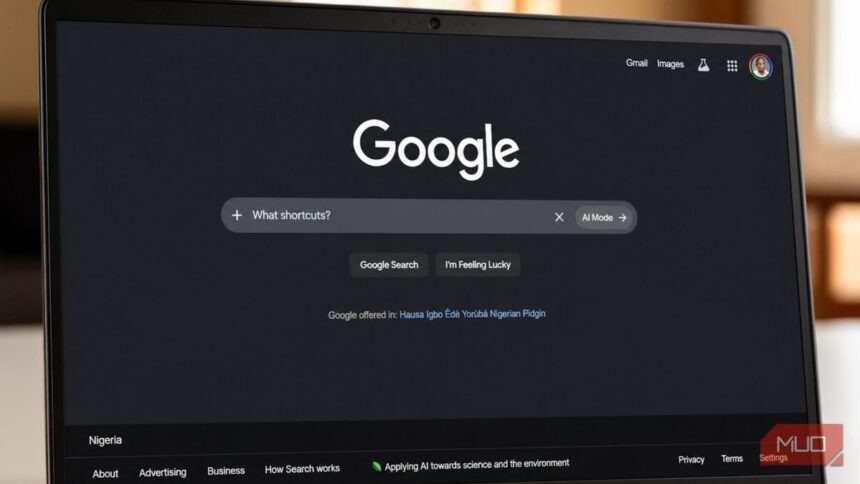
Instead of a narrow rectangle that truncates your query, the box dynamically expands as you type. This means you can ask full, detailed questions without running out of space. Consequently, Google encourages you to articulate exactly what you need — which gets you better answers.
2. Upload Images, PDFs, and Videos Directly
You can now drop images, PDFs, files, and videos straight into the search box. Previously, uploading an image required navigating to Google Lens separately. Now, however, it’s built right into the main search entry point.
3. Drag Chrome Tabs Into the Search Box
This one’s a game-changer. For instance, if you’re looking at a product page and want to find it cheaper, simply drag the tab into the search box. Google will analyze the page content and search based on it. In other words, no copying URLs, no pasting, no extra steps.
4. AI-Powered Query Suggestions (Beyond Autocomplete)
Old autocomplete just predicted the next word. By contrast, the new system actually helps you formulate better questions. It suggests detailed, nuanced queries that lead to more useful answers — essentially coaching you into asking the right thing.
5. AI Overviews and AI Mode — Now One Seamless Experience
Google merged two separate AI features into a single flow. You type a question, get an AI summary with source links, and can continue asking follow-up questions — all without leaving the search page. For example, there’s no separate “AI Mode” button to click anymore.
How to Use the New AI Search Box: Step-by-Step
Ready to try it yourself? Here’s how to use each major feature.
Step 1: Type a Longer, More Natural Question
First, head to google.com on any device. Start typing your question in full sentences — don’t worry about keywords. The box expands to fit your text, and AI suggestions help you refine your question as you go. For instance, instead of typing “best laptop students 2026,” try “What’s the best laptop for a college student under $800 that can handle video editing?” As a result, you’ll get a detailed AI Overview with specific recommendations, followed by traditional search results.
Step 2: Upload an Image or File
Next, click the camera or upload icon inside the search box. Choose a photo, PDF, or video from your device, or just drag and drop a file onto the box. In addition, you can add a text question alongside your upload for extra context — for example, upload a photo of a plant and type “What is this and how do I care for it?” Google’s AI will then analyze your file and provide a detailed answer, not just visually similar images.
Step 3: Use Follow-Up Questions with AI Mode
After getting your initial results, look for the conversational input field below the AI Overview. From there, type a follow-up question, and the AI remembers your original query. For example, search for “3-day Kyoto itinerary for foodies” and then follow up with “Which of those restaurants have vegetarian options?” Consequently, each follow-up drills deeper without starting over.
Step 4: Switch Between AI and Traditional Results
Finally, the AI Overview sits above traditional blue-link results. You can scroll past the AI summary to see standard results, or continue the AI conversation. On the other hand, use AI for complex questions and traditional results for simple lookups — it’s entirely your choice.
5 Practical Examples to Try Right Now
Identify Something from a Photo: Upload a picture of a broken appliance and ask “What’s wrong with this and how much will it cost to fix?” The AI analyzes the image and provides a diagnosis with cost estimates.
Get Help with a Homework Problem: Upload a photo of a math equation or paste the problem text. Then ask “Walk me through solving this step by step.” The AI breaks it down with explanations, not just the answer.
Compare Products Side-by-Side: Drag a product page tab into the search box and add “Find alternatives under $50.” As a result, Google analyzes the page and finds competing products with pricing.
Research a Complex Topic: Type a detailed question like “What’s the difference between a Roth IRA and a traditional IRA, and which one makes more sense if I expect my tax rate to be higher in retirement?” The AI Overview gives a comprehensive comparison with source links.
Plan a Trip Using Multiple Inputs: Upload a screenshot of your flight confirmation and ask “What are the best things to do near my hotel in Lisbon for 3 days?” Google combines the uploaded context with its knowledge to build a personalized plan.
AI Search vs. Traditional Search — When to Use Each
Both modes live on the same page now, and they serve different purposes. In general, here’s a simple rule of thumb: use AI search for questions that need understanding, and traditional search for things that need finding.
Use AI search when you have a complex question, need explanations, want to compare options, or are uploading a file for analysis. For example, “Explain quantum computing to a 12-year-old” is perfect for AI search.
In contrast, use traditional search when you’re looking for a specific website, want quick facts, or need the most recent news. For instance, “Wikipedia” or “CNN breaking news” still works better with traditional results.
In addition, if you’re a power user who values deep research with citations, Perplexity AI remains a strong alternative. However, for most beginners, Google’s new search box has the lowest barrier to entry since it’s already where you search.
What This Means for Content Creators (The “Google Zero” Effect)
Here’s the less cheerful side of the update. According to Pew Research, when people see an AI Overview, they’re half as likely to click any link. Moreover, some publishers have reported traffic drops of 30-40%, and at least one travel blog shut down after a 90% traffic decline.
Therefore, if you create content online, this matters. Google’s new search makes it easier for users to get answers without visiting your site. As a result, the best response is to focus on deep, original content that AI can’t easily summarize. Furthermore, build direct audiences through email lists and social media. In addition, optimize for being cited as an AI source — structured data and genuine expertise may become more valuable than ranking number one organically.
FAQ: Common Questions About Google’s AI Search Box
Is the new AI search box available in my country?
First, check whether your region already has access. It’s rolling out wherever AI Mode is currently available, which covers most major markets. In addition, Google is expanding access continuously, so check google.com to see if the new box appears for you.
Do I need to enable anything to use it?
No. If the new search box has rolled out to your region, it works automatically. In other words, there’s no opt-in or settings toggle needed.
What happened to the old Google search bar?
It’s been replaced by the new AI-powered version. However, the old keyword-style search still works — you can type short queries and get traditional results. As a result, the box itself has simply been upgraded.
Can I still get traditional blue link results?
Yes. AI Overviews appear above traditional results, but the familiar blue links are still there. For example, you can scroll past the AI summary anytime.
Is Google AI search free to use?
The core AI search experience is completely free. On the other hand, advanced features like Information Agents (24/7 web monitoring) require a Google AI Pro or Ultra subscription.
What’s the difference between AI Overviews and AI Mode?
They’ve been merged into one experience. Previously, AI Overviews used to appear as a summary card, while AI Mode was a separate conversational interface. Now, however, you get both from the same search box — type a question, see the summary, then continue the conversation.
What to Do Right Now
First, go to google.com and try typing a question you’d normally take to ChatGPT. Next, upload a photo of something you’re curious about. Then drag a product page tab into the search box and see what happens. Finally, the new search box is live right now, and getting comfortable with it today means you’ll search faster tomorrow.