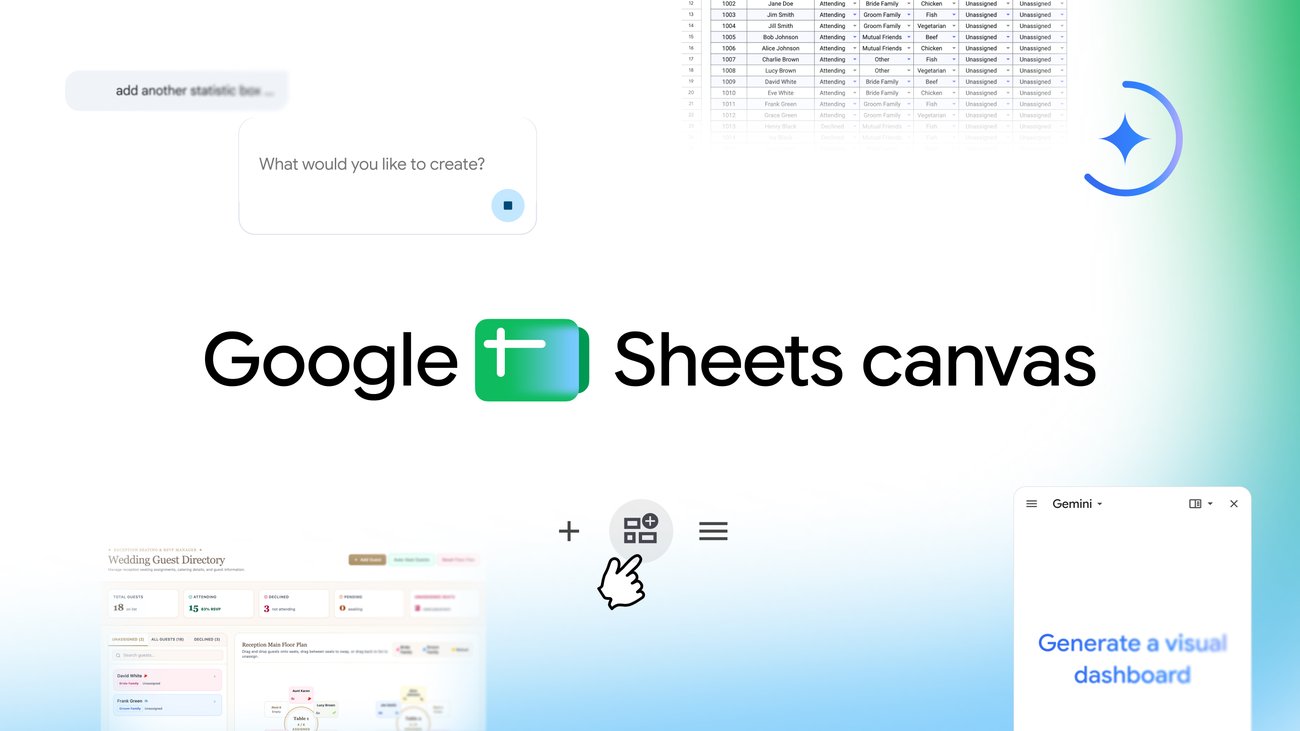

Every project tracker dies the same death: the spreadsheet gets so ugly that nobody updates it, and once nobody updates it, it stops being true. Google Sheets Canvas fixes that by turning your rows and columns into an actual app. Kanban board, dashboard, timeline. You describe it, Gemini builds it, and it stays synced to your data.
What Sheets Canvas actually is
Google Sheets Canvas is a Gemini-powered layer that sits on top of your spreadsheet. It’s not a separate app and it’s not an export. The thing it builds lives inside your sheet as an interactive view, and the connection runs both ways: drag a task card on your Kanban board and the underlying cell updates instantly, edit a cell and the board refreshes to match.
Because it lives in the sheet, it also inherits the sheet’s sharing. Share the file with your team and they see the canvas too. No new permissions to configure, no third-party tool to buy, nothing to install. Google runs this on Gemini 3.8 Flash, and you don’t touch a single formula to make any of it work.
One honest limitation up front: a canvas only reads data from one tab at a time. If your workbook is a maze of linked sheets, the canvas sees the tab you point it at. Plan accordingly.
Build your first canvas in 6 steps
You can build your first Google Sheets Canvas on your lunch break. The requirements are simple: Google Sheets on the web (not the mobile app), an account language set to English, and a plan that includes Gemini in Sheets. Google has the full walkthrough in its official Canvas guide, but here’s the short version:
- Open a spreadsheet that already has your data in it. Existing data works better than a blank sheet, because you’ll see immediately whether the canvas reads it correctly.
- Go to Insert > Create a canvas. You can also click Create canvas from the Gemini side panel, or use the Canvas menu in the bottom bar if one already exists.
- Describe what you want in plain English. Something like “turn this task list into a Kanban board grouped by status.” Write the prompt like you’d text a coworker, because that’s basically what you’re doing.
- Check the result against your actual data. Make sure the canvas grabbed the right columns and didn’t invent new ones. Gemini is good, not psychic.
- Refine it by asking for changes: make it dark mode, add a column for due dates, or show only this week’s tasks. Each prompt reshapes the canvas without breaking the link to your cells.
- Test the round trip. Change something in the canvas, then look at the grid. Change a cell, then look at the canvas. If both directions update, you’re done.
That last step matters more than it sounds. A canvas is a read-write interface, which means people can edit your data through it. If you only have view or comment access on a shared file, you can’t modify the canvas at all, so check what your teammates can actually do before this becomes your team’s system of record.
Who can actually get Canvas
Eligibility is the annoying part, so here it is straight. You need Gemini in Sheets, which means either a Workspace plan where the admin enabled Gemini or a personal Google AI subscription. Your account’s smart features have to be switched on, the feature runs in Sheets on the web only (no mobile), and Google applies per-user usage limits on creating and editing canvases.
If you don’t see a Gemini icon in the Sheets side panel, your plan or admin settings are the reason, not your typing skills. The quickest test: open any spreadsheet and check whether Insert > Create a canvas exists. It’s there if you’re eligible. Work and school accounts hit the most friction because admins control the switch; personal accounts on Google AI plans usually just have it.
6 mini-apps worth building first
Google’s own examples are genuinely useful, not demo-ware. Start with one of these:
| Mini-app | What it does | Best for |
|---|---|---|
| Kanban board | Tasks become draggable cards grouped by status; moving a card updates the row | Any task tracker that’s rotting in a sheet |
| Executive dashboard | Scorecards, trend lines, and filters on top of your metrics | Weekly numbers people actually read |
| Financial forecast | Adjust assumptions with sliders and watch scenarios update | Budgets and “what if” planning |
| Timeline / run-of-show | Events become a visual schedule you can drag to reschedule | Launches, conferences, weddings |
| 2×2 prioritization matrix | Plot items by effort and impact, drag them between quadrants | Backlog grooming without the meeting |
| Brainstorm whiteboard | Sticky notes with voting columns that sync back to rows | Collecting ideas from people who hate forms |
The Kanban board is the one I’d build first. Task trackers in spreadsheets always fail for the same reason: updating a row feels like work. Dragging a card from “In Progress” to “Done” takes half a second, and the underlying sheet stays perfectly accurate for whoever still lives in the grid view. Same data, two audiences, zero extra maintenance. It’s the clearest thing Google Sheets Canvas does well.
The dashboard is the sleeper hit, though. If you already track something like freelancing income or job applications in a sheet, a canvas dashboard turns it into something you’ll actually open on Monday morning. We compared a few ways to connect Google Sheets to ChatGPT last year, and Canvas beats all of them for pure readability, because there’s no middleware to maintain. The sheet itself becomes the app.
Where Canvas wins and where it doesn’t
Wins: speed, price (Google Sheets Canvas is included where you already have Gemini), collaboration, and the fact that non-technical teammates can use a dashboard without learning anything. For small teams, this replaces a surprising amount of “we should buy a tool for this.”
Doesn’t: giant datasets, exotic layouts, and anything needing multiple tabs. Google also warns that usage limits apply per user, so a whole department hammering one sheet all day might hit them. And test on a copy of a production spreadsheet before you trust it, because generated interfaces occasionally misread weird structures. That advice comes straight from enterprise IT coverage of the launch, and it’s correct. People who’ve tried building mini-apps with Claude already know this pattern: AI gives you an 80-point interface in seconds, and the last 20 points come from you checking it against reality.
There’s also a philosophical point worth making. Tools like Zapier Tables exist because spreadsheets make bad databases, and we’ve covered that whole debate before. Canvas doesn’t settle it. What it does is make the spreadsheet tolerable as an interface for people who never wanted to see a grid in the first place. Your data stays where it was; the humans get something nicer to look at.
Give it a boring spreadsheet first
Don’t start with your most important workbook. Pick something low-stakes: a personal budget, a content calendar, a fitness log. Build one canvas, break it, rebuild it, and see how the sync behaves. Ten minutes of practice on a throwaway sheet teaches you more than any tutorial, this one included.
Takeaway: Open a spreadsheet you already use, click Insert > Create a canvas, and ask for a Kanban board. If the round-trip sync works on your data, you’ve just deleted a task-management app from your life for free.