
There’s a photo editor hiding in your right-click menu, and you’ve been paying for one instead. Windows 11 AI actions put background removal, object erasing, and visual search one click from any image on your PC. No download, no subscription, no new app to learn.
What AI actions actually are
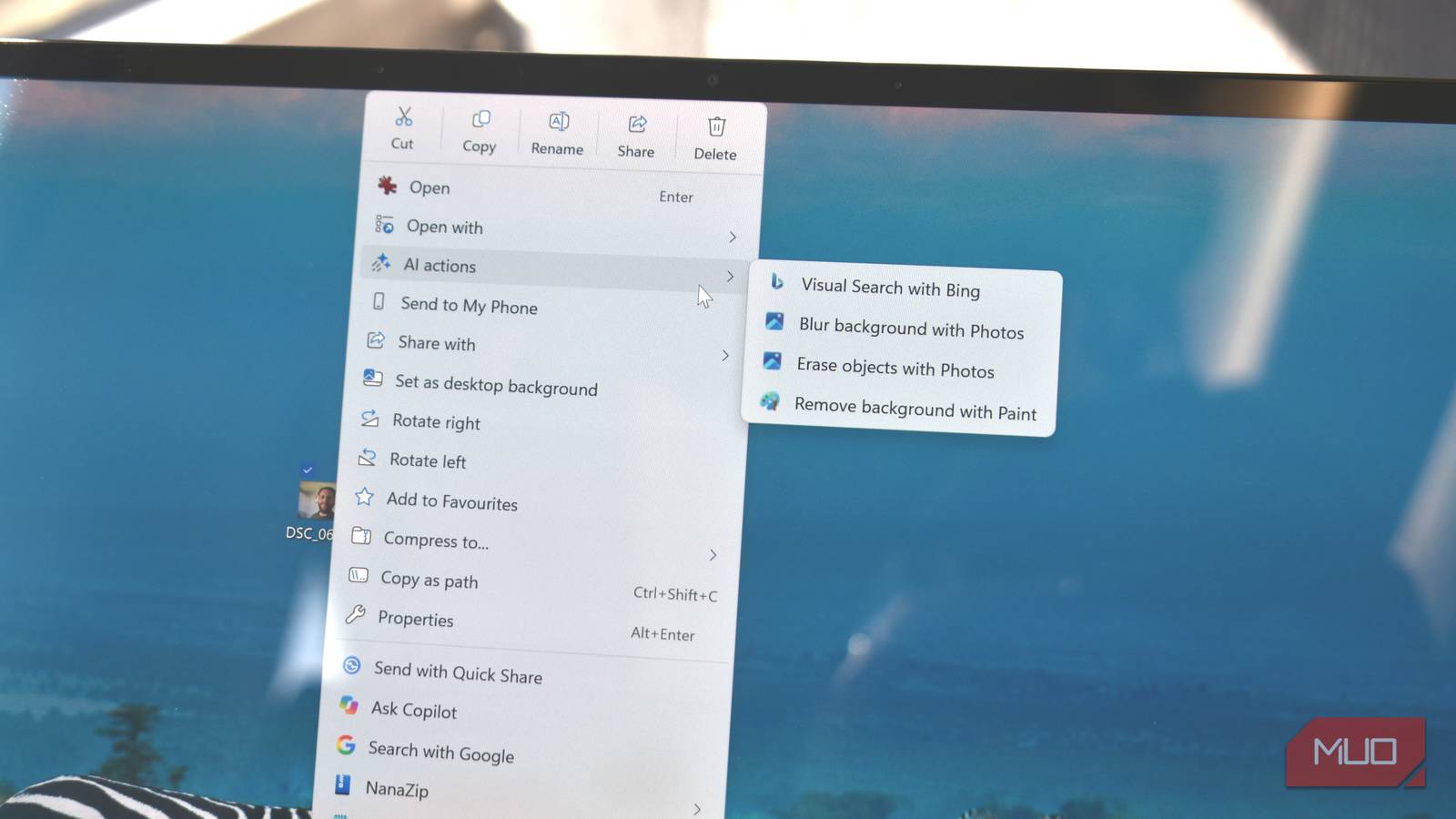
Right-click any JPG, PNG, or JPEG in File Explorer and look for the AI actions entry in the menu. Depending on your Windows 11 version, you’ll see a handful of options: visual search with Bing, blur background with Photos, erase objects with Photos, and remove background with Paint.
Here’s the thing people get wrong: these aren’t tools inside File Explorer itself. Each one is a launcher. Click one and Windows opens the right app, Edge, Photos, or Paint, preloaded with your image and the right tool already selected. You finish the edit there.
It’s a small distinction with a big consequence. The quality ceiling is whatever the underlying app can do, which means genuinely useful in some cases and mildly disappointing in others. We’ll get to that.
The four actions, ranked by usefulness
Remove background with Paint
The star of the menu. One click gets you a clean cutout of your subject with a transparent background, ready to save as a PNG. Product shots for a side hustle, a headshot for a slide deck, a meme template: done in seconds, free. Paint also added generative fill recently, so the humble editor is quietly becoming a real tool.
Blur background with Photos
Portrait-mode vibes for photos you took without portrait mode. The Photos app isolates your subject and softens everything behind it. It works well on people and pets, less well on busy scenes where the subject blends into the background.
Erase objects with Photos
The generative erase brush lives here. Circle the trash can photobombing your beach shot and Photos fills the hole. When it works, it’s magic. MakeUseOf’s hands-on found the limits fast: complex removals can leave a blurred mush where the object used to be. Small objects off simple backgrounds: great. Your ex out of a crowd at golden hour: maybe not.
Visual search with Bing
Right-click a picture of a chair, find that chair. Or a landmark, a product, a plant you can’t name. Bing’s visual search handles product and place recognition well, and it even reads text and math in screenshots sometimes. It opens results in Edge, so budget for a browser tab or five.
How to use Windows 11 AI actions, step by step
The whole flow takes about ten seconds once you’ve done it once.
Open File Explorer and find your image. Right-click the file, hover over AI actions, and pick the action you want. The matching app opens with your photo loaded. Finish the edit and save, and Paint keeps transparency if you export as PNG.
No settings to enable on current builds. If the menu entry is missing, run Windows Update, because the actions ship through the standard update channel, and older 23H2 installs may not have them yet.
When to skip the built-in stuff
Being honest about the ceiling. If you need layer masks, batch editing of 200 product photos, or pixel-level control, a dedicated tool still wins. We compared the free PhotoCraft Photoshop clone for heavier editing, and Rembrandt covers the photo-tuning side if you want Lightroom-style adjustments without the subscription.
The right frame: Windows 11 AI actions are for the five-second fixes that used to justify opening a big app. Cut out a logo. Soften a background. Identify a lamp. For that tier of task, the right-click menu beats everything on speed.
And if the whole idea of AI in your context menu annoys you, Microsoft lets you turn it off without Registry surgery. Settings has a toggle for AI actions, so purists can declutter in a minute. That’s more than can be said for some of Microsoft’s other additions, a frustration anyone who read our piece on ChatGPT ad targeting will recognize: companies keep deciding how much AI you get, and you keep renegotiating it back.
A few extras worth knowing
Click to Do extends the same idea beyond File Explorer. Press Windows key and click anywhere on screen, and you get a context menu for what you’re looking at: blur a background, copy text, run a visual search. It’s the same muscle, applied to your whole desktop.
Document summarization is appearing in the same menu for some file types, pointing at Copilot. Expect that side to grow faster than the image side, since Microsoft wants Copilot in every corner of the OS. Image actions, though, run locally or in the existing apps, so they don’t ask for a subscription today.
The realistic caution: results vary by hardware. Some features target Copilot Plus PCs with neural processing units, while the basic right-click actions run on ordinary machines. If something’s missing on yours, it’s probably a hardware gate, not a bug in your install.
More is coming, too. Microsoft has said future updates will bring AI actions for third-party apps, with Zoom and Manus-style integrations mentioned, so expect the submenu to grow beyond image files. Whether that turns out to be convenient or clutter depends entirely on how much control you keep over the menu. For now, at least, the image tools that shipped are free, local, and surprisingly practical.
A real workflow: sell your old stuff faster
Here’s where this clicks for anyone trying to make a few bucks. Say you’re listing an old monitor on a marketplace. Right-click the photo of it and run visual search with Bing first: you’ll confirm the exact model and see what it sells for new, which anchors your asking price. Then run remove background with Paint, and your listing photo goes from messy-desk shot to clean product cutout.
Two right-clicks, maybe forty seconds total, and the listing looks like a store did it. Multiply that across a garage full of stuff and the feature starts paying for your time immediately. It’s the same play as the free-image workflow we described in our Google Sheets Canvas guide: small automations, stacked, that replace chores you used to dread.
Windows 11 AI actions vs the paid stuff
Where does this land against tools you’d actually pay for? Roughly like this:
| Task | Windows 11 AI actions | Paid editor |
|---|---|---|
| Remove a background | One click, great for simple subjects | Better edges, batch processing |
| Erase an object | Hit or miss on complex scenes | Consistent, controllable results |
| Blur a background | Good on people and pets | Fine depth control |
| Visual search | Surprisingly solid via Bing | Not even offered |
| Cost | Free with Windows | $10 to $23 per month |
For quick jobs, the free route wins before the paid app even finishes launching. For client work, keep the subscription.
Try it before you laugh at it
Pick an image, any image, right now. Right-click it and take the remove background option for a spin, and see how Windows 11 AI actions handle your messiest photo. That’s the fastest way to find out whether this replaces the free web tool you currently paste photos into. Most people will keep one paid editor for serious work, and never open it for the small jobs again.